Focus app for coding on Mac: build a protected developer lane
Focus app for coding on Mac: block feeds, video and chat during a session while your editor, terminal, docs and GitHub stay open. Setup, picks and FAQ.
Quick answer
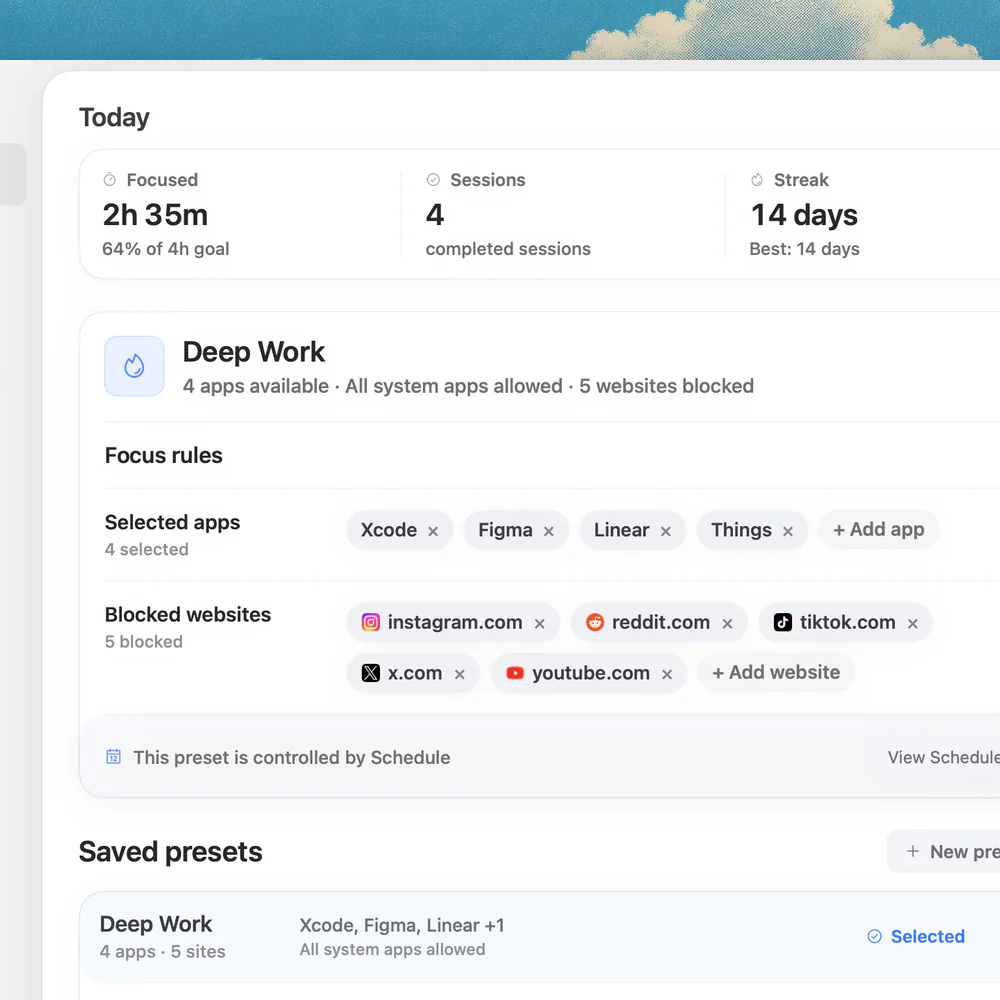
The best focus app for coding on a Mac is Nudge: save a coding preset that blocks feeds, video and chat apps, start it from the menu bar, and keep your editor, Terminal, docs and GitHub untouched. It costs $9.99 once, after a 7-day free trial. A coding focus app should not block the web; it should block the drift web and leave the work web open. Cold Turkey is the pick for a harder lock, SelfControl for a free website-only block.
How do these apps compare?
Protect coding focus without blocking the tools developers legitimately need.
Which tool should you pick?
Keep open
Editor + Terminal
The core work surface is never on the block list.
Keep open
Docs + GitHub
References, issues, and code hosting are part of coding.
Block
Feeds + video
These are usually not required once the task starts.
The apps in detail
 $9.99 once
1. Focus protection
Nudge
Best for: Coding presets
- Choose it if
- You want app and website blocking in one session.
- Skip it if
- You only need analytics.
 Free, Pro $45 once
2. Blocking
Cold Turkey
Best for: Strict coding blocks
- Choose it if
- You need hard blocks around distracting apps and sites.
- Skip it if
- You want flexible task lanes.
 Free
Free3. Website blocking
SelfControl
Best for: Website-only coding blocks
- Choose it if
- Your only issue is a few distracting domains.
- Skip it if
- App switching is the problem.
4. Launcher
Raycast
Best for: Command speed
- Choose it if
- You want fast snippets, commands, and app actions.
- Skip it if
- You need blocking.
 30-day trial, from $9/mo billed annually
5. Time analytics
Timing
Best for: Coding activity review
- Choose it if
- You want to understand coding time after the fact.
- Skip it if
- You need active guardrails.
Do not block developer references
Developers need documentation, package registries, GitHub, issue trackers, local previews, and search. A focus setup that blocks all browser use will fail during real debugging.
The better setup is a precise block list: entertainment and feeds go on it, work references stay open.
Create separate coding and admin presets
A coding preset can block mail and chat. An admin preset can leave them open. Mixing both into one preset makes rules either too strict or too weak.
Nudge works well here because presets can represent the actual job, not just a generic focus label. To block Discord, Slack or a game on top of websites, see how to block apps on a Mac. For short timed starts before a long block, the free online Pomodoro timer works in any browser.
Use the end of the block as cleanup
When the focus block ends, leave notes for the next session: open issue, failing command, next test, or exact file. A focus app protects the middle; a short review protects the restart.
What a coding preset blocks
A useful coding preset usually blocks social feeds, video platforms, shopping, general news, sports, personal forums, and non-essential chat. GitHub or GitLab, documentation sites, package registries, Stack Overflow or equivalent Q&A, cloud consoles, local preview URLs, issue trackers, design references, and internal docs stay open.
Do not copy this list blindly. Build your first preset from one real project and tune it after three sessions.
Chat and email rules
The hardest choice is often chat. For deep implementation, block Slack, Discord, and Mail for a fixed window unless you are on-call. For review, support, or incident work, leave them open because they are part of the job. The preset should reflect the actual mode, not a fantasy version of work.
This is why coding and admin should be separate presets. One protects the model in your head. The other lets communication happen.
Use notes to preserve state
A focus app protects the session, but notes protect the restart. At the end of a coding block, write the next command, the failing test, the file to open, and the decision you just made. This makes it easier to return without spending the next block reconstructing context.
The combination of Nudge plus a small restart note is often more effective than another complex productivity dashboard.
Debugging mode vs building mode
Debugging and building need different web access. Debugging often needs search, logs, docs, issue trackers, and error references. Building often needs fewer sites once the plan is clear. If both modes share one preset, it will be too permissive for building or too restrictive for debugging.
Create a debugging preset with broader docs/search access and a building preset with only the project tools. This makes rules feel practical instead of moralistic.
On-call and incident exceptions
If you are on-call, do not block the tools required to respond. Incident work is a different mode: chat, monitoring, logs, cloud consoles, runbooks, and status pages may all be needed. The distraction risk is real, but missing an incident is worse.
Use a dedicated incident preset rather than weakening every coding preset.
Pair focus with version control hygiene
A protected coding block is more useful when the codebase has a clean checkpoint. Start from a clear branch, know the failing test or target file, and commit small completed slices. That makes the end of the session easier and reduces the urge to keep going in a tired state.
Focus tools protect attention; engineering hygiene protects the work product.
Measure output, not purity
A coding session is successful if it moves the codebase forward. It does not need to be perfectly silent or perfectly blocked. If you needed a docs search, that was work. If you opened a feed during a test run and lost the thread, that was the leak to fix.
Review sessions by output: tests passed, bug reproduced, branch cleaned, PR opened, or next action captured. The blocker is a support tool for that output.
This also keeps the setup from becoming performative. The goal is not a beautiful dashboard or a perfect streak. The goal is fewer broken mental models and more finished changes.
If the session produced a smaller diff, a clearer bug report, or a better next step, the focus setup did its job.
FAQ
What should a coding focus app block?
It should block the sites and apps that are not needed for the specific coding block. The editor, terminal, local preview, Git hosting, docs, package registries, issue tracker, and project notes stay open.
Should I block Stack Overflow or GitHub?
Usually no. Those are often work-critical. If a specific site becomes a distraction, use narrower rules rather than blocking core developer references.
How long should a coding focus session be?
Use 45 to 90 minutes for deep implementation and 25 to 45 minutes for review or bug triage. Very short blocks can work for starting, but complex debugging often needs longer uninterrupted time.
What is the best focus setup for coding on Mac?
Use a precise Nudge coding preset, a fast launcher like Raycast, stable window shortcuts, clipboard history, and a short end-of-session note. That covers both friction and attention.
Which app blocks distracting websites and apps while I code on a Mac?
Nudge blocks both in one session for $9.99 once. Cold Turkey Blocker Pro and Focus also block apps and websites with stricter locks. SelfControl is free but blocks websites only.
Nudge for Mac
Turn the guide into a focus session
Pick the apps and websites that pull you away and start the session from the menu bar. They stay blocked until it ends. $9.99 once after 7 days free, no card to start.
Download for macOS