How to block apps on a Mac (2026)
How to block apps on Mac with Screen Time App Limits, Downtime or an app blocker. Steps, what each method blocks, and how easy each is to undo.
Quick answer
To block apps on a Mac, the built-in route is Screen Time: open System Settings, click Screen Time, then App Limits, add the app and select Block at End of Limit. Add a Screen Time passcode so the block is harder to switch off. If you want chosen apps and websites blocked only while you work, use an app blocker such as Nudge, which blocks the apps and websites you pick during a focus session and lets them back in when it ends.
How do these apps compare?
Block distracting apps on a Mac and choose between Screen Time, Downtime and a dedicated app blocker by effort and by how easy each is to undo.
| App | Best for | Price | Website |
|---|---|---|---|
 NudgeTop pick NudgeTop pick | Blocking apps and websites during work sessions | $9.99 once | Get Nudge |
 Apple Screen Time Apple Screen Time | A free built-in block with a passcode | Free, built into macOS | Visit |
 Cold Turkey Cold Turkey | Strict blocking of apps, games and sites | Free, Pro $45 once | Visit |
 Focus Focus | A dedicated Mac app blocker | From $29 once | Visit |
 Freedom Freedom | Blocking on Mac and phone together | $8.99/mo or $99.50 lifetime (Oct deal) | Visit |
Which tool should you pick?
Best for work sessions
Nudge
Blocks the apps and websites you pick while a session runs, started from the menu bar.
Built in and free
Apple Screen Time
App Limits with Block at End of Limit, plus a passcode. No extra app.
Strict blocking
Cold Turkey
Blocks apps, games and websites, with locked modes for high friction.
Another Mac app blocker
Focus
A Mac app that blocks distracting apps and websites, with a 7-day free trial.
Mac and phone together
Freedom
The same blocklists across your Mac and your phone.
The apps in detail
- $9.99 once
1. App and website blocking
Nudge
Best for: Blocking apps and websites during work sessions
- Choose it if
- You want chosen apps and websites blocked while you work, and reachable again when the session ends.
- Skip it if
- You need to block apps on a phone too: Nudge is a Mac app, so look at Freedom, Opal or Session.
- Free, built into macOS
2. Usage limits
Apple Screen Time
Best for: A free built-in block with a passcode
- Choose it if
- You want a block from System Settings with no extra app and are happy with daily time limits.
- Skip it if
- You want the block tied to work sessions rather than to a daily time allowance.
- Free, Pro $45 once
3. App and website blocking
Cold Turkey
Best for: Strict blocking of apps, games and sites
- Choose it if
- You need high friction and a block that is hard to bypass.
- Skip it if
- You want a gentle session workflow from the menu bar.
- From $29 once
4. App and website blocking
Focus
Best for: A dedicated Mac app blocker
- Choose it if
- You want a separate Mac app to block distracting apps and websites and want to try it before buying.
- Skip it if
- You only want a free, built-in option.
- $8.99/mo or $99.50 lifetime (Oct deal)
5. App and website blocking
Freedom
Best for: Blocking on Mac and phone together
- Choose it if
- The same apps distract you on your Mac and your phone.
- Skip it if
- You only need a Mac-local tool for work sessions.
Which method should you use to block apps on a Mac?
Use Screen Time if you want a free, built-in block with a passcode. Use an app blocker if you want the block to follow your work sessions. Macs have no single switch that blocks an app for good, so each method is a trade between effort and friction.
If you are deciding between blocking apps and blocking sites, read app blocker vs website blocker. If the distraction is in the browser, how to block websites on a Mac covers that.
| Method | Effort | What it blocks | Easy to undo? |
|---|---|---|---|
| Screen Time App Limits | Low, a few clicks in System Settings | Apps, app categories and websites, once the daily limit is used up | Easy without a passcode. Much harder with a Screen Time passcode. |
| Screen Time Downtime or Schedule | Low | Everything except the apps you allow, during the hours you set | Easy without a passcode. Harder with a passcode. |
| Nudge focus session | Low, start from the menu bar | The apps and websites you pick, while a session runs. Websites in Safari and Chrome. | Blocks during sessions you start or schedule. Everything is reachable again afterwards. |
| Other app blockers (Cold Turkey, Focus, Freedom) | Medium, install and set up | Apps and websites, depending on the tool | Depends on the tool. Cold Turkey is built for strict modes. |
How do you block apps on a Mac with Screen Time?
Screen Time App Limits set a daily time allowance for an app, a category or a website. When the time is used up, the app can be blocked. The steps below are for macOS 26 and earlier, where the setting is called App Limits.
On macOS 27, Screen Time is organized around Schedule and Time Allowances, and Apple's guide sets Time Allowances by app category, such as Games or Social Media, rather than by single app. If that is what you see, set a Time Allowance for the category the app belongs to, or use an app blocker to block one specific app.
- A limit blocks an app after its time is used up, not from the first second. A very short limit gets close to a full block.
- Without a passcode, anyone with access to your Mac account can switch Screen Time off in System Settings. The next section covers the passcode.
Open System Settings and click Screen Time in the sidebar. You may need to scroll down.
Click App Limits and turn it on if it is off.
Click Add Limit.
In the list, select the checkbox next to each app, category or website to include.
In the Time field, choose Every Day and enter a time, or choose Custom and set a time for each day. For a near-total block, set a very short time.
Select Block at End of Limit so the app is blocked when the limit runs out.
Click Done. To change it later, open App Limits, point at the limit and click Edit.
How do you make a Screen Time block hard to undo?
Turn on Lock Screen Time Settings, which asks for a passcode before anyone changes Screen Time settings or allows more time when a limit expires. Choose a passcode you will not remember easily, or ask someone else to set it, if you want real friction.
On the macOS 26 guide, App Limits also has the Ask For More Time button when a limit is reached. With a passcode set, entering it lets you approve the app for a short time. Apple's older Screen Time article for Mac also notes that Block at End of Limit and Block at Downtime appear only when a passcode is in use, so set the passcode first if you do not see them.
Open System Settings, click Screen Time, then turn on App and Website Activity if it is off.
Scroll down and turn on Lock Screen Time Settings.
Enter a four-digit passcode and confirm it when asked.
Go back to App Limits and check that Block at End of Limit is selected.
Can you block apps with Screen Time Downtime?
Yes. Downtime blocks apps during hours you set, except for the apps you choose to always allow. It suits a fixed routine, such as no games from 9 pm to 7 am. On macOS 27 the closest setting is Schedule: you add time windows for the days you pick and choose which app categories are allowed in each.
Set Downtime to Every Day or Custom with a start and end time, then pick the apps that stay available under Always Allowed. As with App Limits, a Screen Time passcode is what makes it hard to switch off. Downtime is a clock-based rule. It does not know when you are working, so it cannot block an app only during a focus session.
How do you block apps with a dedicated app blocker?
A dedicated app blocker closes the gap that Screen Time leaves: you pick the apps and websites, then block them for a session instead of for a daily budget. Nudge is a Mac app that does this from the menu bar. Cold Turkey and Focus are other Mac apps that block apps and websites, and Freedom works across Mac and phone.
- The apps and websites are blocked while the session runs and reachable after it ends. Nudge costs $9.99 once for Lifetime Access, with no subscription. Every Mac gets a 7-day free trial that needs no email, password or card.
- Cold Turkey blocks websites, apps and games, with a free version and Blocker Pro at $45 once. Focus sells one-time licenses from $29, with a 7-day free trial. For a wider comparison, see Cold Turkey alternatives for Mac and Freedom alternatives for Mac.
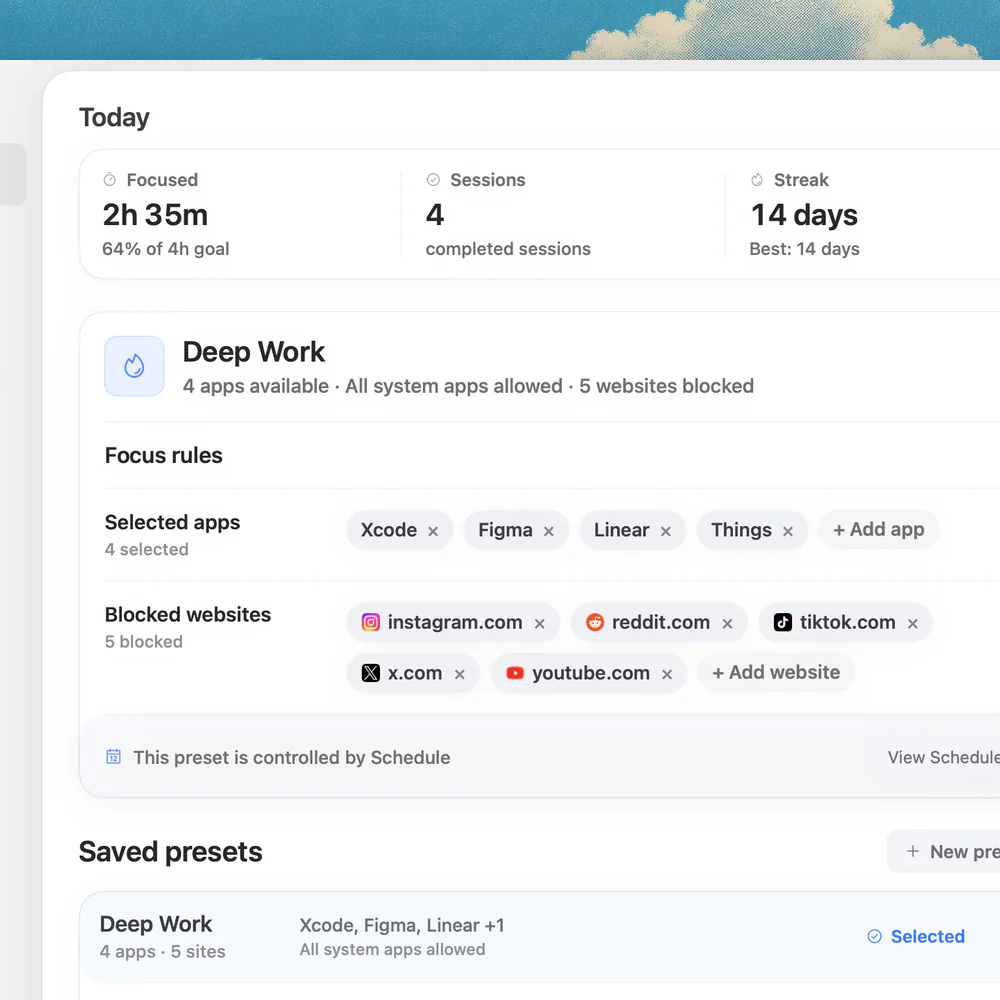
Open Nudge and create a preset, such as Deep Work.
Add the apps you want blocked. Add the websites that distract you too; they are blocked in Safari and Chrome.
Start the preset from the menu bar, or use Quick Focus for a one-off session.
Optional: add a schedule so the preset runs on the days and hours you choose.
Can you lock an app with a password on a Mac?
For most apps, no. macOS does not have a built-in setting that puts a password on an individual app so it asks for one every time you open it. Some apps have their own lock, such as a password manager or a notes app that can lock single notes, but that is a feature of the app, not of macOS.
The built-in route is Screen Time: set a limit on the app, select Block at End of Limit, and protect the settings with a Screen Time passcode, as above. Only someone with the passcode can approve more time or change the limit. If you want to keep other people out of your files or apps, the real controls are a separate user account with its own password and a locked screen.
Be careful with third-party tools that promise to password-lock any Mac app. Download from a vendor you can identify, read its site, and be wary of anything that asks for broad system access without a clear reason.
FAQ
How do I block an app on my MacBook?
Open System Settings, click Screen Time, then App Limits. Click Add Limit, tick the app, set a time, select Block at End of Limit and click Done. For a block that follows your work sessions, add the app to a Nudge preset and start the session from the menu bar.
Does Screen Time fully block an app?
App Limits block an app after its daily time is used up when Block at End of Limit is selected. A very short limit gets close to a full block. Downtime blocks apps during the hours you set. On macOS 27, Time Allowances and Schedule work by app category, so blocking one single app is easier with an app blocker.
How do I stop someone turning Screen Time off?
Turn on Lock Screen Time Settings and set a passcode. The passcode is then needed to change Screen Time settings or to allow more time when a limit expires. Without a passcode, anyone using your account can change the settings.
What is the best app blocker for Mac?
For blocking apps and websites during work sessions, Nudge is built for that and starts from the menu bar. For strict, hard-to-bypass blocking, look at Cold Turkey. For blocking on both Mac and phone, look at Freedom.
Can I block an app only while I work?
Yes, with a focus app. Add the app to a Nudge preset and start the session. The app is blocked while the session runs and available again afterwards. Screen Time works on daily limits and clock schedules, not on work sessions.
Can you lock an app with a password on a Mac?
Not with a built-in per-app password for most apps. The built-in option is a Screen Time limit protected by a Screen Time passcode. Some apps offer their own lock inside the app.
Nudge for Mac
Turn the guide into a focus session
Pick the apps and websites that pull you away and start the session from the menu bar. They stay blocked until it ends. $9.99 once after 7 days free, no card to start.
Download for macOS