How to limit social media on a Mac
Build a shared daily social media budget and protect work sessions without blocking the whole browser.

Quick answer
To limit social media on a Mac, put the sites and apps you use into one daily Screen Time allowance, then protect important work sessions separately. A shared budget limits total use across services; a session restricts selected distractions while you work. Nudge offers seven days free per Mac, no card, then $9.99 once.
How do these apps compare?
Reduce total social browsing while protecting specific work sessions.
Which tool should you pick?

Set a total budget
Screen Time
Group selected social sites and apps in one limit.

Protect work time
Nudge
Start a preset containing the sites and apps that distract you.
Keep work organized
Safari
Use a work profile or Tab Group for needed references.
Review the result
Screen Time activity
Look at usage before adjusting the budget.
The apps in detail
- $9.99 once
1. Session
Nudge
Best for: Blocking selected sites and apps during a session
- Choose it if
- You want a reusable preset and a menu-bar start.
- Skip it if
- You need the same restriction on a phone.
- Free, built into macOS
2. Built-in controls
Apple Screen Time
Best for: Setting a daily allowance or a schedule
- Choose it if
- You want controls included with macOS.
- Skip it if
- You need identical behavior across every browser.
3. Workspace
Safari
Best for: Organizing work browsing
- Choose it if
- You want work tabs and logins separate from personal browsing.
- Skip it if
- You need a website blocker.
Why combine a budget with a work session?
A social media budget and a focus session solve different problems. A budget limits how much time you spend across the day. A session protects a particular piece of work, even if you have not used your daily allowance yet. Used together, they avoid relying on one setting to answer both questions.
For example, you might allow 30 minutes of social browsing across several services while also keeping those services out of a 50-minute writing session. The daily budget does not by itself guarantee that a feed will be unavailable at 10 a.m.; a session does not by itself measure how much you browse later.
| Goal | Practical control | What it does not do |
|---|---|---|
| Spend less time overall | Shared daily allowance | Guarantee a quiet work hour |
| Protect a current task | Selected app and website session | Measure your total daily social use |
| Separate work references | Safari work profile | Block social sites |
How do you create one limit across several services?
On macOS 26, open System Settings > Screen Time > App Limits. Turn App Limits on and choose Add Limit. In the selection list, select the social apps you want and expand Websites to select visited sites or add their URLs. Put the chosen items in the same limit, choose Every Day or Custom, and set the amount of time.
Select Block at End of Limit if you want Screen Time to block the items after the shared allowance expires. Save the limit, then review its included apps and websites. Apple’s macOS 27 interface also includes Time Allowances and categories; follow the labels on your version and check the category members and schedule. The controls and behavior can vary by browser.
Review App & Website Activity and list the services you want to limit.
Create one App Limit containing the selected websites and apps on macOS 26.
Choose an everyday or custom daily allowance and enable Block at End of Limit.
Test in Safari, review the included items, and adjust for your actual usage.
What if you use social media for work?
Separate the purpose before deciding what to restrict. A marketer may need a business page to reply to customers but want to avoid an unrelated personal feed. A researcher may need a specific public post as a source. A broad block on the entire service can remove both the useful task and the distraction.
Plan the work access window and collect the material you need before starting an unrelated task. If a service must remain available for the job, leave it out of that particular session preset and set a check-in time instead. A profile or Tab Group can organize work materials, but it is not a rule preventing access to other pages. Do not assume a tool can distinguish individual paths on the same site.
How do you protect a work block?
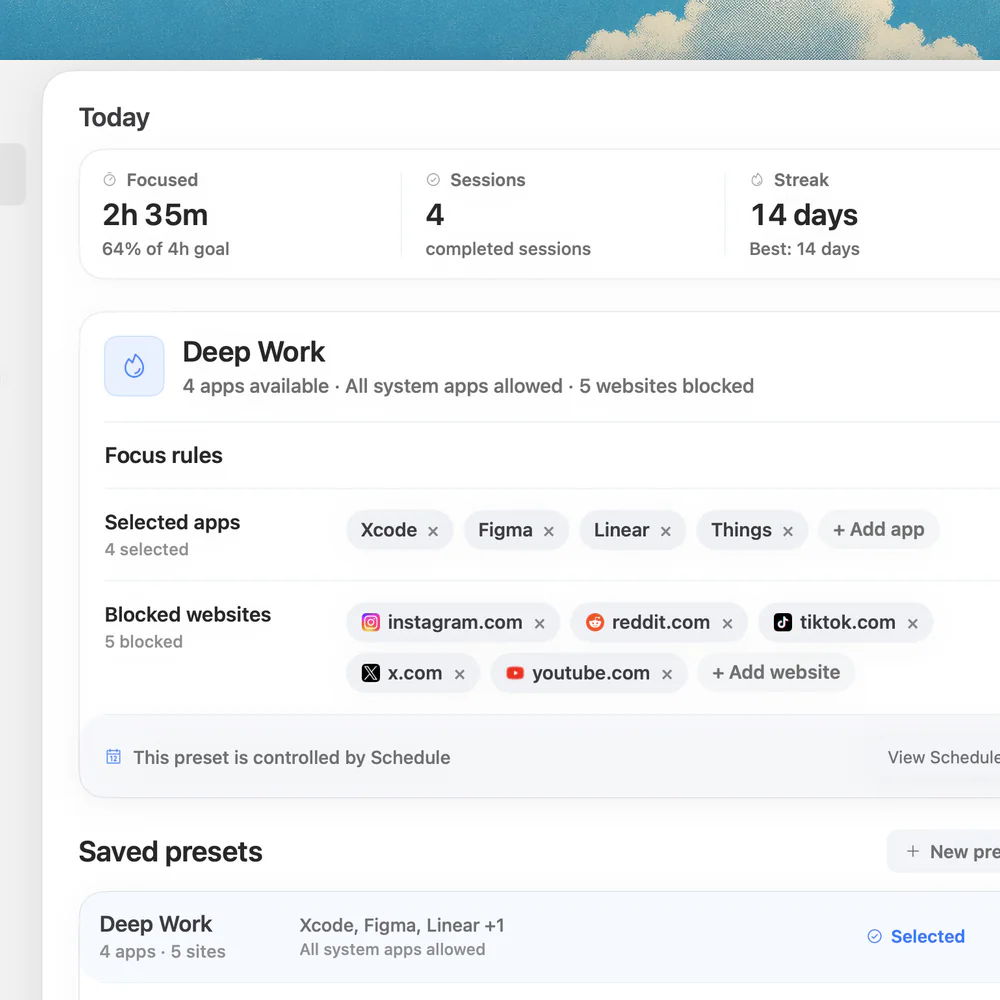
Choose a concrete task, open its references, and list the apps and sites that pull you away. In Nudge, select those items, save the selection as a preset, and start a session from the menu bar. You can keep Safari or Chrome available for useful pages while Nudge blocks the selected distracting websites.
A preset can be different for writing, administration, or a meeting: only include what is actually distracting for that task. Check essential pages before settling in and revise the next session if something necessary was included. Nudge runs on Apple silicon Macs with macOS 13 or later. The trial is seven days per Mac without a card, and Lifetime Access is $9.99 once. Read about presets and website blocking.
How do you make the limit work in practice?
Decide when you will use the allowance. For example, reserve part of it for lunch and part for the end of the day. Turn off unnecessary notifications using macOS notification settings or a Focus, and keep any messages you need for work available. Filtering an alert reduces interruptions but does not prevent you from opening a site.
At the end of the day, review whether the limit was too loose, too restrictive, or aimed at the wrong services. If you moved to a desktop app or another site, check whether it belongs in the shared limit. Test the site in the browser you actually use: Screen Time website restrictions should not be assumed to work identically in every browser.
What are the limits of a Mac-only setup?
A restriction on the Mac does not automatically solve use on a phone. Apple has separate Screen Time settings and device-sharing options, but check which devices and accounts are included in your own setup rather than assuming that a particular limit has propagated. Nudge’s focus session is for the Mac and does not block the phone.
The objective also matters. If social browsing is part of your work, measure whether the setup protects your task without blocking necessary access. If you keep reaching a limit early, identify the trigger before making it shorter. A practical rule that you understand and can revisit is more useful than a complicated collection of limits you cannot explain.
FAQ
Can several social sites share one time limit?
Yes. On macOS 26, select the relevant websites and apps in the same Screen Time App Limit so they share its daily allowance.
Will a daily limit block social media during work hours?
Not necessarily. It controls accumulated time, so the sites may be available until the allowance is used. A separate work session protects a specific block.
Can I limit social websites without blocking my browser?
Yes. Select specific sites rather than the browser as a whole, then test both a restricted site and a work page.
Does Safari work profile block my personal accounts?
No. Profiles separate browsing data and workspaces, but you can switch profiles; they are not a security boundary or a site blocker.
Does Nudge limit social media on my phone?
No. Nudge is a Mac app. Its selected app and website blocking applies to the Mac session.
Nudge for Mac
Turn the guide into a focus session
Pick the apps and websites that pull you away and start the session from the menu bar. They stay blocked until it ends. $9.99 once after 7 days free, no card to start.
Download for macOS