How to set up your Mac for deep work
Set up your Mac for deep work: choose a task, filter notifications, organize work tabs, and protect a focus session from distractions.

Quick answer
To set up your Mac for deep work, choose one outcome, open the materials it needs, and filter notifications with macOS Focus. Use project tabs to keep references together. For selected app and website blocking, Nudge offers reusable sessions with a 7-day free trial per Mac, no card, then $9.99 once.
How do these apps compare?
Build a repeatable Mac workspace for a demanding task, with useful apps available and interruptions under control.
| App | Best for | Price | Website |
|---|---|---|---|
 NudgeTop pick NudgeTop pick | Blocking chosen apps and sites for a session | $9.99 once | Get Nudge |
| macOS Focus | Filtering notifications | ||
| Safari | Organizing project tabs |
Which tool should you pick?
Filter notifications
macOS Focus
Allow important people and apps through while silencing the rest.
Protect the session
Nudge
Block selected apps and websites during a reusable focus session.
Organize research
Safari Tab Groups
Keep the tabs for one project together and reopen them later.
Add a timer
Free focus timer
Choose a work interval and break in your browser.
The apps in detail
- $9.99 once
1. Session protection
Nudge
Best for: Blocking chosen apps and sites for a session
- Choose it if
- You want a reusable preset and a menu-bar start.
- Skip it if
- You need a blocker for a phone as well as your Mac.
2. Notifications
macOS Focus
Best for: Filtering notifications
- Choose it if
- Banners and alerts interrupt you.
- Skip it if
- You need to prevent yourself opening an app or site.
3. Workspace
Safari
Best for: Organizing project tabs
- Choose it if
- You want a separate group of references for a project.
- Skip it if
- You need a restriction on visiting distracting websites.
What should a deep work setup do?
Your setup should make the next action obvious and keep the materials you need within reach. It should also reduce interruptions without hiding the people, tools, or references your work depends on.
Start with a task such as drafting a proposal, debugging a particular issue, or reviewing a chapter. A setup for one concrete outcome is easier to adjust than a blanket rule for the entire workday. You can use the same approach without installing anything, then add a blocker if access to distracting apps and websites remains the problem.
How do you choose a task and prepare your workspace?
Write an outcome you can recognize when the session ends. Instead of 'work on the project', try 'draft the introduction' or 'find the cause of the failing test'. Pick a work window that fits your calendar and leave room to stop if an urgent obligation comes up.
Open the editor, document, terminal, research pages, or other materials you need. Close unrelated windows if that makes the next action easier to find. If a web app is part of the work, keep the browser available rather than blocking it entirely.
Write one outcome and the first small action.
Open the apps and references needed for that action.
Note anything you need to check later so it does not become another tab now.
Choose a work window and decide when you will check messages again.
How do you silence interruptions without missing important alerts?
Open System Settings, choose Focus and select a Focus such as Work, or add a custom one. Under Allowed People and Allowed Apps, choose the notifications you need during the session. You can allow time-sensitive notifications if they matter to you, and set a schedule by time, location, or app.
Test the setup with your normal responsibilities in mind. For example, keep a colleague or a calendar app allowed if you need to respond to them. Focus changes notification delivery; it does not prevent you from opening an app. The full Mac Focus mode guide explains how to switch it on, change its schedule, and turn it off.
How can Safari keep project tabs together?
In Safari, use the arrow beside the Sidebar button to create a new Tab Group, name it for the project, and move relevant tabs into it. You can return to the group from the sidebar when you resume work. This is useful for separating research on a draft from tabs you use for personal browsing.
You can also choose a Safari Tab Group in a macOS Focus filter: System Settings > Focus > your Focus > Focus Filters > Add Filter > Safari. Apple lets you choose how external links open in the group. A Tab Group organizes your workspace; do not rely on it as a general website blocker. Menu labels can differ by macOS version.
How do you block the distractions you still open?
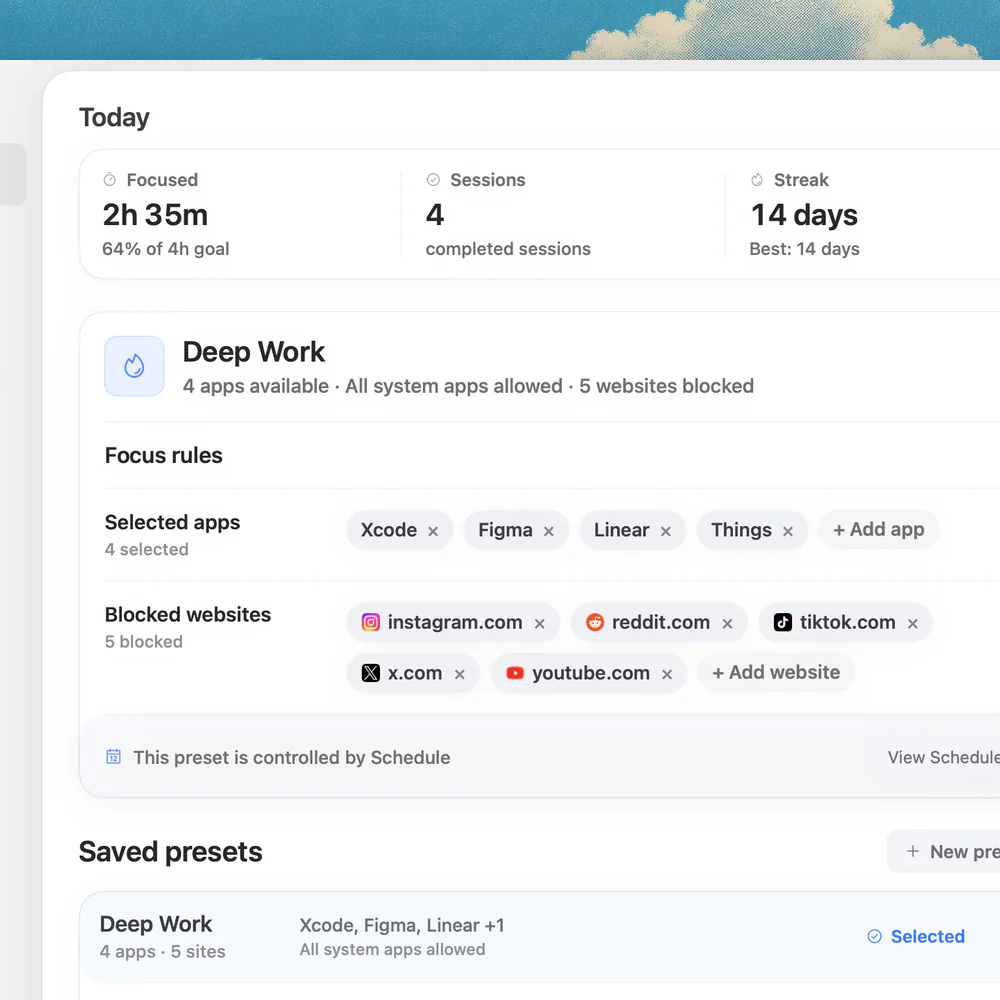
List the specific apps and sites that are unrelated to the task but easy to open out of habit. If a browser is necessary for work, block the distracting sites rather than the entire browser. Nudge blocks the apps and websites you select during a session, including websites in Safari and Chrome.
Save the selection as a preset for a recurring task, such as Writing or Coding, and start it from the menu bar. Check that your work references remain available before settling into the session. Nudge is a Mac app: its block does not extend to your phone. It costs $9.99 once, with a seven-day free trial per Mac and no card required. See focus presets and website blocking.
What if a timer interrupts your work?
A timer is a boundary, not a rule you must follow. Try a shorter block when starting feels difficult, or a longer one when the work needs time to develop. The free focus timer offers work and break settings; the Pomodoro timer starts with shorter intervals.
If an unexpected call or necessary task interrupts you, write down where you stopped and handle it. Before the next block, decide whether the same duration and restrictions still fit. You can also read how to stay focused while working for a broader routine.
How do you end and reuse the setup?
At the end, record what changed and the next action in a sentence. Turn off the Focus if it is no longer needed, or let its schedule end; reopen any apps and sites when your Nudge session ends. Keep the preset and project tabs if they will be useful next time.
Review the friction, not just the time: did you need a site you had blocked, miss an important alert, or repeatedly switch tasks? Adjust the preset or allowed notifications before the next session. A setup that supports the work is more useful than one that removes every possible interruption.
FAQ
Does macOS Focus block websites?
Focus filters notifications and can change what some apps show. It is not a general website or app blocker. Use a separate blocker if you need access to selected sites or apps restricted during a session.
Can I keep Safari or Chrome open during a Nudge session?
Yes. Nudge can block the websites you select in Safari and Chrome while you keep the browser available for other work.
How long should a deep work session be?
There is no single required length. Choose a window that fits the task and your schedule, then adjust it if the timer or fatigue repeatedly interrupts the work.
Do I need a paid app for a deep work setup?
No. macOS Focus and Safari Tab Groups provide useful built-in controls, and Nudge's online focus timer is free. Nudge's Mac app adds selected app and website blocking, with a seven-day trial and a $9.99 one-time price.
Can I reuse this setup for different projects?
Yes. Organize project references in separate Tab Groups and save Nudge presets for recurring work. Review allowed notifications and blocked items as your responsibilities change.
Nudge for Mac
Turn the guide into a focus session
Pick the apps and websites that pull you away and start the session from the menu bar. They stay blocked until it ends. $9.99 once after 7 days free, no card to start.
Download for macOS