How to stay focused while working on a Mac
Choose a task, reduce interruptions, and try a focus routine that fits your work, with practical settings for your Mac.

Quick answer
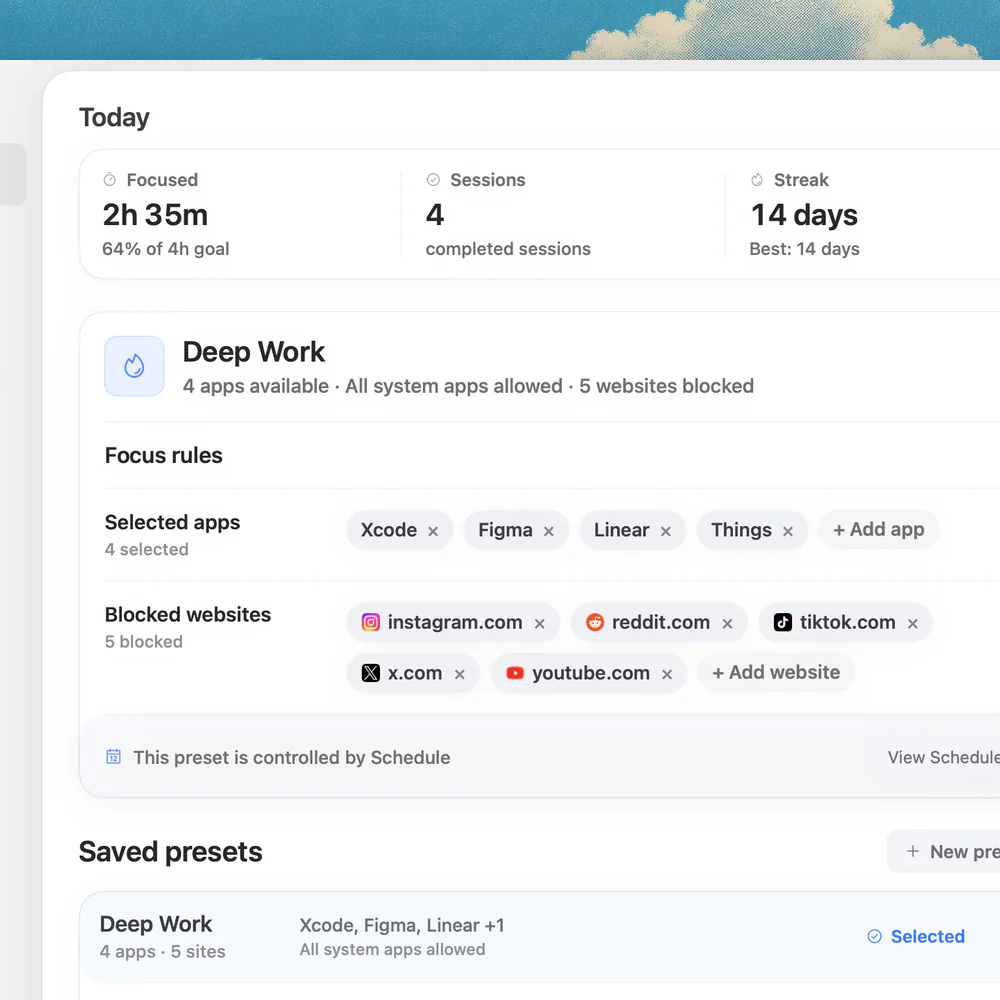
To stay focused while working, choose one task, prepare its materials, and decide when to check messages. Filter notifications and try a work interval that fits the task. If access to apps and sites pulls you away, Nudge adds selected blocking: 7 days free per Mac, no card, then $9.99 once.
How do these apps compare?
Find practical ways to stay focused at work and choose an approach that fits the task, without treating one technique as universally best.
| App | Best for | Price | Website |
|---|---|---|---|
 NudgeTop pick NudgeTop pick | Protecting a work session from selected apps and sites | $9.99 once | Get Nudge |
| macOS Focus | Silencing nonessential notifications | ||
 Pomofocus Pomofocus | A browser-based interval | See pricing | Visit |
Which tool should you pick?
Plan one task
Written next action
A specific starting point makes it easier to resume after an interruption.
Silence alerts
macOS Focus
Allow important notifications while silencing the others.
Block distractions
Nudge
Choose apps and websites to block during a Mac work session.
Try a work interval
Free Pomodoro timer
Use a preset or choose a custom focus and break length.
The apps in detail
- $9.99 once
1. Blocking
Nudge
Best for: Protecting a work session from selected apps and sites
- Choose it if
- You want a reusable preset started from your Mac menu bar.
- Skip it if
- You need your phone blocked too.
2. Notifications
macOS Focus
Best for: Silencing nonessential notifications
- Choose it if
- Alerts are interrupting your work.
- Skip it if
- You need a tool that restricts app or website access.
3. Timer
Pomofocus
Best for: A browser-based interval
- Choose it if
- You want a timer without installing a Mac blocker.
- Skip it if
- You want a timer that blocks apps and sites.
Why is it hard to stay focused while working?
A task can be hard to continue for many ordinary reasons: the next step is unclear, a notification needs attention, the work depends on a missing answer, or a distracting tab is already open. Different causes call for different changes. A timer will not answer a missing question, and blocking a site will not decide which document you should write.
Start by noticing what happens just before you leave the task. If you keep checking a conversation because you expect an important answer, agree on when you will check it. If the work feels too vague, make the first action smaller. The aim is a workable routine, not a perfectly interruption-free day.
How do you make a task easier to start?
Choose one outcome for the next work window and write the first action in plain language. 'Open the report and outline three findings' is easier to begin than 'finish the project'. If the task depends on someone else, write the question you need answered and choose a useful action you can do meanwhile.
Gather the document, reference pages and tools you need before you start. Keep a note for ideas that are useful but unrelated to the current outcome. You can return to that list when the work window ends instead of turning each thought into a new task.
Write the outcome for this session.
Choose the first action that moves it forward.
Open the materials you need and note anything to check later.
Choose when you will stop or review your progress.
How do you manage notifications without missing something important?
On a Mac, open System Settings > Focus and choose a Focus such as Work. Set the people and apps allowed to notify you; you can also schedule a Focus and allow time-sensitive notifications. Apple notes that labels and options depend on the macOS version.
Be selective: a notification you need for an urgent project may deserve to stay on. Decide when you will check the other messages, and tell collaborators when appropriate. The Mac Focus mode guide covers setup and how to turn it off. Focus filters notifications, but it does not stop you opening an app or website yourself.
What can you do about distracting apps and websites?
Identify the actual route away from the task. If you need the browser for documentation, block a distracting site while keeping useful pages open. If the distraction is a desktop app, a website-only restriction will not address it. The app and website blocker comparison explains that distinction.
Nudge lets you choose both apps and websites for a session and save them in a preset. Start the preset from the menu bar when you begin, and adjust the list if it catches something you need. Website blocking is available in Safari and Chrome. Nudge is for Mac; it does not block your phone. The trial is seven days per Mac without a card, and Lifetime Access costs $9.99 once.
Should you use Pomodoro, time blocking, or a longer session?
A short interval can make it easier to begin a task you have been putting off. A longer interval can be useful when a task needs uninterrupted thought. Time blocking reserves a space on your calendar for a particular job; it does not require that every minute of the day be filled.
Try one arrangement and change it if the timer repeatedly interrupts useful work or the block is too long to start. The free Pomodoro timer offers preset and custom lengths, and the focus timer offers another starting point. The 52/17 guide explains a longer fixed rhythm and its limits. No interval is a guarantee of better results.
| Approach | Try it when | Adjust if |
|---|---|---|
| Short work interval | Starting is the hard part | The timer repeatedly cuts into useful work |
| Longer work interval | The task needs time to develop | You keep putting off the start or need a break sooner |
| Calendar time block | You need to reserve time around other commitments | The schedule leaves no room for interruptions |
What should you do when you lose focus?
Notice what changed, then choose a small next action. If you are stuck, write down the question and decide whether to investigate it or ask for help. If an interruption needs an immediate response, handle it and leave yourself a note before switching. If you are tired, take a break rather than treating the timer as an obligation.
At the end of a work window, write what is done and what comes next. A one-line note such as 'check the second example and revise the conclusion' makes restarting more concrete. Review whether the work window, allowed notifications and blocked apps were appropriate before repeating them.
What does this look like on a Mac?
A writer might choose one section, open the draft and research, allow messages from a collaborator, and start a preset that blocks unrelated sites. A developer might keep the editor, terminal and documentation available while blocking a chat app until the next check-in. Both can leave a note at the end and revise their setup for the next session.
For the detailed setup, including Safari Tab Groups and macOS Focus filters, see how to set up your Mac for deep work. For different needs, compare Nudge and Focus or Nudge and Rize.
FAQ
What is the first step to staying focused?
Choose one concrete outcome and write the first action. Prepare the materials you need, then decide when you will check messages or review progress.
Does Focus mode on Mac block apps and websites?
No. macOS Focus filters notifications and can change what supported apps show. A separate app such as Nudge can block the apps and sites you choose during a session.
Is Pomodoro the best way to focus?
There is no single best interval for every task. Try a short interval if starting is difficult and a longer one if fixed breaks interrupt your work, then adjust based on experience.
How can I focus when I need my browser for work?
Keep the browser open for necessary references and target the specific sites that distract you. Nudge blocks selected websites in Safari and Chrome during a session.
What if I am interrupted during a focus session?
Handle an important interruption and leave a brief note about where to resume. Afterwards, adjust your schedule or allowed notifications if the same interruption keeps recurring.
Nudge for Mac
Turn the guide into a focus session
Pick the apps and websites that pull you away and start the session from the menu bar. They stay blocked until it ends. $9.99 once after 7 days free, no card to start.
Download for macOS