How to use Focus mode on a Mac (2026)
Focus mode on Mac silences notifications. Turn it on from Control Center, build a custom Focus, set a schedule and filters, and see what it does not block.
Quick answer
Focus mode on Mac is a macOS feature that silences notifications. To turn it on, click Control Center in the menu bar, click the Focus section and choose a Focus such as Do Not Disturb or Work. To build your own, open System Settings, click Focus, then Add Focus. Focus does not stop you opening apps or websites, so to block those during work, pair it with a focus app such as Nudge.
How do these apps compare?
Turn on, set up and turn off macOS Focus, and understand that it silences notifications but does not block apps or websites.
| App | Best for | Price | Website |
|---|---|---|---|
 NudgeTop pick NudgeTop pick | Blocking apps and websites during work sessions | $9.99 once | Get Nudge |
| macOS Focus | Silencing notifications on a schedule | ||
 Apple Screen Time Apple Screen Time | Daily limits and schedules | Free, built into macOS | Visit |
 Cold Turkey Cold Turkey | Strict blocking of apps and sites | Free, Pro $45 once | Visit |
 Freedom Freedom | Blocking on Mac and phone together | $8.99/mo or $99.50 lifetime (Oct deal) | Visit |
Which tool should you pick?
Silence notifications
macOS Focus
Built in. Choose who and which apps can notify you, and schedule it.
Block apps and websites
Nudge
Blocks the apps and websites you pick while a work session runs.
Daily time limits
Apple Screen Time
App Limits and schedules, with an optional passcode.
Strict blocking
Cold Turkey
Blocks apps, games and websites, with locked modes.
Mac and phone together
Freedom
The same blocklists on your Mac and your phone.
The apps in detail
- $9.99 once
1. App and website blocking
Nudge
Best for: Blocking apps and websites during work sessions
- Choose it if
- You want the apps and websites that distract you blocked while you work, and reachable again afterwards.
- Skip it if
- You need to block apps on a phone too: Nudge is a Mac app, so look at Freedom, Opal or Session.
2. Notifications
macOS Focus
Best for: Silencing notifications on a schedule
- Choose it if
- Pings and banners are what pull you away, and you want them filtered by person and app.
- Skip it if
- You open distracting apps or websites yourself. Focus does not block them.
- Free, built into macOS
3. Usage limits
Apple Screen Time
Best for: Daily limits and schedules
- Choose it if
- You want a free built-in limit on an app or website, with an optional passcode.
- Skip it if
- You want the block tied to work sessions rather than a daily allowance.
- Free, Pro $45 once
4. App and website blocking
Cold Turkey
Best for: Strict blocking of apps and sites
- Choose it if
- You need high friction and locked modes.
- Skip it if
- You want a light session tool in the menu bar.
- $8.99/mo or $99.50 lifetime (Oct deal)
5. App and website blocking
Freedom
Best for: Blocking on Mac and phone together
- Choose it if
- The same apps and sites distract you on your Mac and your phone.
- Skip it if
- You only need blocking on one Mac during work sessions.
What is Focus mode on a Mac?
Focus is a macOS feature that decides which notifications reach you. Do Not Disturb is one of the Focuses. You can add others, such as Work or Sleep, or make your own. Each Focus has its own list of people and apps that may notify you.
Focus is about notifications. It does not close apps, hide websites or stop you opening anything. That matters when you choose a tool, and the last sections cover it.
How do you turn on Focus on a Mac?
Use Control Center in the menu bar. Menu names can differ between macOS versions, but this path works on current releases.
- Shortcut: hold the Option key and click the date and time in the menu bar to switch Do Not Disturb on or off. If your keyboard has a Do Not Disturb key, it does the same.
Click the Control Center icon in the menu bar, then click anywhere in the Focus section.
Click the Focus you want, such as Do Not Disturb or Work. Its icon is highlighted and appears in the menu bar.
Optional: choose a duration, such as one hour or until tomorrow. If you are in a calendar event, you can pick Until the end of this event.
How do you create a custom Focus?
Open System Settings, click Focus in the sidebar (scroll down if needed) and click Add Focus. You can pick a ready-made one or click Custom. You can create up to ten custom Focuses.
Open System Settings and click Focus in the sidebar.
Click Add Focus, then click Custom.
Enter a name, pick a color and an icon, and click OK.
Set the people and apps that may notify you (next section).
Optional: add a schedule and any Focus filters.
How do you choose which people and apps can notify you?
Select the Focus, then use Allowed People and Allowed Apps. In each, the Notifications pop-up menu lets you choose Allow Some People or Silence Some People, and Allow Some Apps or Silence Some Apps. Click the add button to pick contacts or apps, then click Done.
Under Allowed People you can also set who may call you, and turn on Allow repeated calls. Under Allowed Apps you can turn on Time Sensitive Notifications for urgent alerts. Some macOS versions add an Intelligent Breakthrough and Silencing setting that lets important notifications through; specific allowed or silenced items override it.
How do you schedule a Focus or make it turn on automatically?
Select the Focus, go to Set a Schedule and click Add Schedule. There are three kinds of automation:
- Time: set start and end times and the days. The Focus turns on and off by itself.
- Location: pick a place. The Focus turns on when you arrive and off when you leave. Location Services must be on.
- App: pick an app. The Focus turns on when you open it and off when you close it or switch away.
What are Focus filters, and does Focus sync to other devices?
Focus filters change what some Apple apps show while a Focus is on. Under Focus Filters, click Add Filter. You can filter which calendars show in Calendar, which accounts show in Mail, whether Messages shows only people on your list, and which Tab Group opens in Safari. To remove one, select it and click Delete App Filter.
Focus can also be shared across your Apple devices. When you keep Focus up to date across devices, turning a Focus on or off on your Mac changes it on your other devices. Look for this option in the Focus settings.
How do you turn off Focus mode on a Mac?
Click the Control Center icon in the menu bar, then click the active Focus again. Its icon is no longer highlighted. You can also Option-click the date and time in the menu bar to toggle Do Not Disturb. To stop a Focus from turning on by itself, select it in System Settings, click its schedule and turn off Schedule or Automation.
Does Focus mode block apps and websites?
No. Focus mode silences notifications, but it does not stop you opening an app or visiting a website. If YouTube or a game is one click away, a Focus will not prevent it.
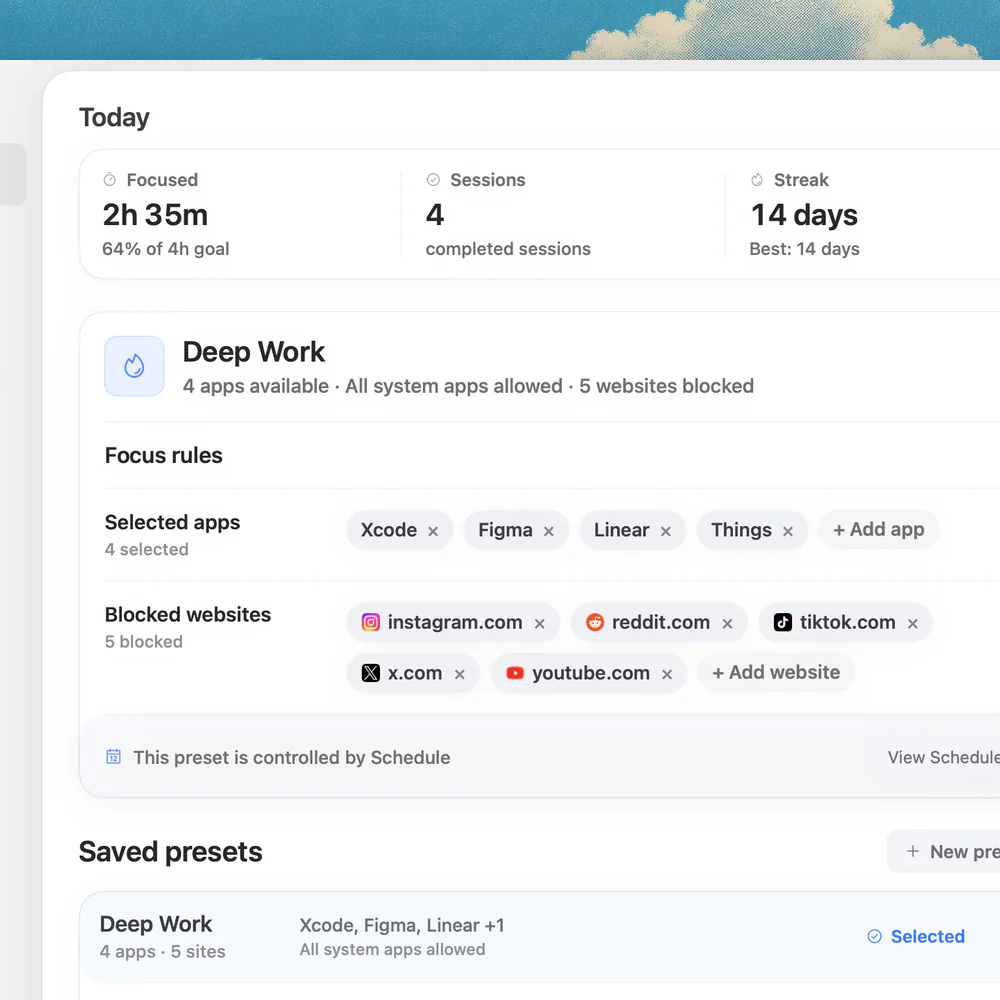
To block the distracting apps and websites themselves during work, pair Focus with a focus app. Nudge blocks the apps and websites you pick while a session runs, started from the menu bar, and websites are blocked in Safari and Chrome. Read how to block apps on a Mac and see website blocking. Nudge costs $9.99 once, and every Mac gets a 7-day free trial that needs no email, password or card.
FAQ
How do I turn on Focus on my Mac?
Click the Control Center icon in the menu bar, click the Focus section and choose a Focus such as Do Not Disturb or Work. Its icon then appears in the menu bar. You can choose a duration too.
How do I turn off Focus mode on a Mac?
Open Control Center and click the active Focus again. You can also Option-click the date and time in the menu bar to toggle Do Not Disturb. To stop a Focus from starting automatically, turn off its Schedule or Automation in System Settings.
Does Focus mode block websites or apps on Mac?
No. Focus silences notifications only. To block apps and websites, use Screen Time limits or a focus app such as Nudge, which blocks the ones you pick during a session.
Can I make my own Focus on Mac?
Yes. In System Settings, click Focus, then Add Focus, then Custom. Name it, pick a color and icon, and set the allowed people and apps. You can create up to ten custom Focuses.
Can a Focus turn on at certain times or places?
Yes. Under Set a Schedule, add a schedule by time, by location or by app. Location needs Location Services on.
Does Focus on my Mac turn on Focus on my iPhone?
It can. If you keep Focus up to date across your Apple devices, a change on your Mac also appears on your other devices. Menu labels can differ between macOS versions.
Nudge for Mac
Turn the guide into a focus session
Pick the apps and websites that pull you away and start the session from the menu bar. They stay blocked until it ends. $9.99 once after 7 days free, no card to start.
Download for macOS