How to time block your day on a Mac
Build a realistic time-blocked day in Mac Calendar, protect a work window, and adjust the plan when the day changes.

Quick answer
To time block on a Mac, put fixed commitments in Calendar first, then reserve specific windows for tasks, breaks, and a buffer. Give each work block a concrete outcome and revise the plan when priorities change. Nudge can protect a session with selected app and site blocking; its 7-day trial needs no card.
How do these apps compare?
Build a workable calendar day step by step, with buffers and a way to adapt.
| App | Best for | Price | Website |
|---|---|---|---|
 NudgeTop pick | Blocking selected apps and sites during a work session | $9.99 once | Get Nudge |
| macOS Focus | Filtering notifications from people and apps |
Which tool should you pick?
Protect a session
Nudge
Block selected apps and sites with a reusable Mac preset.
Filter alerts
macOS Focus
Allow important notifications while silencing others.
Time a session
Free focus timer
Choose a work interval and break in your browser.
The apps in detail
- $9.99 once
1. Session protection
Nudge
Best for: Blocking selected apps and sites during a work session
- Choose it if
- You want a reusable preset started from the menu bar.
- Skip it if
- You need to block a phone too.
2. Notifications
macOS Focus
Best for: Filtering notifications from people and apps
- Choose it if
- Alerts interrupt the work.
- Skip it if
- You need to restrict access to an app or site.
What is time blocking?
Time blocking means assigning a window on your calendar to a specific activity. A block is a plan for where attention goes, not proof that the task will take exactly that long. Unlike a task list, it shows the work competing for the same hours as meetings and other commitments.
You do not need to fill every minute. Start with one important work block and the appointments around it. A list of possible tasks can remain separate; Calendar holds the commitments you intend to attempt at a particular time. If the day changes, move the event or choose a smaller outcome rather than treating the plan as a failed promise.
How do you build a time-blocked day in Calendar?
Open Calendar on your Mac and show Day or Week view. Apple supports creating an event by dragging from its start time to its end time in either view. Start with events that already have a fixed time, including meetings, appointments, travel and any commitment you cannot easily move.
Next, choose one priority and estimate a reasonable window. Name the block for an outcome, such as “Draft the proposal opening,” rather than “Work.” Double-click the event to add a note with the first action and any useful link. Add a break and an unassigned buffer before scheduling the remaining work.
Finally, check the whole day against reality. If a meeting ends at 11:00, an 11:00 deep-work block may leave no room for follow-up. Move it later, shorten it or remove a lower-priority block. Calendar lets you drag an event to another time or resize its edge; adjust the plan as you learn how long work actually takes.
Open Calendar and choose Day or Week view.
Place fixed commitments and travel first.
Drag a window for your priority and title it with a concrete outcome.
Add the first action and a useful reference to the event notes.
Reserve breaks and a buffer, then fit lower-priority work around them.
Review the day and move or resize blocks when circumstances change.
What does a realistic day look like?
The following is an example, not a schedule to copy literally. Its key feature is that the first work block, messages and an unassigned buffer all have a place. The work outcome is small enough to review when the block ends.
If the proposal needs more time, use the buffer or schedule a continuation tomorrow. If the meeting produces urgent follow-up, replace a lower-priority task deliberately. The calendar should help you make that trade-off visible, not make you pretend every original block still fits.
| Time | Block | Purpose |
|---|---|---|
| 9:00–9:15 | Plan and prepare | Choose the proposal section and open references |
| 9:15–10:15 | Draft proposal opening | Produce a rough introduction |
| 10:15–10:30 | Break | Step away and reset |
| 10:30–11:00 | Messages and follow-up | Answer what cannot wait |
| 11:00–12:00 | Meeting | Fixed commitment |
| 12:00–12:30 | Buffer | Handle overflow or move work forward |
How long should a work block be?
Choose a window that fits both the task and the day. Twenty-five minutes can be a manageable start for a task you keep postponing. A longer window may suit a piece of analysis that needs setup and sustained context. Neither length is mandatory: choose an end point you can realistically honor and leave room to stop earlier if needed.
A calendar block can contain several focus intervals and breaks. The free Pomodoro timer lets you try an interval, while the focus timer offers another starting point. Calendar reserves the window; the timer is an optional reminder inside it. The UK HSE recommends breaks or changes of activity during screen work and notes that their timing depends on the work.
For a recurring task, compare your estimate with what happened over several days. If a report takes an hour to assemble and another half hour to check, reserve both stages or create separate blocks. Avoid automatically extending into lunch or the next meeting. Instead, decide which commitment can move and record the reason. A recurring calendar event is useful for a stable routine, but review it when the workload or your availability changes. Apple Calendar supports repeating events and lets you edit their details.
How do you protect a block on your Mac?
Before a block starts, open the document, references and tools it needs. In System Settings > Focus, choose a Focus and allow people or apps whose notifications matter. Apple notes that time-sensitive notifications can also be allowed. This filters alerts; it does not block you from opening a distracting app.
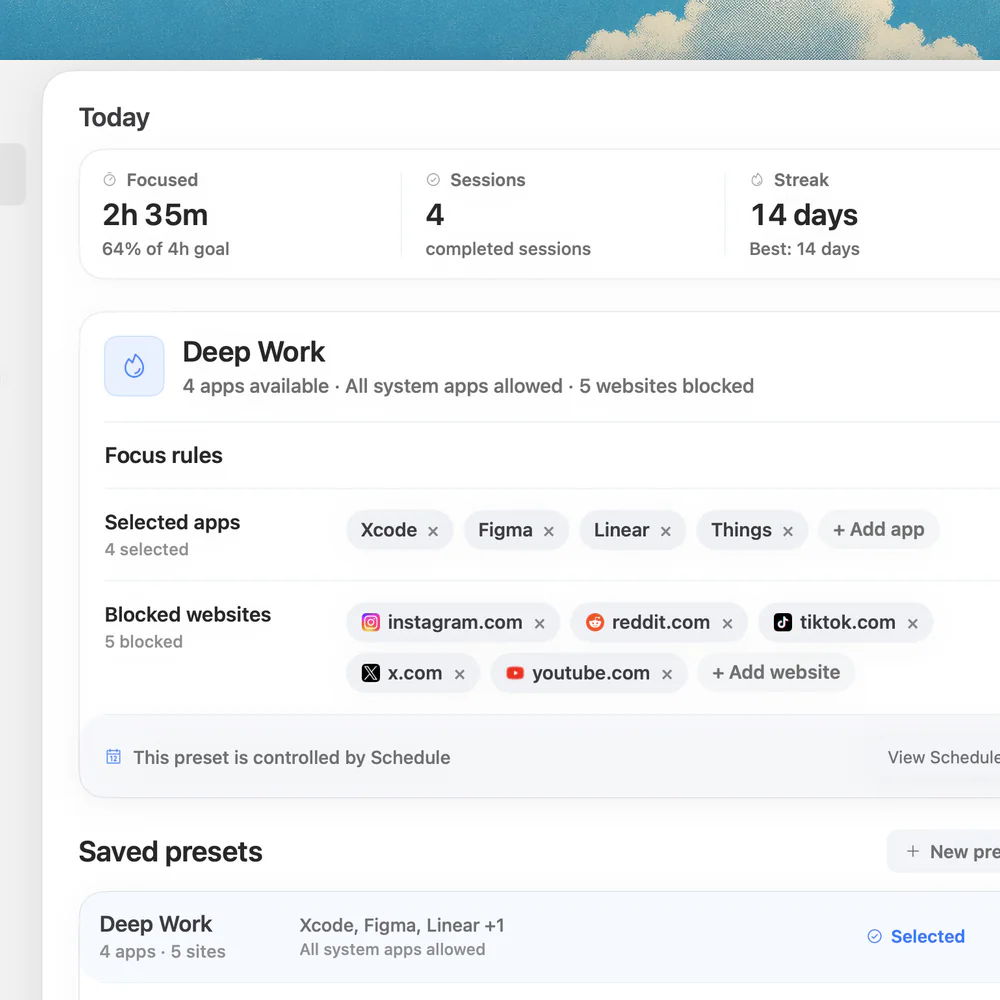
For access to selected distractions, set up a Nudge preset with the apps and websites you want blocked, then start the session from the menu bar. Website blocking works in Safari and Chrome. Nudge runs on Apple silicon Macs with macOS 13 or later and does not block a phone. Its 7-day trial per Mac requires no card; Lifetime Access is $9.99 once. Keep work references available and change the list if it catches something necessary.
What if the plan keeps falling apart?
If blocks repeatedly overrun, make the next outcome smaller and add more space between commitments. If you cannot start, write the first physical action in the event: “Open the brief and list three questions” is easier to act on than “Strategy.” If other people regularly need you, agree on a check-in time and allow urgent notifications.
At the end of the day, look at what moved and why. Distinguish an estimate that was too optimistic from an interruption that genuinely changed the priority. Carry only the remaining next action forward. For a broader routine, read how to stay focused on Mac and the Mac deep work setup.
FAQ
Can I time block using Apple Calendar?
Yes. In Day or Week view, drag across a time range to create an event, then add a title and notes. Move or resize it when your plan changes.
Should every minute be scheduled?
No. Leave unassigned time for overruns and unexpected work. A few useful blocks can be easier to maintain than a completely packed calendar.
Is time blocking the same as Pomodoro?
Time blocking reserves calendar time for an activity. Pomodoro divides work into timed intervals with breaks. You can use a timer within a calendar block.
What if a task takes longer than its block?
Record the next action and either use an available buffer, schedule another block, or explicitly move a lower-priority task. Avoid silently filling every break.
Does macOS Focus block distracting websites?
No. Focus filters notifications. Nudge can block selected websites in Safari and Chrome and selected Mac apps during a session.
Nudge for Mac
Turn the guide into a focus session
Pick the apps and websites that pull you away and start the session from the menu bar. They stay blocked until it ends. $9.99 once after 7 days free, no card to start.
Download for macOS