Allowlist vs blocklist for focus: which should you use?
Compare allowlists and blocklists for focus, including shared domains, app and website controls, exceptions, and practical Mac examples.

Quick answer
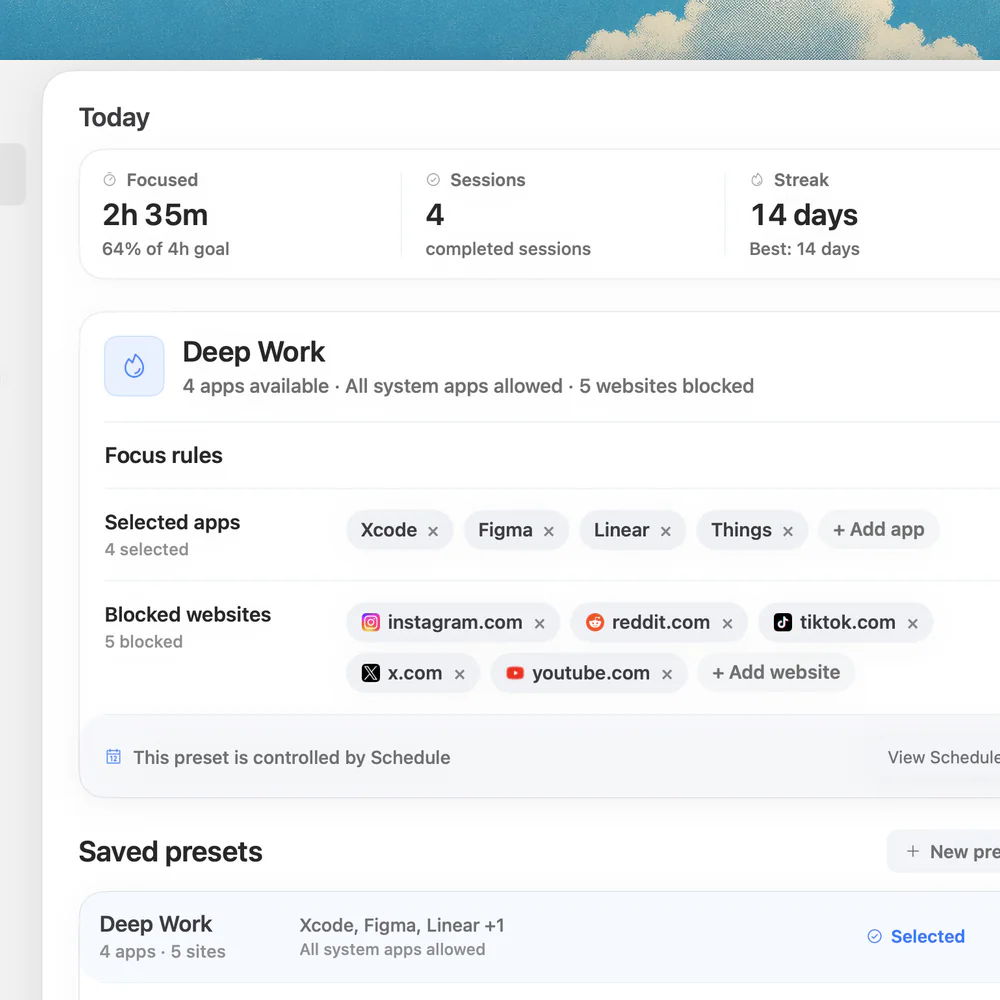
An allowlist permits specified items and restricts others; a blocklist restricts specified items and leaves others available. Choose based on what your work needs and the scope a tool actually supports. Nudge uses selected app and website blocking for sessions: seven days free without a card, then $9.99 once.
How do these apps compare?
Choose a focus restriction model that fits the necessary tools, distractions and exceptions of a work session.
| App | Best for | Price | Website |
|---|---|---|---|
 NudgeTop pick | Blocking selected apps and websites during a Mac session | $9.99 once | Get Nudge |
| macOS Focus | Allowing chosen notifications | ||
| Safari | Keeping useful work pages together |
Which tool should you pick?
Known distractions
Blocklist
Select the specific apps and sites that repeatedly interrupt the task.
Small known workspace
Allowlist model
A tool with this feature can restrict items outside an explicitly permitted set.
Notification control
macOS Focus
Choose which people and apps may notify you during a Focus.
Reusable Mac session
Nudge
Save a selected distraction blocklist as a preset and start it from the menu bar.
The apps in detail
- $9.99 once
1. Selected blocklist
Nudge
Best for: Blocking selected apps and websites during a Mac session
- Choose it if
- You know the distractions you want to restrict.
- Skip it if
- You require a browser allowlist that blocks all unlisted sites.
2. Notifications
macOS Focus
Best for: Allowing chosen notifications
- Choose it if
- You need to filter alerts from people or apps.
- Skip it if
- You need website access restrictions.
3. Workspace
Safari
Best for: Keeping useful work pages together
- Choose it if
- You want to organize a project's reference tabs.
- Skip it if
- You need a general allowlist or blocklist.
What is the difference between an allowlist and a blocklist?
An allowlist names the items permitted under a rule; items outside that set are restricted within the scope the tool covers. A blocklist names the items to restrict; other items remain available within that scope. The names describe the default behavior, but they do not tell you whether a particular product controls apps, websites, notifications, or something else.
For example, a website allowlist might let a writer visit a document service and a research source while restricting other sites in a supported browser. A website blocklist might restrict a social site but leave other browsing available. Both examples depend on the tool's actual matching and browser support; neither implies control over desktop apps or a phone.
Nudge offers a selected blocklist: choose the apps and sites to block during a Mac session. It should not be treated as a browser allowlist that blocks every unlisted site. If that default-deny behavior is essential, check the capabilities of a tool that explicitly provides it.
How do the two approaches compare?
The best choice depends on how predictable your work is and how much maintenance you can accept. A short, known workspace may suit an allowlist; research that takes you to unfamiliar sources may suit a blocklist of known distractions. Neither approach is automatically stronger in every situation: coverage, supported browsers, matching rules, and session controls all matter.
| Question | Allowlist model | Blocklist model |
|---|---|---|
| Default within supported scope | Restrict items outside the permitted set | Allow items outside the selected blocked set |
| Setup | List the tools or sites the task needs | List known sources of distraction |
| Unexpected useful site | May require an exception | Usually available unless it matches a blocked rule |
| New distraction | May be restricted if it is outside the permitted set | Requires adding it to the blocked set |
| Main maintenance risk | Leaving out a required dependency | Missing an alternate domain or app |
When is an allowlist useful?
Consider the allowlist model when a session has a small, predictable set of resources. An accountant reviewing a defined set of records may need a spreadsheet, an accounting service, and a reference page. A student working from a known reading list may need a course site and a document. If a tool supports the relevant allowlist, selecting those resources can make the intended workspace explicit.
Prepare the list before starting. Include authentication, files, and any reference sites the task depends on, and find out how the tool handles linked services and redirects. A useful site may rely on a separate sign-in or file host; if the rule covers that host, leaving it out can interrupt legitimate work. Test the workflow rather than assuming the visible page address is the only dependency.
An allowlist can be inconvenient for open-ended research, troubleshooting, or a job with unpredictable customer requests. Every new legitimate destination may require an exception. Check whether the product permits edits during a session and how that affects your work before choosing it. These are product-specific behaviors, not properties guaranteed by the word 'allowlist'.
When is a blocklist useful?
A blocklist is a practical starting point when you know the few places that pull you away but need broad access to the rest of the web. For example, a developer can keep documentation and issue tracking available while selecting unrelated social sites and a game for a work session. A writer can block a habitual news site while using search and source material freely.
The tradeoff is that an unlisted distraction may still be reachable. Review the list after a session: if you repeatedly used a different app or address, decide whether it belongs on the next preset. Avoid adding every possible item preemptively if that would catch necessary work. The goal is a manageable boundary for a particular task.
In Nudge, select the distracting apps and websites for a session, save the selection as a preset, and start it from the menu bar. Website blocking works in Safari and Chrome; leave the browser itself available when work needs it. Nudge requires an Apple silicon Mac with macOS 13 or later. The seven-day trial requires no card, and Lifetime Access is $9.99 once.
How do app, website, and notification rules differ?
An app rule concerns a desktop application. A website rule concerns sites in the browsers the blocker supports. A notification rule determines which alerts can reach you; it does not necessarily restrict access to their source. A site list cannot by itself block the site's separate desktop app, and silencing a notification does not prevent you from opening it.
macOS Focus lets you choose allowed people and apps for notifications and schedule a Focus. Apple's Notifications settings also let you adjust alerts by app. Safari Tab Groups organize useful pages so you can return to them, but they are not a general access restriction. Combine these layers only when each solves an observed problem. See the Mac Focus guide and deep work setup for practical configuration.
How do you choose and test a setup?
Write down the outcome of the session, the resources it requires, and the exact distractions you want to avoid. Then identify whether those items are desktop apps, websites, or notifications. If your task needs unfamiliar sites, start with a small blocklist. If it uses a fixed set and you need default-deny behavior, evaluate a tool with an explicit allowlist for the relevant layer.
Before relying on the setup, test a required site, sign-in route, and urgent contact channel. Check the distracting route in the supported browser or app, including a separate desktop app if you use one. If a needed resource is caught, revise the rule before starting. After the session, note what was missed or unnecessarily restricted and adjust the next preset.
For example, a researcher may keep Safari open for new sources, block two known distracting sites, allow a teammate's urgent contact route, and review messages at 11. A scheduled exam practice session with a fixed set of approved materials may call for a different tool with a verified allowlist. Neither setup removes the need to plan how an urgent interruption reaches you.
List the task's required apps, sites and urgent contact route.
Identify the specific distractions and their app or website routes.
Choose a model supported by the tool for that layer.
Test necessary access and selected restrictions before the session.
Review missed distractions and accidental restrictions before the next session.
FAQ
Is an allowlist the same as a blocklist?
No. Within the scope a tool supports, an allowlist permits specified items and restricts others; a blocklist restricts specified items and leaves others available.
Does Nudge offer a browser allowlist?
Nudge blocks the apps and websites you select during a session. Do not treat it as a browser allowlist that restricts every site you have not selected.
Can a site rule block only one page on a shared domain?
That depends on the product and its matching rules. Do not assume page or URL-path filtering; check the tool's documentation and test the exact route before relying on it.
Does blocking a website also block its desktop app?
Not necessarily. Websites and desktop apps are separate layers. If your blocker supports both, select and test each route that you want restricted.
Does macOS Focus block sites outside an allowlist?
No. macOS Focus filters notifications and can apply supported app filters. It is not a general website allowlist or blocklist.
Nudge for Mac
Turn the guide into a focus session
Pick the apps and websites that pull you away and start the session from the menu bar. They stay blocked until it ends. $9.99 once after 7 days free, no card to start.
Download for macOS