How to reduce context switching on your Mac
Make task transitions easier with a stopping note, a handoff routine, planned checks, and a practical Mac setup.
Quick answer
To reduce context switching, group related checks, choose a clear next action, and leave a short note before changing tasks. Restore the relevant files and read that note when you return. Nudge can block selected Mac apps and websites during a session: seven days free with no card, then $9.99 once.
How do these apps compare?
Reduce unnecessary task switches and make unavoidable transitions easier to recover from.
| App | Best for | Price | Website |
|---|---|---|---|
 NudgeTop pick | Reducing habitual visits to chosen distractions | $9.99 once | Get Nudge |
| macOS Focus | Filtering interruptions from notifications | ||
| Safari | Returning to project references |
Which tool should you pick?
Capture the stop
Quick Note
Record the next action and a link before you switch.
Filter interruptions
macOS Focus
Allow important people and apps while silencing other alerts.
Protect a work window
Nudge
Block selected distracting apps and sites until the session ends.
Restore references
Safari Tab Groups
Keep a project's useful pages together for the return.
The apps in detail
- $9.99 once
1. Blocking
Nudge
Best for: Reducing habitual visits to chosen distractions
- Choose it if
- A selected app or site repeatedly pulls you away.
- Skip it if
- You need restrictions on a phone too.
2. Notifications
macOS Focus
Best for: Filtering interruptions from notifications
- Choose it if
- You need some alerts to remain available.
- Skip it if
- You need to prevent opening an app or website.
3. Workspace
Safari
Best for: Returning to project references
- Choose it if
- Your projects use different groups of tabs.
- Skip it if
- You need a site blocker.
What is context switching at work?
Context switching is moving your attention from one task and its working details to another. Some switches are necessary: a customer needs an answer, a meeting starts, or a teammate is waiting for a decision. Others happen because a badge, an open inbox, or an unrelated question invites a quick detour.
The practical cost is often visible at the return: you must find the document, remember the decision, and work out the next step again. The aim is not to eliminate collaboration. It is to make deliberate switches, avoid needless ones, and leave enough information for your future self to resume without reconstructing the whole task.
How do you spot the switches worth changing?
For one working day, keep a small tally when you leave a task. Write the task you left, what prompted the switch, and whether the new task actually needed attention then. A rough note is enough; do not turn tracking into another project. Look for a repeated pattern rather than counting every normal movement between tools.
Separate a switch of application from a switch of purpose. Moving between a draft and its source document can be part of one task. Opening a new message and beginning a different assignment changes the purpose. The first may not need fixing; the second is a useful place to test a boundary.
| Trigger | Example | Adjustment to try |
|---|---|---|
| Expected reply | Checking chat while waiting for a decision | Agree on a check time or urgent route |
| Unclear next step | Opening unrelated tabs when a draft stalls | Write the question and one small action |
| Habitual detour | Opening a social site between paragraphs | Block that site for the work window |
| Required interruption | A scheduled meeting starts | Leave a stopping note and restore it afterward |
What should you write before switching tasks?
A stopping note should contain enough to restart, not a polished progress report. Capture the current outcome, the exact place you stopped, the next action, and any unresolved decision or dependency. Add a link or file name when finding the material again would otherwise be difficult.
For example: 'Proposal, pricing section. Drafted two options; check the annual usage figure in the spreadsheet before choosing one. Next: open Forecast, cell summary tab, and ask Sam if the assumption changed.' If the note includes sensitive customer information, store it in an approved place rather than a convenient personal note.
Apple's Quick Note can be opened while working in another app and can include links. A plain text file, project ticket, or paper note works equally well. Choose the place you will actually check on your return.
Name the task and the file or page where you stopped.
Write the next physical action, not just the project name.
Record an open question, dependency, or decision.
Save the note where you can find it after the interruption.
How do you return after an interruption?
Before reopening every tab, read the stopping note and identify the next action. Open only the file and references needed for that action. Check whether the interruption changed an assumption: a new answer may make the next step different. Then continue or revise the note if the work is still blocked.
For a research-heavy task, a Safari Tab Group can keep related references together. Name groups by project or outcome, not by a vague label such as 'work'. Apple lets you create and return to groups from Safari. A group organizes pages; it does not stop you from visiting other sites.
A return ritual can be as short as reading the last paragraph, reviewing the open question, and making one edit. If you have only five minutes before another meeting, use them to prepare the next step rather than opening a second large task.
How can you make the necessary handoff clear?
When someone needs your answer, send the decision or question in a form that can be acted on. Include the relevant link, a deadline if there is one, and what happens next. Instead of 'Can you look?', try 'Please confirm whether this is the current forecast by 2 p.m.; I will use it in the pricing section.' The recipient can respond without searching for the context you already had.
Keep a short waiting list for dependencies. At the next agreed check, review the list and follow up where needed. If a response truly cannot wait, agree on an emergency route such as a call. This makes a scheduled inbox or chat check more workable without pretending all interruptions are optional.
Which Mac settings reduce avoidable switches?
Open System Settings > Focus and choose or create a Focus. Select the people and apps whose notifications should reach you, and check the time-sensitive option against your actual responsibilities. You can schedule a Focus for a work window. Apple notes that names and options vary by macOS version. Focus changes notification delivery; it does not block opening an app.
In Notifications settings, adjust banners and badges for apps that continually invite a check. Decide when to review messages before silencing them, and tell collaborators if your response window changes. See the Mac Focus guide for a walkthrough.
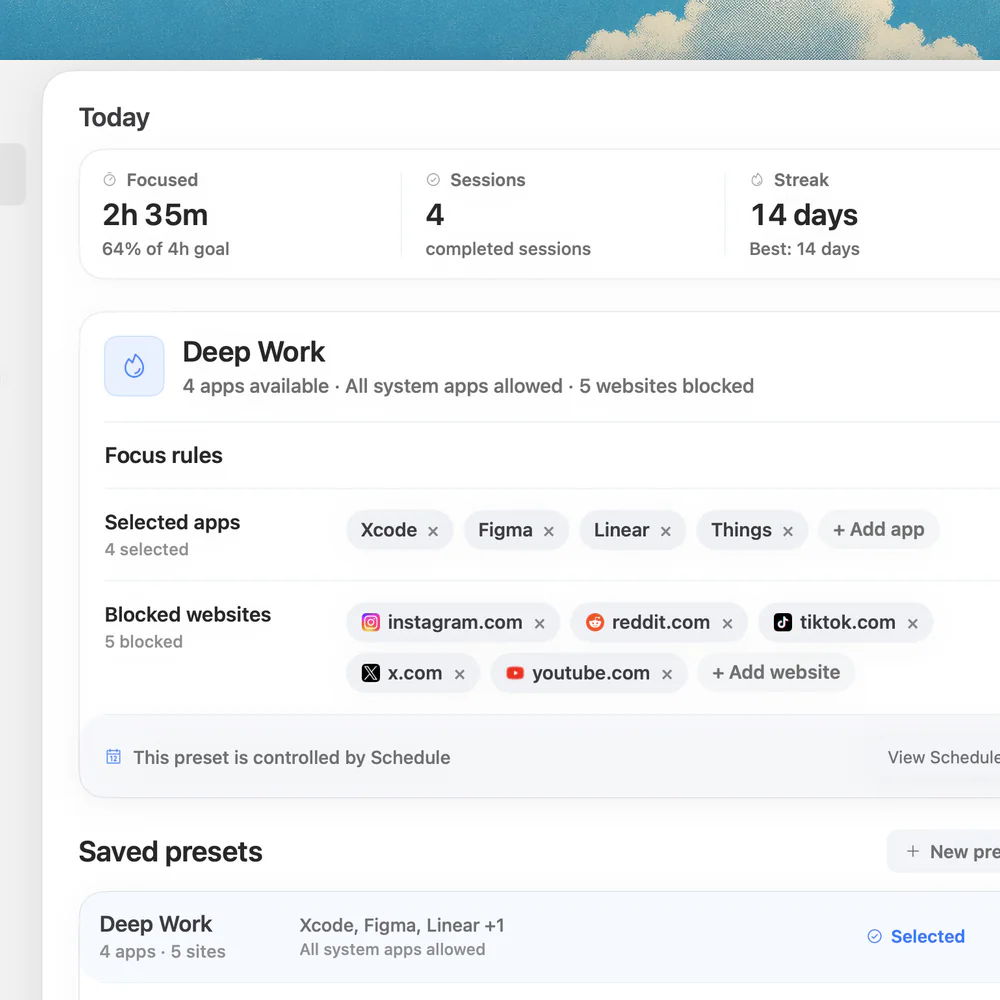
For a recurring visit to a distracting app or site, Nudge lets you select what to block during a session and save it as a preset. Start it from the menu bar, while keeping the tools and pages needed for the current task available. Sites can be blocked in Safari and Chrome. Nudge runs on Apple silicon Macs with macOS 13 or later; the seven-day trial needs no card, then Lifetime Access is $9.99 once.
What does a switching routine look like in a real day?
At 9:00, a developer starts a bug investigation and writes the suspected cause in a project note. At 9:40 a meeting begins. Before joining, they record the test already run, its result, and the next command to investigate. After the meeting, they reopen the note and the relevant file rather than scanning chat first.
At 11:00 they check messages and see that a teammate needs a review. They agree to review it after lunch, capture the request on a list, and finish the investigation. An urgent production issue would change that plan; in that case they leave another stopping note and handle it. At the end of the day, they record the next action for tomorrow.
After a few days, review where the routine broke down. If you repeatedly need a blocked tool, change the preset. If the same urgent request arrives through an inaccessible channel, change the agreement or notification settings. The deep work setup covers organizing a larger workspace; email checking covers one common trigger in detail.
FAQ
Is every change of app context switching?
No. Moving between a document and a reference can support the same task. A switch becomes a different context when you change the outcome you are working toward.
What should a stopping note contain?
Record where you stopped, the next action, and any open question or dependency. Add a link or file name if you will need it to resume.
Can macOS Focus prevent me from opening apps?
No. Focus filters notifications and can alter supported app behavior. Nudge can block the apps and websites you select for a session.
What if my work requires frequent interruptions?
Agree on an urgent route and realistic check times, and leave a brief stopping note before necessary switches. Adjust the routine to the responsibilities of your role.
How do I resume after a long interruption?
Read your stopping note, check whether any assumptions changed, and reopen the file and references needed for the next action. Revise the next action if new information changes the task.
Nudge for Mac
Turn the guide into a focus session
Pick the apps and websites that pull you away and start the session from the menu bar. They stay blocked until it ends. $9.99 once after 7 days free, no card to start.
Download for macOS