How to stop checking email so often on a Mac
Set practical email review windows, configure Apple Mail notifications, and keep an urgent contact route available.
Quick answer
To check email less often, agree on response times and an urgent route, then review the inbox at planned intervals. Adjust Mail notifications and close the inbox between reviews. Nudge can block a selected mail app or website during a session: seven days free without a card, then $9.99 once.
How do these apps compare?
Reduce repeated inbox checking while preserving a practical way to receive urgent messages.
| App | Best for | Price | Website |
|---|---|---|---|
 NudgeTop pick | Temporarily blocking a selected mail app or website | $9.99 once | Get Nudge |
| macOS Focus | Filtering notifications during work | ||
| Apple Mail | Adjusting how new-mail alerts appear |
Which tool should you pick?
Plan the review
Calendar agreement
Set a realistic check time and an urgent route with your team.
Reduce alerts
Apple Mail
Adjust sounds, mailbox notifications and the unread badge.
Filter notifications
macOS Focus
Choose which people and apps can notify you during a work window.
Block a repeat visit
Nudge
Select the mail app or website for a temporary session.
The apps in detail
- $9.99 once
1. Access
Nudge
Best for: Temporarily blocking a selected mail app or website
- Choose it if
- You open the inbox from habit between planned checks.
- Skip it if
- You need access to one folder inside the same mail app during the block.
2. Notifications
macOS Focus
Best for: Filtering notifications during work
- Choose it if
- You need some urgent notifications to stay available.
- Skip it if
- You need to stop yourself opening the inbox.
3. Mail settings
Apple Mail
Best for: Adjusting how new-mail alerts appear
- Choose it if
- Sounds, banners or badges prompt repeated checks.
- Skip it if
- You use another mail client and need its own controls.
Why do you keep opening the inbox?
A notification is one trigger, but it is not the only one. You might expect a reply needed to finish a task, use the inbox as a to-do list, or open it automatically when a difficult piece of work stalls. Each cause calls for a different adjustment. Turning off a sound will not resolve an unanswered question, and blocking an inbox will not make an unrealistic response deadline disappear.
Notice when you check and what you expect to find. For one day, write down the reason for a few checks: a specific reply, an alert, or simply a habit. Use that observation to choose a review window and decide which messages truly need a faster route. The goal is a reliable communication routine, not an empty inbox at all times.
How often should you check email?
There is no universal number. Choose intervals that fit your role, your team's expectations, and any commitments to customers. Someone providing live support may need frequent checks or shared coverage; someone drafting a report may be able to reserve a longer window between reviews. Start with a manageable interval and adjust when you see what arrives.
Agree on a separate urgent route before reducing checks. For example, tell a colleague: 'I am reviewing email at 11 and 3 today. If the launch is blocked before then, please call me.' Use only a route both people can access, and keep its notifications available. If your role requires immediate email response, arrange coverage rather than simply becoming unreachable.
Put review periods on your calendar if useful, but allow an extra check when a real deadline requires it. When you are expecting an answer, agree on when it will arrive or ask the sender to use the urgent route if the timing changes.
| Situation | Review plan | Urgent route |
|---|---|---|
| Drafting with no immediate dependency | Review before and after a work block | A call or agreed message channel |
| Waiting for a decision | Agree on a specific check or reply time | Sender calls if the deadline changes |
| Shared customer coverage | Check at the handoff agreed with the team | Use the team's escalation channel |
| Live inbox duty | Keep the required inbox available | Follow the existing coverage procedure |
What do you do during an email review?
Give the review a clear end. Scan for messages with a real deadline or dependency, answer the short decisions you can make, and capture longer work in your normal task system. Record a next action and a link to the message when you defer it. If a colleague is waiting on you, tell them when they can expect a reply rather than leaving an open promise.
Separate processing from doing all the work contained in a message. For example, an email requesting a report revision might become 'Review the figures in section two at 2 p.m.' That makes the action findable without keeping the inbox open as a reminder. Avoid moving sensitive mail content into a tool that your organization has not approved.
At the end, close the inbox or switch away from it, and return to the task you planned. If a review consistently runs long, increase its allotted time or reduce the number of other commitments in that period; an arbitrary timer is not a substitute for adequate coverage.
Scan for urgent deadlines and requests that block someone else.
Answer short decisions or acknowledge when you will reply.
Capture longer work with a next action and a link back to the message.
Close the inbox and return to the current task until the next review.
How do you change Apple Mail notifications?
In Mail, choose Mail > Settings > General. Apple lets you select the mailbox used for new-message notifications, choose a new-message sound or None, and choose which mailboxes contribute to the unread count. In System Settings > Notifications, select Mail to adjust its alert style and badge. Menu labels may vary by macOS version.
You can also use System Settings > Focus to silence nonessential notifications for a work window while allowing the people or apps you need. Check your settings and urgent route together: allowing a person in Focus is not a substitute for agreeing how that person will contact you. Focus changes notifications; it does not stop you from opening Mail.
Mail's General settings include how often it checks for new messages. Apple notes that manually checking or selecting an IMAP or Exchange mailbox can still fetch or sync messages. Changing the fetch setting is optional and does not guarantee you will not see new mail. If you use another mail app or webmail, use that service's own notification settings instead.
Should you block a mail app or a mail website?
First identify how you reach the inbox. If you use a desktop mail app and do not need it during the work window, you can select that app for a Nudge session. If you use webmail in Safari or Chrome, select the distracting mail website and keep the browser available for work. Test your selection before a session on which another person depends.
The distinction matters when work and personal mail share a client or domain. Blocking the whole desktop app can also prevent access to the work account you need; blocking a website can affect other work on the same domain. Do not assume a blocker can distinguish individual folders, accounts, or URL paths. If you need a specific mailbox during the session, keep the route available and use notifications and a planned review instead.
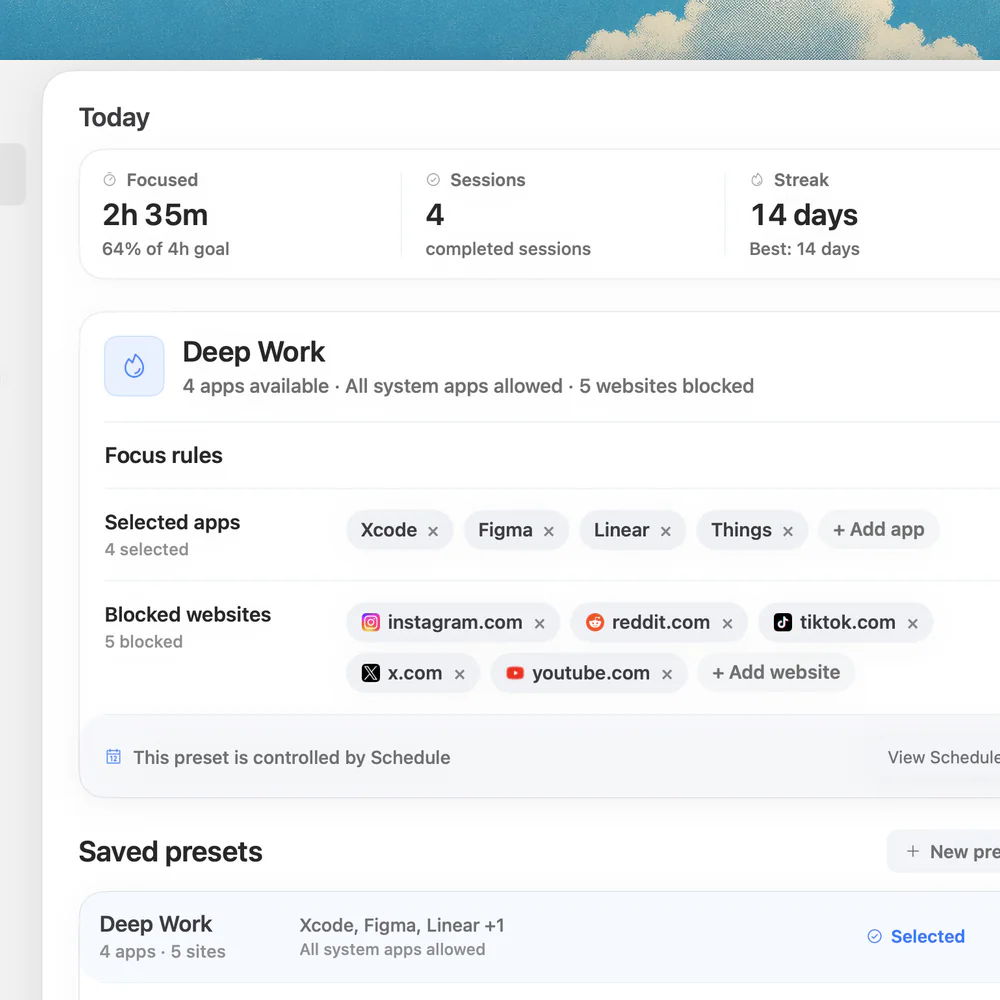
Nudge blocks selected apps and sites during a session, and presets let you reuse a list from the menu bar. It runs on Apple silicon Macs with macOS 13 or later. Try it for seven days without a card; Lifetime Access costs $9.99 once. It does not enforce the same restriction on your phone.
What does a practical day look like?
At 9:00, a project manager checks email, answers a time-sensitive question, and records a request to revise a document after lunch. They tell a teammate that they will review mail again at 11 and that a release-blocking issue should be raised by phone. During the next work window, Mail alerts are quiet and the project document stays open.
At 11, the manager reviews the inbox and finds the decision needed for the draft. They note the decision in the project record, answer the sender, and close the inbox. A later unexpected customer deadline changes the afternoon plan; they make an extra check and tell the teammate. Flexibility is part of the routine, not evidence that it failed.
After several days, check whether the chosen intervals left anyone waiting unexpectedly or whether you continued opening mail between reviews. Adjust the agreement first, then change notifications or the Nudge preset as needed. The context switching guide helps preserve your place when a message requires an immediate response.
FAQ
How many times a day should I check email?
Choose a schedule that fits your role and response commitments. Agree on an urgent route and adjust the interval if customers or colleagues are left waiting unexpectedly.
Can I turn off the unread badge in Apple Mail?
Yes. In System Settings > Notifications, select Mail and adjust the badge setting. Mail's General settings also let you choose which mailboxes contribute to the unread count.
Does macOS Focus prevent me from opening Mail?
No. Focus changes notification delivery and can apply supported app filters. It does not prevent you from opening Mail yourself.
Can I block only one folder inside a mail app with Nudge?
Do not rely on Nudge to block individual folders within a mail app. If another account or folder must stay available, consider notification settings and scheduled reviews instead.
Can I keep my browser open while blocking webmail?
Nudge can block selected sites in Safari and Chrome during a session while the browser remains available. Check whether your selected domain also hosts work you need.
Nudge for Mac
Turn the guide into a focus session
Pick the apps and websites that pull you away and start the session from the menu bar. They stay blocked until it ends. $9.99 once after 7 days free, no card to start.
Download for macOS