Cold Turkey Free vs Pro: what is included? (2026)
Compare Cold Turkey Blocker Free and Pro feature by feature, including website blocks, app blocking, schedules, and locks.

Quick answer
Cold Turkey Blocker Free includes website blocking, exceptions, timed blocks and statistics. Pro adds app blocking, schedules, an application password, all locking features, custom user selection, breaks and allowances. Try the included seven-day Pro trial before deciding. For Mac-only sessions, Nudge offers a seven-day no-card trial and costs $9.99 once.
How do these apps compare?
Explain exactly what Blocker Free includes and when Blocker Pro adds a necessary feature.
Which tool should you pick?
Free timed websites
Blocker Free
Website blocks, exceptions, timers and statistics.
Apps and schedules
Blocker Pro
A one-time purchase adds both and all locking features.

Mac session presets
Nudge
Selected apps and sites for $9.99 once.
The apps in detail
- $9.99 once
1. Session blocker
Nudge
Best for: Mac focus sessions
- Choose it if
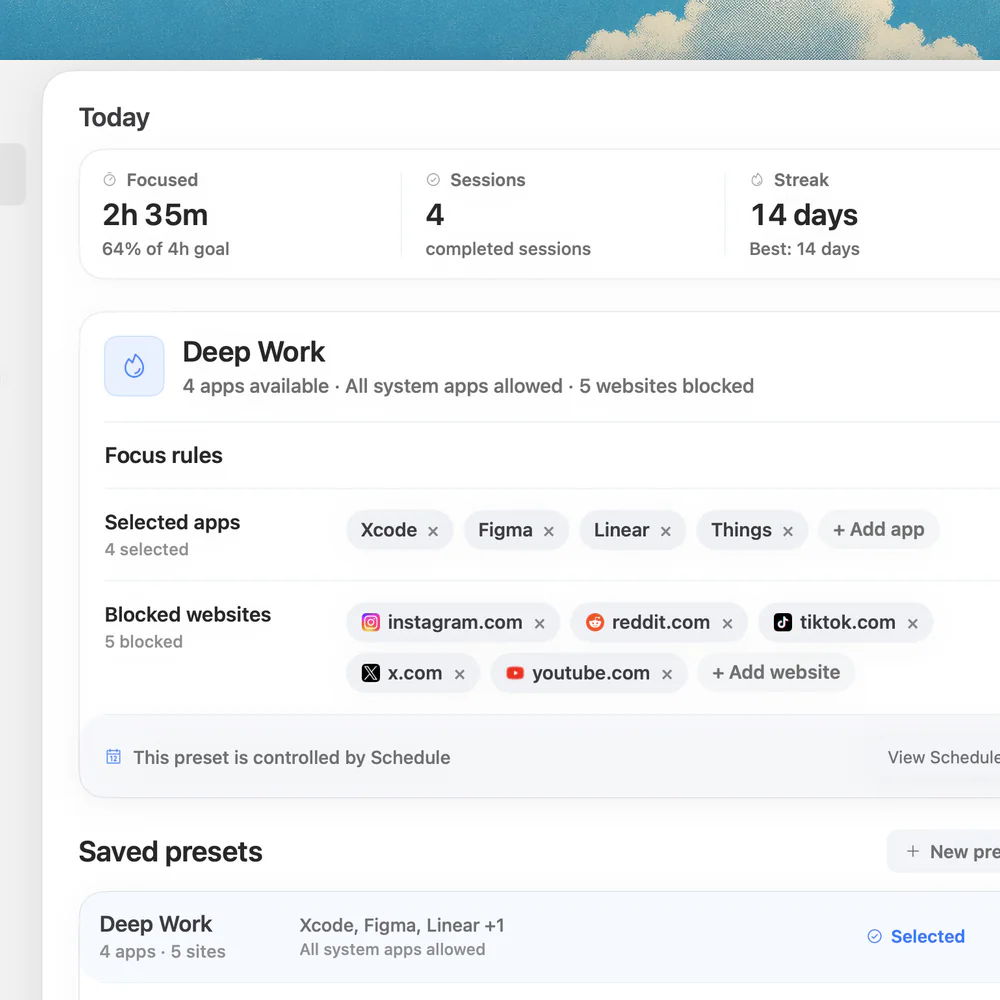
- You want selected sites and apps in a reusable Mac preset.
- Skip it if
- You need phone blocking or a hard-to-stop lock.
 Free, Pro $45 once
2. Desktop blocker
Cold Turkey
Best for: Lockable desktop blocks
- Choose it if
- You need timed website blocks or Pro app blocking and schedules.
- Skip it if
- You need phone support.
 Free
3. Mac website blocker
SelfControl
Best for: Free timed website blocks
- Choose it if
- You want a timer that continues until it expires.
- Skip it if
- You need app blocking or easy early reversal.
Cold Turkey Blocker Free vs Pro: feature matrix
This comparison is about Cold Turkey Blocker, not its separate Writer or Micromanager products. The vendor’s pricing page lists these features by tier. Pro includes the free features as well as the additions shown below. Details and pricing were checked on 1 November 2026.
If the job is simply keeping sites unavailable for the next work block, follow the temporary website-blocking guide. For native applications, the Mac app-blocking guide explains the difference between a daily allowance and an active session.
| Feature | Blocker Free | Blocker Pro |
|---|---|---|
| Block websites | Included | Included |
| Website exceptions | Included | Included |
| Timed blocks | Included | Included |
| Statistics | Included | Included |
| Block applications | Not listed as free | Included |
| Scheduled blocks | Not listed as free | Included |
| Application password | Not listed as free | Included |
| All locking features | Not all included | Included |
| Custom user selection | Not listed as free | Included |
| Breaks and allowances | Not listed as free | Included |
| Price | Free | One-time purchase; confirm current price at checkout |
What can you do with Blocker Free?
Free is a sensible starting point if the task is simply to restrict selected websites for a chosen duration. The official pricing page lists website blocking, website exceptions, timed blocks and statistics. You can test a short block, confirm that the sites you need are still available, and use the result to decide whether the basic tier covers your work.
Website exceptions matter when a broader block would otherwise interfere with necessary pages. Cold Turkey’s feature guide also describes blocking domains, specific URLs and patterns. Check its instructions and test the exact rule rather than assuming every URL is equivalent. Save any urgent work before starting a timed restriction.
What does Pro add?
Pro adds application blocking and scheduled blocks. Those are meaningful upgrades if a distracting desktop app is as much of a problem as its website, or if a block needs to start automatically on a recurring schedule. The vendor also lists an application password, all locking features, custom user selection, breaks and allowances.
The phrase “all locking features” does not establish that Free has no locking at all. Review the particular lock and strictness settings in the current app before starting a block. Pro’s extra controls can make a plan more useful but also harder to change when a deadline, meeting or emergency changes your needs.
How does the seven-day Pro trial work?
Cold Turkey says the free version includes a seven-day trial of Pro features. Install Blocker Free and use the in-app upgrade option to start that trial. While it is active, test the feature that would justify payment: for example, block a desktop app, set a schedule, or configure the locking behavior you actually intend to use.
A successful test during Pro does not show that the same feature is free forever. Note when the trial ends, review the vendor’s current terms, and check what your setup requires afterward. Avoid starting an unexpectedly long or strict block merely to test the feature; a short session provides a safer way to understand the controls.
How much is Pro and what devices does it cover?
Cold Turkey describes Blocker Pro as a one-time purchase with lifetime updates and email support. Its pricing page confirms that one purchase covers computers you personally use and that the same product key works on macOS and Windows. The page text does not reliably display a dollar amount, so confirm the current price, currency and taxes at checkout before buying.
Cold Turkey states that Linux, ChromeOS, Android and iOS are not supported. A desktop license therefore does not restrict the same website on your phone. If you need Mac and phone coverage in the same session, compare a cross-device service and check each platform’s feature limits.
When is upgrading worth it?
Upgrade if a Pro feature solves the problem you have observed, not merely because more settings are available. For a writer who opens a social website during a 45-minute session, Free’s timed website block may be sufficient. For a designer who also opens a distracting desktop app and wants the restriction to start every weekday, app blocking and scheduled blocks are concrete reasons to test Pro.
Work through the requirement in order: identify the distraction, check whether Free handles it, then try the Pro feature in a short trial. If stopping the session early is the problem, compare the available locking choices and their consequences. If you only need a daily allowance, test the allowance feature rather than assuming a timed block works the same way.
Example: a website block that grows into a routine
Imagine a researcher who wants to read a paper for 45 minutes without opening a news site. In Free, they add the site and start a timed block, then verify that the research database remains accessible. When the timer ends, they check that access returns and decide whether another block is needed.
A week later the distraction moves to a desktop app and the work period becomes predictable. During the Pro trial, they add that app and create a schedule, then check both the start and end. If the schedule catches a necessary meeting app, they adjust it before enabling a stronger lock. The upgrade decision rests on that tested routine.
What should you test before buying Pro?
Choose one representative task and a short window. If application blocking is the reason to upgrade, add the exact desktop app that distracts you, start the block and verify that a necessary application remains usable. If scheduling is the reason, test the start and end of a schedule when you are available to observe it.
If a lock matters, read its stop conditions before enabling it. Record how the chosen rule can be changed, whether breaks or allowances are enabled, and when the restriction ends. The product’s marketing description cannot tell you whether those settings fit your own work. A short trial also reduces the chance that an overbroad rule interferes with an important appointment.
Afterward, compare the result with a Free timed website block. If the extra feature never entered your workflow, continue with the free tier. If it protected a recurring session or an application you otherwise kept opening, the one-time upgrade may be useful. Check the actual checkout amount rather than relying on an old price quoted elsewhere.
How does a simpler Mac session compare?
Nudge is an alternative for selected app and website sessions on a Mac. Save a preset and start it from the menu bar; websites are blocked in Safari and Chrome during the session. Scheduled presets are available. Nudge requires macOS 13 or later and Apple silicon, and does not cover a phone.
Its seven-day trial needs no card and Lifetime Access costs $9.99 once. It does not claim the full set of Cold Turkey locking features. If a hard-to-stop block or Cold Turkey’s specific allowances are essential, test those features in Cold Turkey instead. If a free, website-only timer is enough, SelfControl is another Mac option whose timer continues until expiry.
Compare Cold Turkey alternatives for Mac if the feature you need is missing from both tiers. Cold Turkey vs Freedom covers the separate question of desktop locks versus phone coverage.
FAQ
Is Cold Turkey Blocker free?
Yes. Blocker Free includes website blocking, exceptions, timed blocks and statistics. A seven-day Pro trial is included, but Pro-only features do not become free permanently.
Can Cold Turkey Free block apps?
The vendor lists application blocking as a Pro feature, not a Free feature.
Can I schedule a block in the free tier?
Scheduled blocks are listed under Pro. Free includes timed blocks, which are distinct from scheduled blocks.
Does Pro cover my phone?
No. Cold Turkey lists macOS and Windows support and says Android and iOS are not supported.
Does Pro require a subscription?
Cold Turkey describes Blocker Pro as a one-time purchase with lifetime updates. Confirm the current amount and terms at checkout.
Nudge for Mac
Turn the guide into a focus session
Pick the apps and websites that pull you away and start the session from the menu bar. They stay blocked until it ends. $9.99 once after 7 days free, no card to start.
Download for macOS