How to block websites temporarily on a Mac
Block distracting websites for one focused session, compare temporary Mac blockers, and plan what happens when the timer ends.

Quick answer
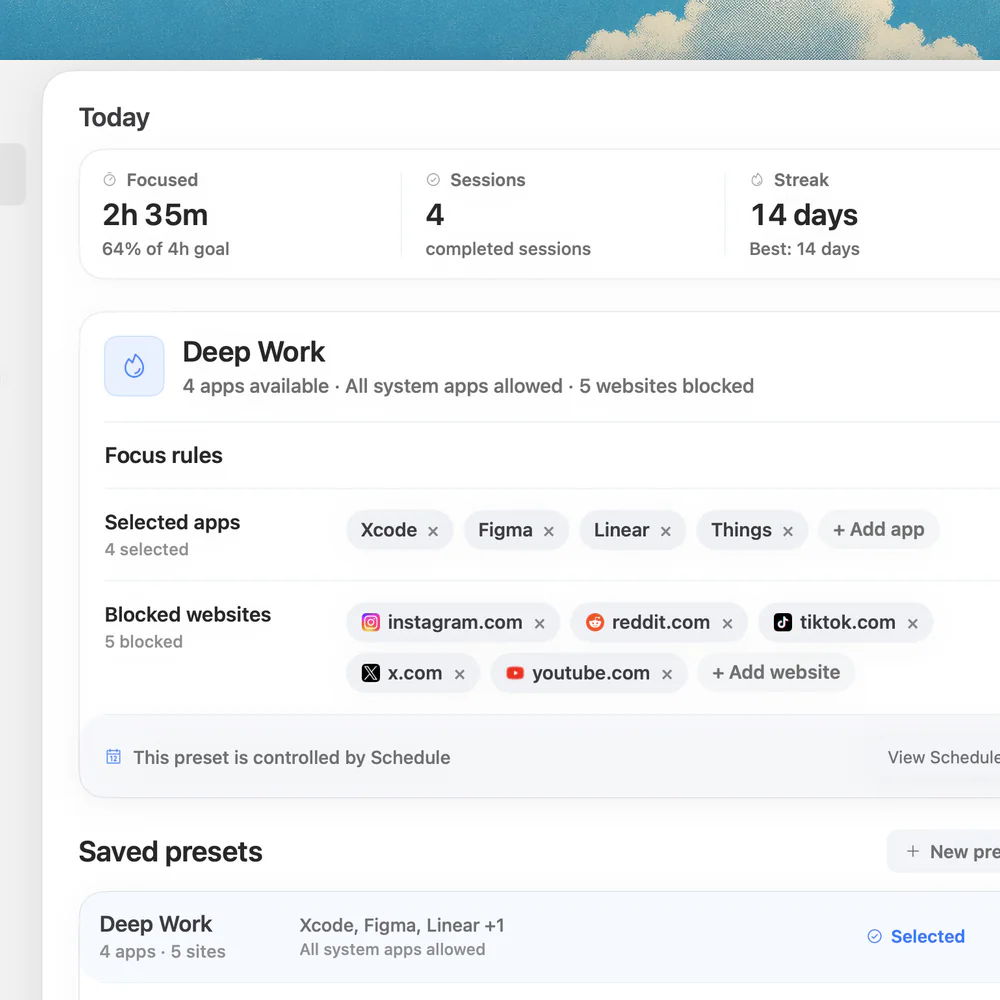
To block websites temporarily on a Mac, choose the sites, set a session length, and check that access returns when the session ends. Nudge can block selected sites and apps during a Mac session; it has a seven-day trial with no card, then costs $9.99 once. SelfControl offers a free, harder-to-reverse website timer.
How do these apps compare?
Block selected websites for one short session and understand expiry and reversibility.
Which tool should you pick?

A flexible Mac session
Nudge
Select sites and apps for one focus block.

Free timed website block
SelfControl
Its timer continues even after a restart or deletion.

Mac and phone together
Freedom
Select devices for a shared session.
The apps in detail
- $9.99 once
1. Session blocker
Nudge
Best for: Mac focus sessions
- Choose it if
- You want selected sites and apps in a reusable Mac preset.
- Skip it if
- You need phone blocking or a hard-to-stop lock.
- Free
2. Mac website blocker
SelfControl
Best for: Free timed website blocks
- Choose it if
- You want a timer that continues until it expires.
- Skip it if
- You need app blocking or easy early reversal.
- Free; Premium from $3.33/mo billed annually
3. Cross-device blocker
Freedom
Best for: Connected device sessions
- Choose it if
- You want one session across a Mac and phone.
- Skip it if
- You need a native Linux desktop app or the same controls on every platform.
 Free, Pro $45 once
4. Desktop blocker
Cold Turkey
Best for: Lockable desktop blocks
- Choose it if
- You need timed website blocks or Pro app blocking and schedules.
- Skip it if
- You need phone support.
Choose the right kind of temporary block
A temporary block has an explicit end. Before you begin, decide what is unavailable, where the rule applies, how long it runs, and whether you may need to change it early. A 45-minute writing session needs a different setup from a restriction that automatically repeats every weekday.
The simplest test is practical: can you open a distracting site before the session, does the intended browser stop it during the session, and does access return after the end? Do not assume that a Mac rule also covers a phone, another browser, or an app that provides the same feed.
For an ongoing daily routine, use the work-hours blocking guide. If you are still choosing a tool, compare the Mac website blockers. A temporary block is about its start and expiry; a recurring schedule is a separate decision.
| Method | What ends it | Best fit |
|---|---|---|
| Nudge session | The selected session ends | A flexible Mac task with sites and apps |
| SelfControl | Its timer expires | A free website-only commitment |
| Freedom session | The session ends | A block spanning selected devices |
| Screen Time allowance | The allowance and settings determine access | A daily usage budget, not a one-off 45-minute timer |
Set up a 45-minute session in Nudge
Suppose you have a draft due today and keep opening a social feed. First open the document and gather any reference pages you will need. In Nudge, choose the distracting sites and any distracting apps, save them as a preset, and start a 45-minute session from the menu bar. Nudge blocks selected sites in Safari and Chrome while the session is active.
Test a chosen site and an essential work page before settling in. Keep the document, research tools, and communication you genuinely need outside the blocked selection. When the session ends, check that the site opens again; reuse or revise the preset for your next task.
Choose the next task and a 45-minute end time.
Identify distracting websites and any apps you do not need.
Save the list as a Nudge preset and start a 45-minute session.
Test one blocked site and one essential site in your working browser.
When the session ends, check that the site is accessible again and adjust your next preset.
What should you check before starting?
Write down the exact task and end time. If a colleague may send an urgent link, decide in advance how you will receive it. Save work in applications you plan to block, and check whether your research requires a page on a domain you are about to restrict. A whole-domain entry can be broader than one distracting page.
Test in the browser and macOS account you actually use. A site may have another address, and a desktop app can expose the same content independently of a website. If it remains accessible, check the active session, the spelling and address you selected, and whether that browser is supported. Add only what you need, then run a short test.
How reversible should the block be?
Reversibility matters more than the word temporary. Nudge is designed around sessions rather than a claim that you cannot change your mind. That suits changing work needs, but someone who wants a stronger commitment may prefer a different tool. Decide before starting how an unexpected work request will be handled.
SelfControl is free and open source. Its developer says its website block remains until the timer ends even if you restart the Mac or delete the application. That is useful when you want the timer to hold, but it makes a short test and a careful list especially important. Do not start a long timer on a site you might need in an emergency.
What if the distraction is also on your phone?
A Mac session does not automatically cover another device. If you move from a blocked feed on your laptop to the same feed on your phone, use a separate phone control or compare a cross-device product. Freedom can synchronize a session across selected devices, although its website exceptions and app controls differ by platform. Test each device rather than assuming that a single list behaves identically everywhere.
Cold Turkey Blocker Free offers timed website blocks on Mac and Windows. Its Pro tier adds app blocking and additional controls. It does not support iOS or Android. Compare the features and the ability to stop the chosen block before turning on a strict option.
Is Screen Time a temporary website blocker?
Apple Screen Time can set app and website allowances and schedules, with controls that vary by macOS version. An allowance measures use over a day; it does not necessarily create a fresh 45-minute block now and restore access exactly at the end of that interval. Check the version-specific Apple guide before using it.
For the immediate task, a session with a visible end is easier to reason about. A daily allowance is useful for a separate goal: reducing total browsing across a day. If you combine the two, remember that a daily limit may still affect access after your session ends.
What if you need to access a blocked page during the session?
Before starting, make a small exception plan. If an urgent client message may contain a link to a restricted site, agree on another way to receive the information or leave that domain out of this particular session. A rule that blocks an entire domain can also cover a useful help page on that domain, so check the exact work you expect to do.
If the need arises during a session, follow the product’s own controls and the stop rules you chose. Some tools make early changes deliberately difficult; SelfControl’s developer says its timer runs until it expires. Do not rely on uninstalling an app as your emergency plan. When the task is complete, revisit the list and use a shorter test next time.
A temporary boundary should fit the task: a 20-minute review, 45-minute draft, and two-hour study block can use different selections. The goal is to make the next task easier to start while keeping the resources it requires available.
What should happen after 45 minutes?
When the timer ends, open a previously blocked site to confirm access has returned. If it is still unavailable, check whether another blocker, Screen Time setting, or a second session is active before changing system settings. If you are using a stricter product, review its own end and lock rules.
Then make a deliberate choice: take a break, run another short session, or change the list. If a blocked site was essential to the task, remove it from the next preset; if an unblocked app replaced the distraction, consider adding that app. A useful list is specific to the work rather than a permanent ban on everything.
Keep the browser available when you need research. Use the Mac app-blocking guide for a desktop app, or compare app and website blocking when a service has both routes.
FAQ
Can I block a website for 45 minutes?
Yes. Start a 45-minute session with the site selected, test it in your browser, and check access again when the session ends.
Will the block end automatically?
A timed session is intended to end at its selected time. Check the product's settings and whether another restriction is active if access does not return.
Can I end a SelfControl block early?
SelfControl says the block lasts until its timer expires even after restarting or deleting the app. Review the list and duration before starting.
Does the Mac block also apply to my phone?
Nudge and SelfControl are Mac tools. Use a separate phone control or a cross-device service if the phone needs the same boundary.
Does Screen Time give me a fresh 45-minute block?
Screen Time provides allowances and schedules, which vary by macOS version. A daily allowance is different from a one-off session timer.
Nudge for Mac
Turn the guide into a focus session
Pick the apps and websites that pull you away and start the session from the menu bar. They stay blocked until it ends. $9.99 once after 7 days free, no card to start.
Download for macOS