How to block Slack on a Mac during focus time (app and website, 2026)
How to block Slack on a Mac during focus time: the desktop app and the web version. Slack's own pause notifications, Screen Time, hosts file and a focus app.

Quick answer
To block Slack on a Mac during focus time, decide whether you only want silence or a real block. Slack's own Do Not Disturb (pause notifications) stops alerts but leaves the app open. To block the Slack desktop app and the web version, use a Screen Time App Limit, the hosts file for app.slack.com and your workspace address, or a focus app such as Nudge, which blocks the apps and websites you pick during a session, with websites blocked in Safari and Chrome. Nudge blocks Slack itself and does not manage Slack notifications.
How do these apps compare?
Keep Slack out of the way during focus time on a Mac, choosing between Slack's own pause notifications and blocking the app and website.
| App | Best for | Price | Website |
|---|---|---|---|
 NudgeTop pick NudgeTop pick | Blocking the Slack app and Slack on the web during work sessions | $9.99 once | Get Nudge |
 Apple Screen Time Apple Screen Time | A built-in cap on the Slack app | Free, built into macOS | Visit |
 SelfControl SelfControl | A free website block that holds until a timer ends | Free | Visit |
 Cold Turkey Cold Turkey | Maximum friction | Free, Pro $45 once | Visit |
 Freedom Freedom | Blocking on Mac and phone together | $8.99/mo or $99.50 lifetime (Oct deal) | Visit |
Which tool should you pick?
Best for work sessions
Nudge
Blocks the Slack app and the Slack website while a session runs, and lets them back in when you stop.
Built in and free
Apple Screen Time
An App Limit can cap the Slack app with no extra software.
Free and strict
SelfControl
A free Mac blocker for websites that keeps its block on until the timer ends. It does not block apps.
Hardest to undo
Cold Turkey
Strict locked modes for apps and websites.
Across devices
Freedom
The same blocklists on Mac and phone.
The apps in detail
- $9.99 once
1. Website and app blocking
Nudge
Best for: Blocking the Slack app and Slack on the web during work sessions
- Choose it if
- You want Slack closed to you on the Mac while you do deep work and reachable afterwards.
- Skip it if
- You also need blocking on your phone. Nudge is a Mac app. For the phone, look at Freedom, Opal or Session.
- Free, built into macOS
2. Usage limits
Apple Screen Time
Best for: A built-in cap on the Slack app
- Choose it if
- You want a free limit from System Settings with no extra app.
- Skip it if
- You want the block tied to work sessions, or a block that holds the moment a session starts.
- Free
3. Website blocking
SelfControl
Best for: A free website block that holds until a timer ends
- Choose it if
- You only need your Slack workspace address blocked and want it hard to bypass.
- Skip it if
- You need to block the Slack app. SelfControl blocks websites, not apps.
- Free, Pro $45 once
4. Website and app blocking
Cold Turkey
Best for: Maximum friction
- Choose it if
- You need strict blocks on the Slack app and website.
- Skip it if
- You want a gentle session workflow.
- $8.99/mo or $99.50 lifetime (Oct deal)
5. Website and app blocking
Freedom
Best for: Blocking on Mac and phone together
- Choose it if
- Slack is a problem on both your Mac and your phone.
- Skip it if
- You want a Mac-local session tool only.
Do you want to pause Slack notifications or block Slack?
They are different. Pausing notifications keeps Slack open and silent. Blocking keeps Slack from opening. Slack has a built-in way to pause notifications, and it is the right first step if the problem is pings. If the problem is that you open Slack on your own, a block is the tool that helps.
Slack runs as a desktop app for Mac, downloadable from slack.com/downloads/mac and listed on the Mac App Store, and as a web version in a browser. Your workspace opens at an address such as yourworkspace.slack.com, and once it loads the address changes to app.slack.com. Blocking the app does not block the website, and the other way round.
How do you pause Slack notifications on a Mac?
Slack's Do Not Disturb pauses notifications for a set time. Slack's help center describes the steps below, and the menu label can differ between versions (some pages say Pause notifications, others say Notifications). This is a Slack feature, not part of Nudge.
- For a recurring quiet period, open Preferences from the profile menu and set Working hours, with Allow notifications set to Every day, Weekdays or Custom.
- Slash commands also work in the message box: /dnd for 15 mins, /dnd until 5pm, and /dnd off to resume.
- Slack also has a focus mode that quiets the sidebar and pauses notifications. Slack stays open and reachable in all of these, so a habit of checking it is not stopped.
In Slack on your desktop, click your profile picture in the sidebar.
Move your cursor over Notifications (called Pause notifications in some versions).
Pick a duration from the menu, or choose Custom to set your own.
To resume early, open the same menu and select Resume notifications.
Which method should you use to block Slack?
Use Slack's own pause notifications to quiet alerts, Screen Time App Limits for a free cap on the app, the hosts file for the web version, and Nudge when you want the app and the website blocked for the length of a session. For the general app method, see how to block apps on a Mac.
| Method | Covers | Effort | Easy to undo? |
|---|---|---|---|
| Slack Do Not Disturb | Notifications only; Slack stays open | Low | Easy: Resume notifications |
| Screen Time App Limit | The Slack app (and the website if you add it) | Low | Easy: anyone with admin access can change it in System Settings |
| Hosts file | Your Slack web address in browsers that use the system resolver | Medium (Terminal) | Easy: delete the lines and flush DNS |
| Nudge focus session | The Slack app and Slack websites in Safari and Chrome | Low | Blocks during sessions you start or schedule; you decide when it runs |
How do you block the Slack app with Screen Time App Limits?
Screen Time can limit how long an app is used per day. On macOS 26 and earlier, App Limits set limits for specific apps, app categories and websites. On macOS 27, Apple's guide sets Time Allowances by app category, so you may need to limit the whole category Slack is in, which can include other apps. A limit caps use; it does not remove the app.
- When the time is up, macOS shows a prompt that the person at the keyboard can usually dismiss with an extra allowance unless a Screen Time passcode is set. It limits time; it does not stop you opening Slack at the start of a work session. If Slack is part of your job, a daily cap rarely fits. A session-based block does.
Click the Apple menu, open System Settings and click Screen Time in the sidebar (you may need to scroll). Turn it on if needed.
Open App Limits (on macOS 27, Time Allowances).
Add a limit and choose the Slack app from the list of apps, or its category if you want a wider limit.
Set a short daily time, then confirm.
Optional: turn on Lock Screen Time Settings so a passcode is needed to change it.
How do you block the Slack website with the hosts file?
Point your Slack web address at an address that goes nowhere. Slack's help center says a workspace URL is the workspace name followed by slack.com, for example acmeinc.slack.com, and that once the page loads the address changes to app.slack.com. Hosts entries do not support wildcards: each line covers one hostname only. List your own workspace hostname and app.slack.com, then open Slack in the browser to see which address it ends up on.
Chrome reads the hosts file itself, and other browsers on this Mac that use the system resolver read it too. Safari follows it as well, unless iCloud Private Relay is on; turn Private Relay off for Safari, then open the site to confirm it is blocked. Do not add shared content or CDN domains to the file.
- To unblock, open the file again, delete the lines and flush the cache again.
- It is a permanent block with no timer, and anyone who knows the trick can reverse it. The Slack desktop app may or may not keep working, so test it, and block the app with App Limits or a focus app.
Open Terminal and run:
sudo nano /etc/hostsEnter your Mac password. Move to the bottom of the file and add your workspace hostname (replace acmeinc with your own) and app.slack.com:
0.0.0.0 acmeinc.slack.com
0.0.0.0 app.slack.com
Press Control-O, then Return to save, and Control-X to exit.
Flush the DNS cache so the change applies now:
sudo dscacheutil -flushcache
sudo killall -HUP mDNSResponder
Quit and reopen your browser, then open your Slack address and confirm it no longer loads. Quit and reopen the Slack app and see whether it still connects.
How do you block Slack on your iPhone too?
Use Screen Time on the iPhone, or pause notifications in the Slack app on the phone (tap your profile picture, then Pause notifications). A block on your Mac does not carry over to the phone, and Nudge is a Mac app only. Menu names differ slightly between iOS versions.
On the iPhone, open Settings and tap Screen Time.
Tap App Limits, add Slack and set a time allowance.
Optional: pause notifications inside Slack so alerts also stay quiet.
How do you block Slack only during focus sessions?
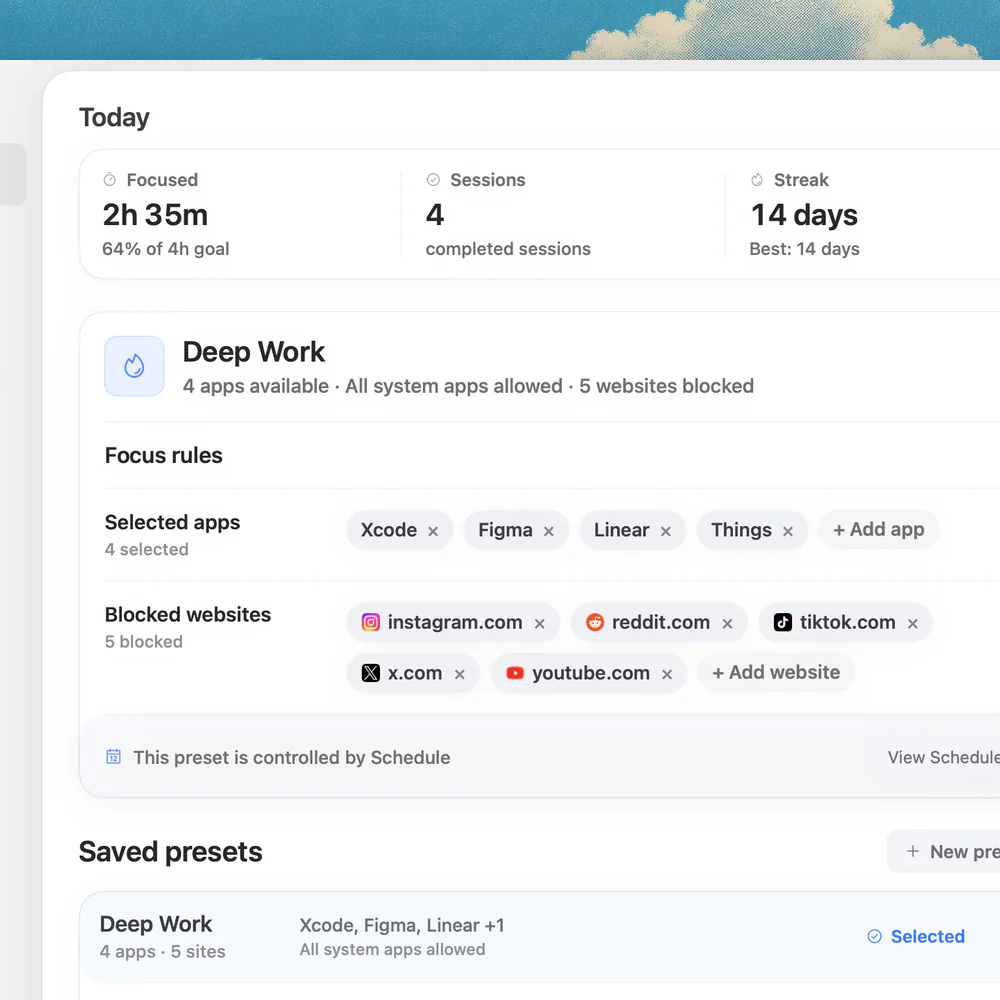
Use a focus app that blocks apps as well as websites, so Slack is shut while you do deep work and reachable after. Add the Slack app, app.slack.com and your workspace address to a Nudge preset and start the session from the menu bar. Nudge blocks the apps and websites you picked while the session runs, and websites are blocked in Safari and Chrome. Nudge does not block or manage notifications, so keep Slack's own Do Not Disturb for that.
- Slack is blocked on the Mac while you work and reachable after the session ends. Nudge costs $9.99 once for Lifetime Access, with no subscription, and every Mac gets a 7-day free trial that needs no email, password or card.
- To compare other tools, read the best website blocker apps for Mac and app blocker vs website blocker. A longer plan for deep work is in the focus app for coding on Mac guide.
Open Nudge and create a preset, such as Deep Work.
Add the Slack app to the apps to block, and app.slack.com plus your workspace address (such as acmeinc.slack.com) to the websites to block.
Start the preset from the menu bar, or use Quick Focus for a one-off session.
Optional: add a schedule so the preset runs on the days and hours you choose.
FAQ
How do I block Slack on a Mac during focus time?
Add the Slack app, app.slack.com and your workspace address to a Nudge preset and start a session, or set a Screen Time App Limit for Slack. To only silence alerts, use Slack's own Do Not Disturb.
How do I pause Slack notifications on a Mac?
In Slack, click your profile picture, hover over Notifications (Pause notifications in some versions), and pick a duration or Custom. Select Resume notifications to turn it off. The command /dnd for 15 mins does the same.
Does Nudge pause Slack notifications?
No. Nudge blocks the Slack app and website during a session and does not manage Slack notifications. Use Slack's own Do Not Disturb or working hours for that.
Does Screen Time block the Slack app?
It can limit it. An App Limit caps daily time in the app, and a passcode stops easy changes. It limits time; it does not switch the app off at the start of a focus session. Labels vary between macOS versions.
Will a hosts file entry stop the Slack desktop app?
Do not count on it. The app and the website are separate, and the app may connect to Slack's servers directly. Block the app with App Limits or a focus app, and use the hosts file for the website.
Does blocking Slack on my Mac block it on my iPhone?
No. A Mac block applies to that Mac. For the phone, use Screen Time on iPhone, pause notifications in Slack on the phone, or another phone app such as Freedom, Opal or Session. Nudge is a Mac app and does not block phones.
Nudge for Mac
Turn the guide into a focus session
Pick the apps and websites that pull you away and start the session from the menu bar. They stay blocked until it ends. $9.99 once after 7 days free, no card to start.
Download for macOS