
Website blocker for Mac: the best website and app blockers in 2026
The best website blocker for Mac in 2026: 9 website and app blockers compared on what they block, how strict they are and price, with the best free picks.

Quick answer
The best website blocker for Mac is Nudge for most people: you pick the websites and apps that distract you, it blocks them while a focus session runs, and it costs $9.99 once after a 7-day free trial. SelfControl is the best free website blocker (websites only, and it cannot be undone), Cold Turkey and Focus are the strictest, and Freedom is the pick if your phone is part of the problem. Apple Screen Time is a free built-in limiter, but it is easy to switch off on your own Mac.
How do these apps compare?
Choose a Mac blocker by what it blocks (websites, apps or both), how hard it is to switch off, and what it costs.
| App | Best for | Price | Website |
|---|---|---|---|
 NudgeTop pick NudgeTop pick | Website and app blocking in work sessions | $9.99 once | Get Nudge |
 Apple Screen Time Apple Screen Time | Built-in limits | Free, built into macOS | Visit |
 SelfControl SelfControl | Free hard website blocks | Free | Visit |
 Freedom Freedom | Cross-device blocking | $8.99/mo or $99.50 lifetime (Oct deal) | Visit |
 Cold Turkey Blocker Cold Turkey Blocker | Maximum friction | Free, Pro $45 once | Visit |
 FocusMe FocusMe | Power-user rules | From $9.95/mo yearly or $449 lifetime | Visit |
 1Focus 1Focus | Mac-native blocking | Free, Pro $9.99/yr | Visit |
 Opal Opal | Phone plus desktop discipline | Free, Pro $99.99/yr | Visit |
 BlockSite BlockSite | Browser-extension blocking | See pricing | Visit |
Which tool should you pick?
Top pick for Mac
Nudge
Task-specific sessions with app and website blocking and reusable work presets.
Best built-in baseline
Apple Screen Time
Good for simple app and website limits without another app.
Best free strict blocker
SelfControl
Mac-only website/mail blocking that keeps running until the timer ends.
Best cross-device blocker
Freedom
Blocks distractions across Mac, phone, tablet, and browser workflows.
Best strict enforcement
Cold Turkey
Strong blocking modes for users who need high friction.
The apps in detail
- $9.99 once
1. Website and app blocking
Nudge
Best for: Website and app blocking in work sessions
- Choose it if
- You want one Mac app that blocks the websites and apps you pick during a focus session, with a preset for each kind of work.
- Skip it if
- You need phone-first or enterprise monitoring controls.
- Free, built into macOS
2. Usage limits
Apple Screen Time
Best for: Built-in limits
- Choose it if
- You want basic app and website limits with no extra install.
- Skip it if
- You need task-specific presets or strict work sessions.
- Free
3. Website blocking
SelfControl
Best for: Free hard website blocks
- Choose it if
- You want a simple Mac-only timer that is difficult to bypass.
- Skip it if
- You need app blocking, sync, or flexible exceptions.
- $8.99/mo or $99.50 lifetime (Oct deal)
4. Website and app blocking
Freedom
Best for: Cross-device blocking
- Choose it if
- Your distraction loop moves across desktop and phone.
- Skip it if
- You want a Mac-local session tool only.
- Free, Pro $45 once
5. Website and app blocking
Cold Turkey Blocker
Best for: Maximum friction
- Choose it if
- You need strict blocks, schedules, and hard-to-bypass modes.
- Skip it if
- You want a gentle session workflow.
- From $9.95/mo yearly or $449 lifetime
6. Website and app blocking
FocusMe
Best for: Power-user rules
- Choose it if
- You want detailed plans, limits, and blocking rules.
- Skip it if
- You want minimal setup.
- Free, Pro $9.99/yr
7. Website and app blocking
1Focus
Best for: Mac-native blocking
- Choose it if
- You want a straightforward Mac blocker with schedules.
- Skip it if
- You need cross-device control.
- Free, Pro $99.99/yr
8. Cross-device focus
Opal
Best for: Phone plus desktop discipline
- Choose it if
- Your phone is the bigger leak but you still want Mac coverage.
- Skip it if
- You only work on Mac and want local presets.
9. Browser blocking
BlockSite
Best for: Browser-extension blocking
- Choose it if
- You want lightweight browser-based controls.
- Skip it if
- You need system-level Mac app blocking.
Which website blocker for Mac blocks websites, apps or both?
A website blocker stops sites such as YouTube, Reddit or X from loading. An app blocker keeps you out of Mac apps such as Messages, Slack or games. Some tools do one, some do both, and the difference decides which one you need. Prices below were checked on each vendor's site on 10 October 2026. If one site is the problem, see how to block YouTube, Reddit, X / Twitter, TikTok or Facebook on a Mac. To block Mac apps such as Discord, Slack or games, see how to block apps on a Mac.
- Nudge: websites yes, apps yes (you choose which apps to block). Safari, Chrome, Edge, Arc, Brave, Opera, Vivaldi, Dia, Comet and ChatGPT Atlas. Blocks for the length of a session you set. $9.99 once.
- SelfControl: websites yes, apps no. Stays on until the timer ends, even after a restart. Free.
- Cold Turkey Blocker: websites yes, apps in the Pro version. Very strict locked modes. Free version, Pro is $45 once.
- Focus: websites yes, apps yes. Locked Mode cannot be stopped once it starts. One-time licenses from $29, Focus 2 is $49, Lifetime is $129.
- Freedom: websites yes, apps yes. Locked Mode, and the same blocklists on phone and tablet. $8.99 a month, about $3.33 a month billed yearly, or $99.50 for lifetime access (the October 2026 price, normally $199).
- 1Focus: websites yes, apps yes. Mac only. Free tier, Pro is $1.99 a month or $9.99 a year.
- Apple Screen Time: websites yes, apps yes, as daily limits. Free and built in, but easy to switch off on your own Mac.
What is the best app blocker for Mac?
The best app blocker for Mac is Nudge for most people. Apps are a different problem from websites: Messages, Discord, Steam or a second browser never touch a website blocklist, so a pure website blocker leaves them wide open. A Mac app blocker lets you name the apps that distract you and keeps them closed while you work.
Nudge does this with presets. A Writing preset blocks Messages, Discord and the games you pick; a Coding preset blocks the chat and media apps you pick. You start one from the menu bar and everything is reachable again when the session ends. Focus, Freedom, Cold Turkey Blocker Pro and 1Focus also block apps. SelfControl does not, and Screen Time limits apps by daily time rather than by task.
To block a Mac app for good, Screen Time is the free built-in route. To block it only while you work, use a session tool, so the app is back when you stop. The how to block apps on a Mac guide has the steps for each method.
What is the best internet blocker for Mac?
An internet blocker blocks everything online for a while, not a list of sites. On a Mac that usually means one of two things: blocking the whole browser for a session, or blocking every site except a short allowlist of the ones your work needs. Cold Turkey, Focus, Freedom and 1Focus can all cut off the internet for a set time.
Most knowledge work still needs the browser for docs, search and trackers, so blocking all of it is usually too much. Blocking the loops that keep winning and leaving the work domains open lasts longer. If you do need the harsh version, Cold Turkey, Focus and Freedom can lock out the browser or the whole internet for a set time, and Nudge can block a browser app itself inside a session by adding it to the block list.
How to block distracting websites on a Mac
Pick the sites that cost you the most time, not every site you could ever lose an hour to. Start with three to five, add them to a blocker, and set the block for a fixed session such as 45 or 90 minutes rather than all day.
Then test it in the browser you actually use. Blockers behave differently across Safari, Chrome, Arc and app-embedded browsers, and some can be bypassed by switching browsers. Step-by-step guides cover Safari, Chrome and the whole Mac.
Which Mac app blocks websites for a set time?
If you want a Mac app to block websites temporarily, you need a timer-based blocker, not a permanent list. Nudge, SelfControl, Cold Turkey, Focus, Freedom and 1Focus all let you start a block for a chosen length and have the sites come back when it ends.
In Nudge you save the sites in a preset, pick a length from the menu bar (15, 25, 45 or 90 minutes, two hours or open-ended) and start. In SelfControl you add the sites, set the timer and click Start; it keeps blocking even after a restart. For a permanent block instead, the how to block websites on a Mac guide covers the built-in and hosts-file routes.
Can Apple Screen Time block websites on a Mac?
Yes, but the menus depend on your macOS version. On macOS 26 and earlier, open System Settings, click Screen Time, then App Limits, click Add Limit and choose a website (use Add Website for a URL that is not listed). Tick Block at end of limit if you want the site blocked once the time is used.
On macOS 27, Apple reorganized Screen Time around Schedule (time windows) and Time Allowances (daily limits by app category such as Entertainment or Social Media). Apple's macOS 27 page for Time Allowances describes apps and categories and does not mention websites, so for website rules open System Settings, Screen Time, then Content & Privacy.
Screen Time is free and needs no install, but you can switch it off in the same Settings pane, which is why it works better as a baseline than as a block you have to honor. Checked on Apple's support pages on 10 October 2026.
Use sessions instead of permanent blocks
Permanent blocks are useful for obvious distractions. Session blocks match the task. A writing session, a coding session and an admin session should not share the same rules, and a permanent block on a site you need for work is the usual reason people turn the whole blocker off.
Nudge is built around that idea: save a preset with the apps and websites that do not belong in the task, and start it from the menu bar. For the full difference between the two kinds of tool, see app blocker vs website blocker. To pair sessions with a timer first, try the free online Pomodoro timer.
Strictness ladder
Website blockers sit on a strictness ladder. Apple Screen Time is a built-in baseline. Browser extensions are light. Freedom adds cross-device sessions. SelfControl is simple and hard to interrupt. Cold Turkey and FocusMe move toward high-friction enforcement. Nudge is different: it focuses on repeatable Mac work sessions, with a preset of the apps and websites to block for each kind of work.
Start lower on the ladder unless the loop is severe. If the block is too strict too early, you will spend more time working around it than working.
Browser and profile coverage
A blocker is only as good as the browsers it covers. Safari, Chrome, Arc, Brave, and profile-based workflows can behave differently. Some products work through system-level controls, some through browser extensions, and some through DNS or app permissions.
Before trusting a setup, test the exact escape paths you use when procrastinating: private windows, alternate profiles, a second browser, mobile handoff, and app-embedded web views.
Cross-device blocking vs Mac-only sessions
Freedom and Opal are attractive when the phone is part of the same loop. A Mac-only blocker will not help if you block a site on the computer and immediately open it on the phone. Cross-device blocking is the right layer when attention leaks across devices.
Mac-only sessions are better when the work environment itself is the issue. If coding, writing, or admin work needs different blocked apps and sites, presets matter more than phone sync.
Blocklists that work
The best blocklist is specific. Block the domains that create loops, not the entire internet. Keep work-critical references, dashboards, documents, and authentication flows off the list. Review the list weekly for the first month.
A good rule set should feel boring during work. If you keep noticing it, the preset is probably missing a legitimate work site or blocking too broadly.
How to evaluate blocker claims
Website blocker marketing often sounds similar: block distractions, reclaim focus, build better habits. The useful evaluation is more concrete. Does it cover your browsers? Does it block apps or only websites? Can it schedule sessions? Can it lock sessions? Can it allow work sites? Can it sync across phone and Mac? Can you recover if a legitimate work site is blocked?
Run a trial with one real work block instead of browsing feature pages. If the blocker helps you finish the block without fighting the tool, keep it. If you spend the session negotiating exceptions, pick a more flexible preset model.
FAQ
What is the best website blocker for Mac?
For most people, Nudge: you pick the websites and apps that distract you and it blocks them while a focus session runs, in Safari, Chrome and other browsers, for $9.99 once. SelfControl is the best free website blocker, Cold Turkey and Focus are the strictest, and Freedom is best if you also need your phone covered.
What is the best app blocker for Mac?
Nudge, for most people: you name the Mac apps that distract you, such as Messages, Discord or games, and it blocks them for the length of a session. Focus, Freedom, 1Focus and Cold Turkey Blocker Pro can also block Mac apps. Apple Screen Time is the free built-in option for daily app limits.
Is there a free website blocker or app blocker for Mac?
Yes. SelfControl is free and open source and blocks websites until the timer ends, even after a restart, but it does not block apps. Apple Screen Time is free and built in, 1Focus has a free tier, and Cold Turkey Blocker has a free version that blocks websites (app blocking is Pro). Nudge costs $9.99 once, after a 7-day free trial with no email or card.
How do I block websites on a Mac with an app?
Add the sites that waste the most time to a blocker app and start a timed block, such as 45 or 90 minutes. In Nudge you save the sites in a preset and start it from the menu bar. SelfControl does the same for free. Without any app, Screen Time can limit websites, but you can switch it off.
What is an internet blocker for Mac?
It is a tool that blocks online access for a set time, either every site or all but a short allowlist. Cold Turkey, Focus, Freedom and 1Focus can cut off the whole internet. Most people get better results blocking only the distracting sites and keeping work sites open.
Should I block websites or apps?
Block websites when the browser is required for work but certain destinations are distracting. Block apps when Slack, Mail, games or media apps are the problem. Use both for deep work: Nudge, Focus, Freedom and 1Focus block both kinds in one session.
What is the strongest website blocker for Mac?
Cold Turkey's locked timer, Focus's Locked Mode and SelfControl are the strictest: a block that has started keeps running until it ends. Cold Turkey is broader and more configurable, SelfControl is simpler and Mac-specific. The strongest is not always the easiest to keep using for everyday work, where a session tool like Nudge fits better.
Nudge for Mac
Turn the guide into a focus session
Pick the apps and websites that pull you away and start the session from the menu bar. They stay blocked until it ends. $9.99 once after 7 days free, no card to start.
Download for macOS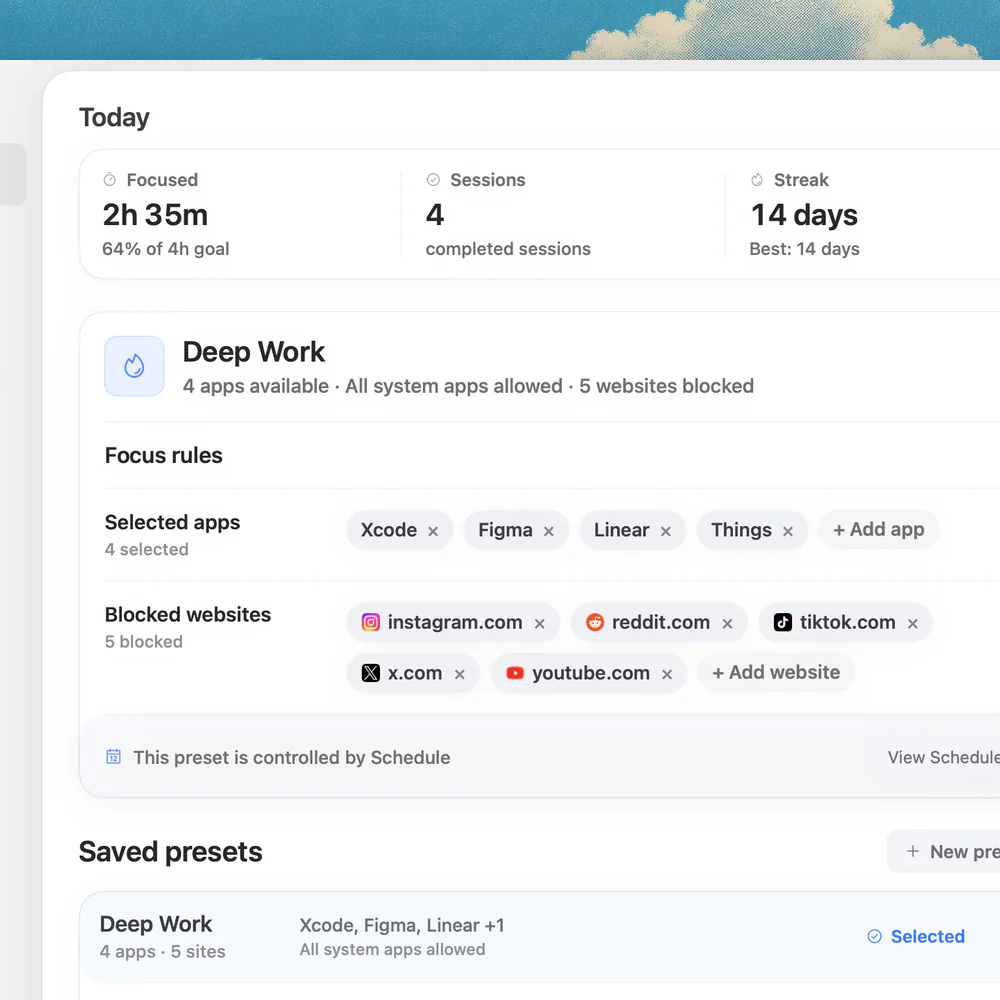
Sources
Keep reading
 FeatureWebsite and app blocking in Nudge
 How-toHow to block apps on a Mac (2026)
 How-toHow to block a website on a Mac (2026)
 How-toHow to block websites in Chrome on a Mac (2026)
 How-toHow to block a website in Safari on a Mac (2026)
 Blocking strategyApp blocker vs website blocker for Mac: which do you need?
 Focus appsBest focus app for Mac in 2026
 ComparisonNudge vs Cold Turkey
 ComparisonNudge vs SelfControl
 Website blockingFreedom alternatives for Mac in 2026: apps like Freedom, with no subscription