How to block websites on a Mac (2026)
Block websites on a Mac with Screen Time, the hosts file, SelfControl or Nudge. Steps, Terminal commands and which browsers each method covers.

Quick answer
For a repeatable daily workflow, use Nudge: create a preset, choose the apps and websites to block, and start it from the menu bar. For a free built-in baseline, use Apple Screen Time. For a strict one-off website timer, use SelfControl. The hosts file works too, but it is manual, per hostname and needs an admin password.
How do these apps compare?
Pick the lightest way to block websites on a Mac that holds up for the length of a work session.
| App | Best for | Price | Website |
|---|---|---|---|
 NudgeTop pick NudgeTop pick | Repeatable focus sessions | $9.99 once | Get Nudge |
 Apple Screen Time Apple Screen Time | Built-in limits | Free, built into macOS | Visit |
 SelfControl SelfControl | Free strict website timers | Free | Visit |
 Cold Turkey Cold Turkey | Maximum friction | Free, Pro one-time | Visit |
 Freedom Freedom | Blocking across Mac and phone | $8.99/mo or $99.50 lifetime | Visit |
 1Focus 1Focus | Low-cost Mac blocking | Free, Pro $9.99/yr | Visit |
Which tool should you pick?
Best for work sessions
Nudge
Saved presets with blocked apps and websites for coding, writing, study or admin, started from the menu bar.
Best built-in and free
Apple Screen Time
Basic app and website limits, plus a Safari website restriction, with nothing to install.
Best free and strict
SelfControl
A free timer that keeps websites blocked until it ends, even after a restart.
Hardest to undo
Cold Turkey
Strict locked modes for people who need high friction.
Best across devices
Freedom
The same blocklists on Mac and phone.
The apps in detail
- $9.99 once
1. App and website sessions
Nudge
Best for: Repeatable focus sessions
- Choose it if
- You want distracting apps and websites blocked in Safari and Chrome for a session, started from the menu bar with a preset.
- Skip it if
- You need to block sites on your phone as well. Nudge is a Mac app.
- Free, built into macOS
2. Usage limits
Apple Screen Time
Best for: Built-in limits
- Choose it if
- You want app and website limits, or a Safari website restriction, without installing anything.
- Skip it if
- You need task-specific presets or a block that covers Chrome.
- Free
3. Website blocking
SelfControl
Best for: Free strict website timers
- Choose it if
- You want a free timer that keeps sites blocked until it ends.
- Skip it if
- You need app blocking, presets, a menu bar workflow or analytics.
- Free, Pro one-time
4. Website and app blocking
Cold Turkey
Best for: Maximum friction
- Choose it if
- You want strict locked blocks that are hard to undo.
- Skip it if
- You want a gentle daily session workflow.
- $8.99/mo or $99.50 lifetime
5. Cross-device blocking
Freedom
Best for: Blocking across Mac and phone
- Choose it if
- The same sites pull you away on your Mac and your phone.
- Skip it if
- You only work on a Mac and do not want a subscription.
- Free, Pro $9.99/yr
6. Website and app blocking
1Focus
Best for: Low-cost Mac blocking
- Choose it if
- You want a Mac-only blocker with a free tier.
- Skip it if
- You need blocking on other devices.
How can you block websites on a Mac?
You can block websites on a Mac with Screen Time, the hosts file, a strict website timer such as SelfControl, or a focus app such as Nudge. The right method depends on whether you need a one-off block or a repeatable work-session system.
Start with the lightest method that can actually hold your focus block. A strict method is not always better if it is too annoying to use every day.
| Method | Effort | Which browsers | Easy to undo? |
|---|---|---|---|
| Nudge | Low | Safari and Chrome. Mac only today; built for work sessions, not phone blocking. | Stays blocked for the length of the session you set. |
| Screen Time app and website limits | Medium | A useful baseline, but not built around task-specific presets. | Yes, from System Settings. |
| Screen Time web content restrictions | Medium | Apple describes this setting for Safari only. Open the site in each browser to confirm. | Yes, remove the site from the Restricted list. |
| /etc/hosts file | High | Browsers on this Mac that use the system resolver or Chrome's own resolver, including Chrome. Safari too, unless iCloud Private Relay is on. | Delete the lines and flush DNS again. |
| SelfControl | Low | Free strict website timers. No app blocking, presets, menu bar workflow or analytics. | No, it runs until the timer ends. |
How do you block websites on a Mac with Nudge?
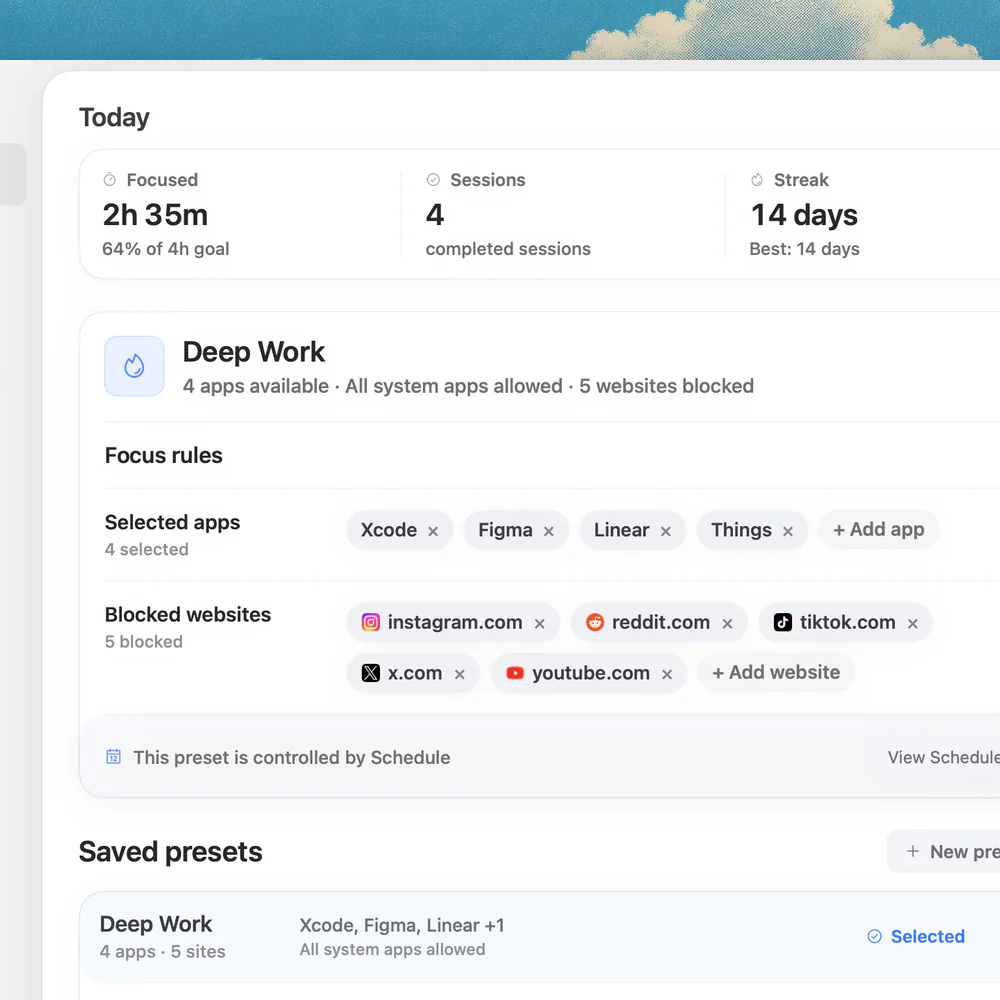
Nudge is the easiest option when website blocking is part of a broader work session. Instead of only blocking a list of domains, you create a preset for the work you want to do. Distracting apps and websites are blocked, and the session starts from the menu bar.
This is the best fit for people who do not just want to block one website. They want the Mac environment to match the task.
Open Nudge and create a preset, such as Writing, Deep Work, Study or Admin.
Add the Mac apps that pull you away during the session.
Add distracting websites that should be blocked in the browser.
Start the preset from the menu bar when the work block begins.
Reuse the preset next time instead of rebuilding the blocklist.
How do you use Screen Time to limit apps and websites?
Screen Time is the built-in baseline for app and website limits on Mac. It can set limits without installing another tool, which is useful for a simple daily cap on broad usage.
The limit model is good for reducing usage. It is less good for task-specific work sessions. If you need different rules for writing, coding and admin, presets are usually easier than daily allowance limits.
Open System Settings on your Mac.
Click Screen Time in the sidebar.
Turn Screen Time on if it is not already enabled.
Open App Limits and add a limit for the app or website category you want to restrict.
Choose the time allowance and save the limit.
How do you block a website in Safari with Screen Time content restrictions?
Screen Time also includes content and privacy controls. Apple documents a Safari setting there, Limit Adult Websites, with a Restricted list where you can add a site. Apple describes this setting for Safari only, so do not assume it covers Chrome or other browsers. Chrome has no built-in per-site block of its own.
To remove a site, select it in the Restricted list and click the minus button. Open the site in each browser you use to confirm it is blocked. This is usually too blunt if the goal is to protect a 90-minute focus block while leaving normal browsing alone afterward.
Turn Screen Time and Content & Privacy on first.
Choose Apple menu > System Settings > Screen Time. You may need to scroll the sidebar.
Click Content & Privacy, then App Store, Media, Web, & Games.
Under Safari, choose Limit Adult Websites, then click Customize.
Click + under the Restricted list, enter the website URL, and click Done.
How do you block a website with the Mac hosts file?
This is an advanced manual method. Use it only if you are comfortable editing system files. The hosts file adds a line so a site's address points nowhere. It applies to browsers on this Mac that use the system resolver or Chrome's own resolver, and it needs an admin password. It works per hostname only, with no wildcards, so it is manual and easy to manage badly.
A proxy or VPN that resolves names remotely does not read this Mac's hosts file. Open tabs, connections and DNS caches can keep a site loading until the cache is flushed and the browser is restarted.
With iCloud Private Relay on, Safari sends its web requests through Apple's relays, so a hosts entry may not apply there. Turn Private Relay off for Safari, then open the site to confirm it is blocked.
This method is not a friendly daily workflow. It does not know what task you are doing, it does not give you presets, and to undo it you delete the lines and flush again.
Open the hosts file in Terminal with an admin password.
sudo nano /etc/hostsAdd the root domain and every subdomain you use, such as www. Using 127.0.0.1 instead of 0.0.0.0 also works.
0.0.0.0 example.com
0.0.0.0 www.example.com
Save the file, then flush DNS (macOS 15 and 26).
sudo dscacheutil -flushcache
sudo killall -HUP mDNSResponder
Quit and reopen the browser, then open the site to confirm it is blocked.
Can Safari settings block websites?
Not on their own. Safari has per-website settings, pop-up controls and content blocker support. These help reduce unwanted interruptions, but they should not be confused with a durable focus-session website blocker. Use them to reduce noise, then use Screen Time, Nudge, SelfControl or hosts file rules for actual website blocking.
Open Safari.
Choose Safari, then Settings.
Open the Websites tab.
Review settings such as Pop-up Windows, Content Blockers, Auto-Play and Reader.
Is SelfControl a good free way to block websites?
SelfControl is free and open-source. You add sites or mail servers, set a timer, and start. The block continues until the timer expires, even if you restart the Mac or delete the app.
That strictness is useful for one-off blocks. It is less useful when you need app blocking, reusable work presets, menu bar starts or session history. Compare the two here: Nudge vs SelfControl.
How do you block one specific site on a Mac?
Add that site to a Nudge preset and it stays blocked in Safari and Chrome for the length of a session. These articles cover the sites people block most:
How do you block websites without blocking your work?
Block the sites that pull you away, not the browser you need. A setup that survives a real workday takes four steps.
Make two lists: sites the work needs, such as docs, GitHub, Notion, Figma, dashboards, banking and search, and sites that pull you into loops, such as feeds, video, shopping, forums and news.
Turn them into task presets. A coding preset keeps GitHub, docs and package registries. A writing preset keeps notes, sources and a dictionary. An admin preset keeps mail, calendar, invoices and banking.
Test every browser you use, including private windows and other profiles, before a deadline depends on the setup.
Decide exceptions before the session starts. A site you need often belongs in the preset. If every session needs an emergency exception, the preset is too strict.
How do you block websites on an iPhone too?
The Mac methods above do not cover your phone. Nudge is a Mac app, and the hosts file and SelfControl only apply to the Mac they are set up on. Screen Time can limit websites on iPhone and iPad as well, and a cross-device blocker such as Freedom keeps the same blocklists on Mac and phone. If your phone is where the distraction actually happens, plan for a separate block there.
What should you use to block websites during work sessions?
Use Screen Time if you want a built-in usage cap. Use Content & Privacy restrictions if you want Safari website restrictions. Use the hosts file if you are technical and want a manual per-hostname block. Use SelfControl if you want a free strict timer.
Use Nudge if the real job is repeatable focus: distracting apps and websites stay blocked, and the preset is easy to start again tomorrow. It runs on macOS 13 or later, includes a 7-day free trial with no card to start, and costs $9.99 once for Lifetime Access. If you also want a timer, there is a free web Pomodoro timer.
FAQ
What is the easiest way to block websites on Mac?
The easiest repeatable method is a focus app like Nudge: create a preset, add distracting websites and apps, and start the session from the menu bar.
Can I block websites on Mac without installing an app?
Yes. You can use Screen Time for app and website limits, web content restrictions, or the Mac hosts file. Those methods work best as baselines, not flexible work-session presets.
Can Safari block websites by itself?
Safari has website settings, pop-up controls and content blocker support, but it is not a complete focus-session website blocker by itself. Use Screen Time, a blocker app or the hosts file for stronger blocking.
Is the hosts file a good way to block websites?
The hosts file can block named domains in browsers on this Mac that use the system resolver or Chrome's own resolver, including Chrome, and Safari with iCloud Private Relay off. It works per hostname, needs an admin password, and is manual. It is better for advanced users than for daily focus sessions.
Can Nudge block apps and websites at the same time?
Yes. Nudge is built around Mac focus sessions with distracting apps and websites blocked during the session. Websites are blocked in Safari and Chrome.
Nudge for Mac
Turn the guide into a focus session
Pick the apps and websites that pull you away and start the session from the menu bar. They stay blocked until it ends. $9.99 once after 7 days free, no card to start.
Download for macOS