How to block websites during work hours on a Mac
Compare recurring schedules, daily website limits, and manual focus sessions on your Mac.

Quick answer
To block websites during work hours on a Mac, schedule a Nudge preset or use a Screen Time schedule where your macOS version supports it. You can also start a session when work begins. A daily allowance controls total use, not the hours of access. Nudge offers a seven-day free trial per Mac with no card, then $9.99 once.
How do these apps compare?
Choose a time-based restriction that fits a recurring workday or an irregular session.
Which tool should you pick?
Recurring workday
Nudge schedule
Set days and hours for a preset to start automatically.
Daily budget
Screen Time app limits
Cap time spent across selected sites.
Irregular work
Nudge session
Start a preset when the work block begins.
Organize tabs
Safari profiles
Keep work browsing separate from personal browsing.
The apps in detail
 $9.99 once
1. Session
Nudge
Best for: Blocking selected sites and apps during a session
- Choose it if
- You want a reusable preset and a menu-bar start.
- Skip it if
- You need the same restriction on a phone.
 Free, built into macOS
2. Built-in controls
Apple Screen Time
Best for: Setting a daily allowance or a schedule
- Choose it if
- You want controls included with macOS.
- Skip it if
- You need identical behavior across every browser.
3. Workspace
Safari
Best for: Organizing work browsing
- Choose it if
- You want work tabs and logins separate from personal browsing.
- Skip it if
- You need a website blocker.
Which kind of time restriction do you need?
A schedule answers “when can I use this?” A daily allowance answers “how much can I use today?” A session answers “what should be unavailable while I work now?” These are different controls, even if each can reduce unplanned browsing.
For a predictable Monday-to-Friday routine, recurring windows can remove a daily setup step. If your shifts change, a manual session is often easier to match to the actual task. If the goal is to spend less time overall, a shared allowance across several sites may be more useful than a clock-based restriction.
| Control | What it controls | Good fit |
|---|---|---|
| Schedule | Time windows when categories are available | A repeating workday |
| Daily allowance | Total time used in a day | A personal browsing budget |
| Manual session | Selected items during a chosen session | Changing work hours |
How do Screen Time schedules work on macOS 27?
On macOS 27, open System Settings > Screen Time and turn on Schedule. Add a schedule, choose the days, and create the time windows that fit your day. Use Time Allowances to organize app and website categories and set their daily allowances. Apple describes assigning categories to different windows of the schedule.
For example, create weekday windows for Before Work, During Work, and After Work, and make your social category available outside the work window. Review each window and category before relying on it. Apple notes that the latest Screen Time features require compatible updated devices; labels and the available controls vary with macOS version.
Open System Settings > Screen Time and turn on Schedule.
Add a schedule and select the days it applies.
Create work and non-work windows, then review category availability.
Set appropriate Time Allowances and test the result in Safari.
What can you do on older macOS versions?
In macOS 26, Screen Time uses App Limits and Downtime. App Limits set a daily amount for chosen apps, categories, or websites; they are not a precise work-hours-only block. Downtime can be scheduled, but it is a broader restriction for apps and websites rather than a convenient list of a few distracting domains.
If you use Downtime, check Always Allowed for the tools and contacts you need. Test it outside an important meeting before relying on it: a broad restriction can interfere with useful work. For a narrow list of distracting sites during an irregular block, a manually started session may be a better fit. The website blocking guide explains other approaches.
How do you set a daily limit instead?
On macOS 26, open System Settings > Screen Time > App Limits, turn the feature on, and add a limit. Expand Websites and choose a visited site or add its URL. Select more than one site in the same limit if you want them to share the allowance. Choose Every Day or Custom and enable Block at End of Limit if you want the restriction to apply when time is used.
A 30-minute limit can be consumed before work, during lunch, or in the evening. It does not guarantee that a site is unavailable from 9 to 5. Test the actual site in Safari and review the list if a different address or app is part of your normal habit. Screen Time behavior may differ in other browsers.
How do you block selected sites for a work session?
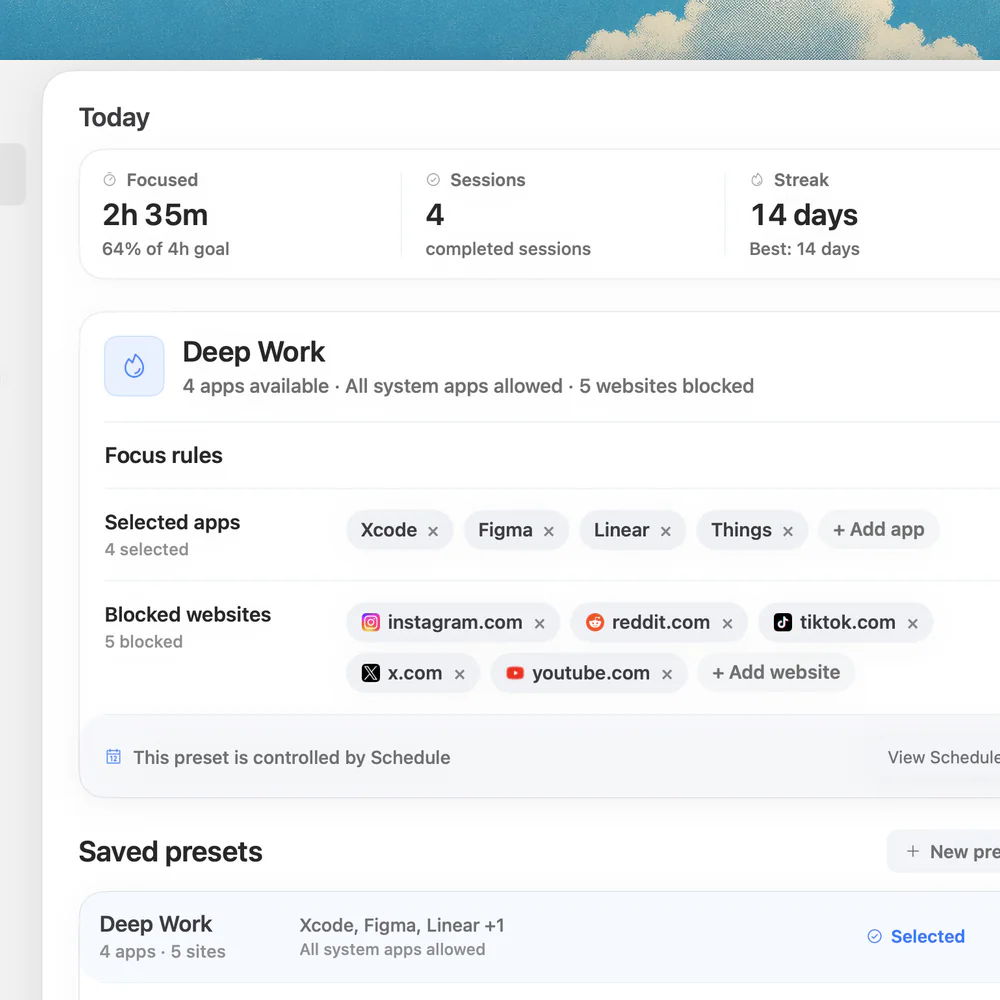
In Nudge, choose the distracting websites and apps for the task and save them as a preset. Set days and hours for the preset if you want it to start automatically, or start it from the Mac menu bar when you begin working. Nudge supports selected website blocking in Safari and Chrome, so you can keep the browser available for documentation, email, and other necessary pages.
For example, a designer can keep a project brief open while restricting social feeds during a 50-minute review. At the end of the session, revisit the selection: if a site is needed for work, remove it from the next preset. Nudge requires macOS 13 or later and Apple silicon. Its seven-day trial is free per Mac with no card; Lifetime Access is $9.99 once. See presets and website blocking.
How should you test and adjust your setup?
Before a workday begins, open one blocked site and one necessary work site in the browser you actually use. Confirm that the first behaves as intended and the second remains available. If the restriction is time based, test at the boundary of the scheduled window as well as during it.
If a site still opens, check the selected URL, the active account, the time window, and whether the relevant control is enabled. A site with an app or multiple addresses may need additional choices. Avoid assuming a setting applies to another browser or device without testing. Keep a way to reach essential work resources and revise the setup when your schedule changes.
Example: a hybrid work week
Suppose you work from 9 to 5 on three predictable days but have meetings and appointments on the others. Schedule a Nudge preset for the predictable days, or use a Screen Time schedule if your version supports the necessary categories and windows. On variable days, start a Nudge preset only when a real work block begins.
If your goal also includes less social browsing after work, add a separate daily budget. The budget and session solve different problems: the first measures total use, while the second protects the immediate task. Review the result after a week and adjust the list instead of expanding it automatically.
FAQ
Can I block websites only during work hours?
Nudge can start a preset on selected days and hours. On macOS 27, Screen Time schedules can make categories available in chosen windows. Test the setup in your browser.
Is a daily limit the same as a schedule?
No. A daily limit controls accumulated use, while a schedule controls when a category is available.
Does macOS Focus block websites?
Focus filters notifications and can apply supported app filters. It is not a general website blocker.
Can I keep work websites open?
Yes. Choose the distracting sites rather than blocking the browser, and test required work pages before relying on the setup.
Does Nudge block my phone too?
No. Nudge is a Mac app; its session does not apply a restriction to your phone.
Nudge for Mac
Turn the guide into a focus session
Pick the apps and websites that pull you away and start the session from the menu bar. They stay blocked until it ends. $9.99 once after 7 days free, no card to start.
Download for macOS