How to focus while working from home on a Mac
Plan a realistic home workday with availability agreements, meeting boundaries, a Mac Focus, and room for interruptions.

Quick answer
To focus while working from home, agree on when you are available, choose a realistic work window, and make an urgent contact route clear. Filter Mac notifications and handle home interruptions with a restart note. Nudge blocks selected apps and sites: seven days free without a card, then $9.99 once.
How do these apps compare?
Make a home workday workable through clear availability, household boundaries and practical Mac settings.
Which tool should you pick?
Set availability
Calendar agreement
Show colleagues when you can respond or meet.
Filter alerts
macOS Focus
Allow important notifications during a work window.

Protect a task
Nudge
Block selected distracting Mac apps and websites for a session.
Resume after a break
Quick Note
Leave the next action before a meeting or household interruption.
The apps in detail
- $9.99 once
1. Blocking
Nudge
Best for: Blocking chosen distractions during a home work session
- Choose it if
- A selected app or site keeps drawing you away.
- Skip it if
- You need a blocker on your phone too.
2. Notifications
macOS Focus
Best for: Filtering work and personal notifications
- Choose it if
- You need certain people and apps to reach you.
- Skip it if
- You need to restrict app or website access.
 Free, built into macOS
3. Restart
Apple Notes
Best for: Capturing the next action before a switch
- Choose it if
- You want a short note available from another app.
- Skip it if
- You need a website blocker.
Why is focusing at home a different problem?
A home workday combines work obligations with a space other people may use, deliveries, care responsibilities, and the expectation that you can always be reached. The difficulty may be an unclear agreement rather than a lack of willpower. A calendar full of meetings leaves a different problem from a quiet afternoon repeatedly interrupted by a shared room.
Start by identifying what has to remain available: a customer support queue, a school contact, an urgent colleague, or a meeting. Then make a small, testable change around those constraints. A useful routine fits the actual household and job; it does not require a separate office or a perfectly silent day.
How do you agree on availability with your team?
Pick a period when you can do work that needs attention and a realistic time to review messages. Tell your team both the expected response window and the route for something urgent. For example: 'I am drafting from 9:30 to 11. I will check chat at 11; please call me if the release is blocked before then.' Adapt the agreement to your team's obligations and time zones.
Put a work block on the calendar if that helps colleagues plan, and keep your status accurate. Avoid promising that every message will wait when your role requires live coverage. If you share coverage with someone else, explicitly hand over who is watching the queue and when they will return it.
A recurring conflict is useful feedback. If teammates regularly schedule over the block, discuss a smaller shared window or move the work session. If they need an immediate answer every morning, a different part of the day may be more realistic.
List the work that requires an uninterrupted window and the work that requires availability.
Agree on a response window and an urgent contact route.
Reserve a realistic period around meetings and coverage.
Review the agreement after trying it for a few days.
How can you set boundaries with people at home?
Tell the people sharing your space what a work window means and when you will be available again. A closed door, a visible note, or headphones can be a simple signal if everyone understands it. Pair the signal with an exception: a child, partner, or housemate should know what counts as urgent and how to interrupt you.
Care work, small spaces, and unpredictable needs may make a long uninterrupted block impossible. Use a shorter window and agree on coverage where available. If an interruption cannot wait, pause without treating it as a failed day. Before leaving the Mac, write where you stopped and the next action; the context switching guide offers a compact template.
Also set an end boundary. Close the work session or put away the laptop at a planned time when possible, and note tomorrow's first action. An explicit finish helps make home space available for other parts of the day.
What should you do about meetings?
Check whether each meeting has a purpose, the right participants, and a decision or outcome. When your team permits it, ask for an agenda or propose a written update instead of attending a meeting that does not need your input. Do not unilaterally skip a meeting where you are responsible for a decision.
Leave a short transition before and after meetings when the calendar allows. Before joining, save the next action for the task you are leaving. Afterward, write down any commitments and decide when to do them. A meeting that ends with five new tasks does not need to become five immediate switches.
If meetings occupy the whole morning, protect a smaller block in the afternoon rather than copying someone else's ideal schedule. A work block is useful only if it fits the meetings and response commitments you actually have.
How do you configure your Mac for the work window?
Open System Settings > Focus, select Work or create a custom Focus, and choose the people and apps allowed to notify you. A time-based schedule can turn the Focus on for a regular window. Check important calls and time-sensitive notifications against your real responsibilities; labels can differ between macOS versions.
In System Settings > Notifications, adjust banners and badges for individual apps. These controls affect notifications, not access to the apps themselves. If a household or work emergency must reach you, test the agreed route before relying on a quiet session. For more detail, read the Mac Focus guide.
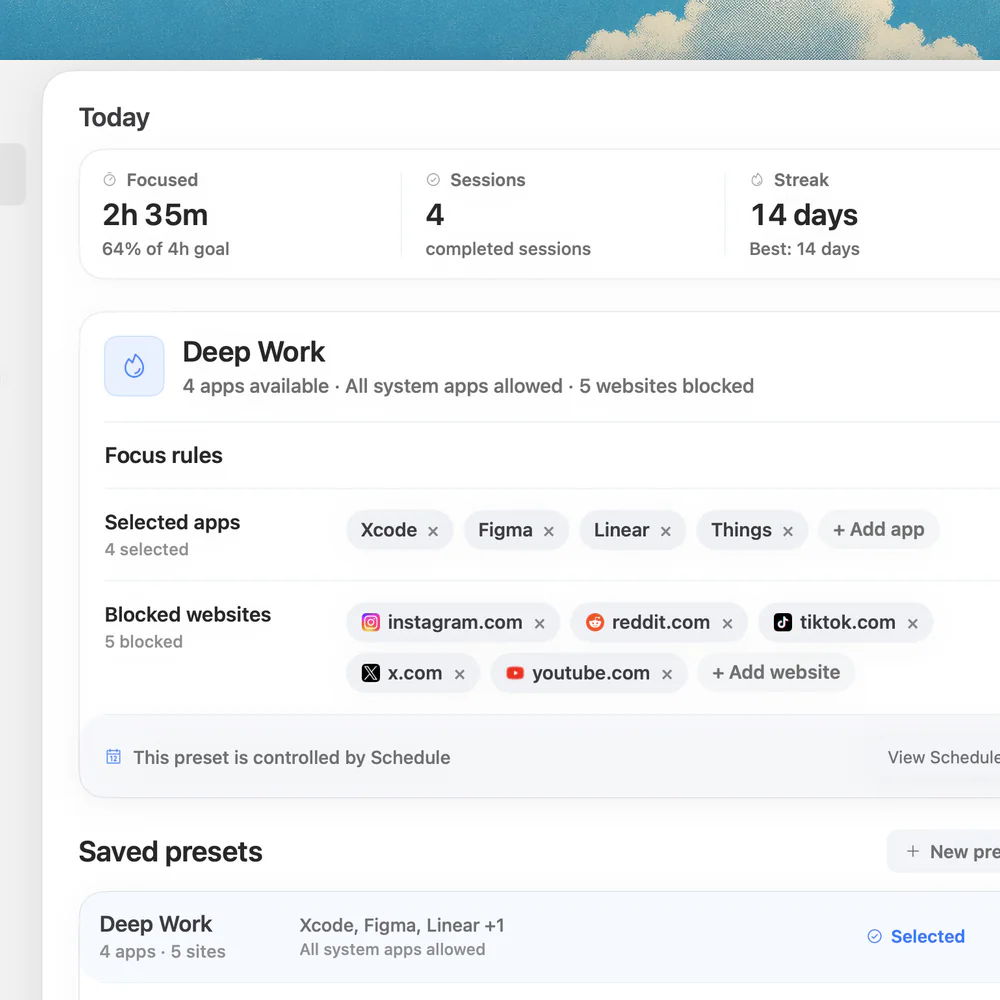
If you repeatedly open a distracting app or site yourself, Nudge can block the items you select for a session. Save a preset for home work and start it from the menu bar. Keep the browser open when your job needs it and select distracting websites in Safari or Chrome instead. Nudge requires macOS 13 or later on an Apple silicon Mac. Its seven-day trial needs no card; Lifetime Access is $9.99 once.
What could a realistic home workday look like?
This example is a starting point, not a schedule everyone can use. Move the blocks around care, coverage, time zones, and the hours you are paid to work. The point is to make each transition and availability agreement explicit.
| Time | Activity | Boundary |
|---|---|---|
| 9:00 | Review calendar, messages and household needs | Identify urgent work and agree who covers it |
| 9:30–10:30 | Draft a proposal | Tell colleagues the next check time; allow the urgent route |
| 10:30 | Messages and household check-in | Answer or capture requests; set a next action |
| 11:00 | Meeting | Leave a restart note first and capture decisions afterward |
| 14:00 | Second task or coverage | Adjust based on the morning's commitments |
| End of day | Close open loops | Record tomorrow's first action and end the work session |
What if the plan keeps being interrupted?
Look at the cause before adding another restriction. A delivery window may call for a shorter session; an on-call role may require the urgent channel to stay open; a shared room may need a different signal or location. If you are waiting for an answer, agree when it will arrive and choose a useful next task instead of refreshing chat.
Review one or two changes at the end of the week: did people understand the signal, did an urgent message reach you, and was the work window long enough to be useful? Change the schedule, allowed notifications, or blocked list accordingly. The deep work setup explains workspace preparation, while the email guide helps plan inbox reviews.
FAQ
How do I focus at home without a separate office?
Agree on a visible signal and an urgent interruption route with the people sharing your space. Choose a work window that fits the room and your responsibilities, even if it is short.
What if my job requires me to be reachable?
Agree on coverage, response times, and an urgent channel with your team. Allow the relevant notifications and schedule focused work around any live coverage obligations.
Does macOS Focus block distracting websites?
No. Focus controls notifications and supported app filters. Nudge can block the apps and sites you select during a session, including sites in Safari and Chrome.
How can I return to work after a household interruption?
Before switching, write the file or place where you stopped and the next action. Read that note and reopen the needed material when you return.
Do I need to block my entire browser?
No. If you need your browser for work, Nudge can block selected websites in Safari and Chrome while you keep other pages available.
Nudge for Mac
Turn the guide into a focus session
Pick the apps and websites that pull you away and start the session from the menu bar. They stay blocked until it ends. $9.99 once after 7 days free, no card to start.
Download for macOS