Screen Time not blocking websites on Mac? How to troubleshoot
Check your Screen Time account, limit, browser, and macOS version when a website remains accessible.

Quick answer
If Screen Time is not blocking a website on your Mac, first check the selected account, whether the limit is enabled, the website address, and whether the daily allowance has actually expired. Test in Safari and review version-specific settings. For a separate work session, Nudge has a seven-day free trial per Mac, no card, then $9.99 once.
How do these apps compare?
Diagnose your own Screen Time website restrictions safely and distinguish different controls.
Which tool should you pick?

Check account
Screen Time
Confirm the restriction belongs to the Mac user you are testing.
Check limit
App Limits or Time Allowances
Inspect the website, allowance, and active state.
Test browser
Safari
Verify the behavior in the browser you use.

Protect a session
Nudge
Choose selected sites and apps for a Mac work block.
The apps in detail
- $9.99 once
1. Session
Nudge
Best for: Blocking selected sites and apps during a session
- Choose it if
- You want a reusable preset and a menu-bar start.
- Skip it if
- You need the same restriction on a phone.
- Free, built into macOS
2. Built-in controls
Apple Screen Time
Best for: Setting a daily allowance or a schedule
- Choose it if
- You want controls included with macOS.
- Skip it if
- You need identical behavior across every browser.
3. Workspace
Safari
Best for: Organizing work browsing
- Choose it if
- You want work tabs and logins separate from personal browsing.
- Skip it if
- You need a website blocker.
What kind of restriction did you set?
Start by identifying the control before changing anything. An App Limit gives selected apps and websites a daily allowance. On macOS 26, the site may remain available until that allowance is used, and Block at End of Limit determines whether the limit blocks access when time expires. A scheduled Downtime window is a different, broader control.
Content filtering is different again: it governs access to specified web content, not a work timer. On macOS 27, Apple also provides Schedule and Time Allowances with category-based settings. The names and available controls depend on the version of macOS, so match the instructions to what you see in System Settings.
| Symptom | First thing to check | Why |
|---|---|---|
| Site opens before time is used | Remaining daily allowance | A limit is not an all-day block |
| Site opens after allowance | Limit enabled and block option | A warning alone may not stop access |
| Restriction applies at wrong time | Schedule days and windows | A daily allowance is not a clock schedule |
| One browser behaves differently | Test Safari and your usual browser | Browser behavior can vary |
Is Screen Time enabled for the correct account?
Open System Settings > Screen Time and check that App & Website Activity or the relevant Screen Time controls are enabled. If a Family Member selector appears, make sure you are viewing the person whose restriction you intend to test. When checking your own settings, use your own Mac account and inspect its controls rather than someone else’s restrictions.
If the feature was disabled, enable it and return to the limit list. A saved limit can exist without currently being applied if App Limits or the individual limit is switched off. Check both the feature-level switch and the entry itself. Apple’s interface may show different labels for different macOS releases.
Open System Settings > Screen Time for the account being tested.
Turn on the relevant activity and limits if needed.
Inspect the specific website limit and confirm it is enabled.
Check the allowance, browser, and result before changing other settings.
Has the limit actually expired?
On macOS 26, open App Limits and inspect the entry. Confirm the correct website is included, the intended amount of time is set, and Block at End of Limit is selected. If the allowance has not yet been consumed, the website can still open. A limit set to two hours is not the same as a restriction throughout the workday.
Choose Every Day or Custom to check whether today has a different allowance. If several services are in one limit, their usage shares that allowance; if they are in separate limits, each has its own. Look at the usage report and the actual limit rather than assuming the clock time is the cause.
Is the right website included?
Edit the limit and inspect the selected apps, categories, and websites. In macOS 26, expand Websites in the picker to select a previously visited site or add a URL. Compare the address with the one you actually open, including any alternate address used by the service. If the distracting activity also has a desktop app, a website entry alone will not necessarily cover that app.
Make one change at a time, then retest the exact site. This keeps the diagnosis understandable: if you change the account, allowance, browser, and address at once, you will not know which setting mattered. Keep necessary work sites out of the restriction and record any address that needs a separate check.
Are you testing in the browser you use?
Test in Safari first, then test the browser you normally use for the same site and account. Apple documents website controls in Screen Time, but do not assume every browser handles site-level restrictions identically. A result in Safari is evidence for that test, not proof that a Chrome session or another device behaves the same way.
If the website is blocked in one browser but remains accessible in another, note the browser and macOS versions and consult their current support guidance. If Screen Time’s built-in controls do not fit your browser or workflow, consider a separate tool whose supported browsers are explicit. Do not change restrictions on an account you do not own or manage.
What if the schedule or filter is the issue?
For a schedule, check today’s day selection and the start and end of each window. On macOS 27, inspect the category’s availability in the relevant window as well as its Time Allowance. On older releases, check whether you configured Downtime or App Limits: the former can affect a broader range of apps and sites, while the latter measures daily use.
For content filtering, check that the intended website is in the restricted list and that the selected filtering mode is active. Avoid switching to an allow-only mode just to fix one site unless that is the result you want; it can exclude sites you need. After any change, verify both the intended restriction and access to a necessary work page.
When is a separate focus session useful?
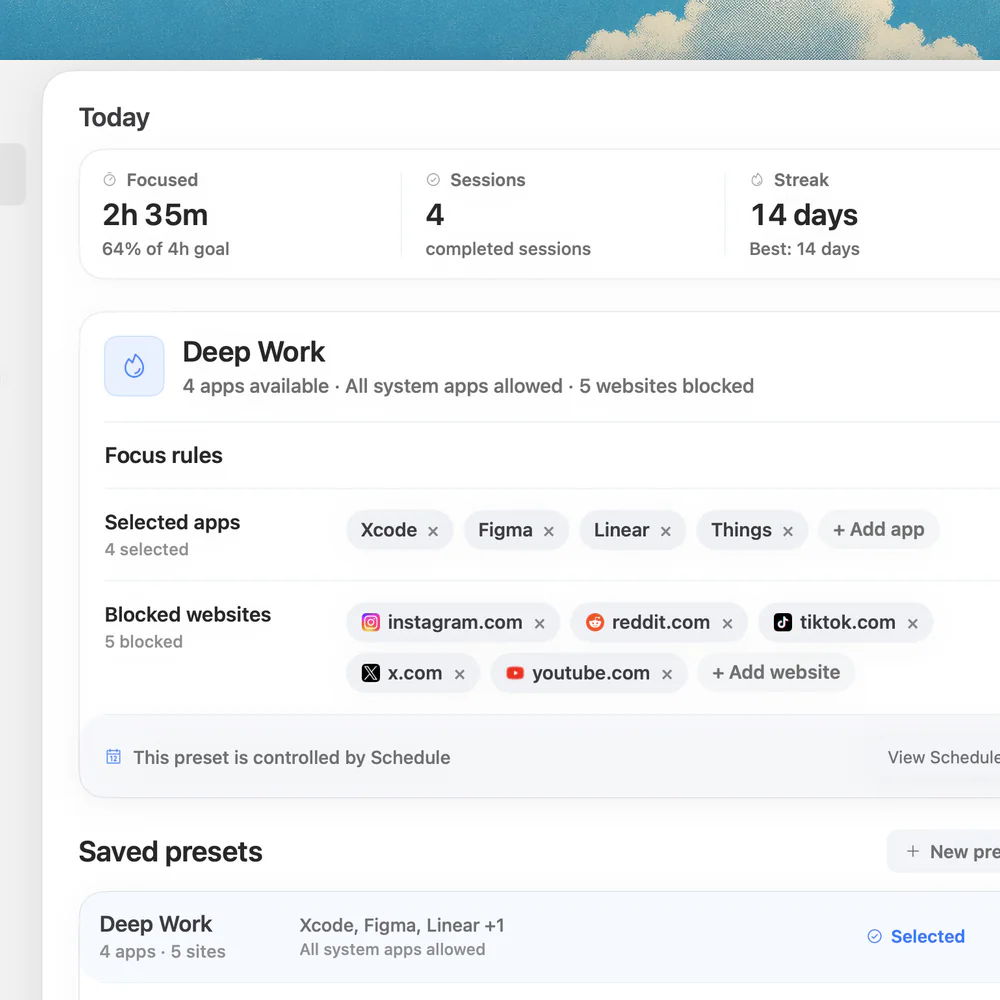
If the requirement is “keep these specific distractions unavailable while I draft this report,” a manual session may be easier to understand than a daily allowance. Nudge lets you select websites and apps, save a preset, and start it from the Mac menu bar. It supports selected websites in Safari and Chrome; leave the browser itself available if you need work references.
Nudge is for Apple silicon Macs running macOS 13 or later. The seven-day free trial is per Mac and requires no card; Lifetime Access costs $9.99 once. Check the behavior on your own Mac before depending on any restriction, and remember that a Mac session does not block a phone. See website blocking and focus presets.
FAQ
Why does a website open before my limit is reached?
A daily App Limit allows use until the allowance is consumed. It is not automatically an all-day or work-hours block.
What does Block at End of Limit do?
On macOS 26, select it when editing the App Limit if you want Screen Time to block the item once the allowance expires.
Does Screen Time behave the same in every browser?
Do not assume so. Test Safari and the browser you actually use; site-level behavior can differ.
Why is a saved limit not active?
The App Limits feature or the individual limit may be switched off, or you may be viewing a different account. Check both switches and the selected person.
Can I block the website and its desktop app?
Select each relevant item in the applicable control. In Nudge, you can choose both the app and website for a focus session.
Nudge for Mac
Turn the guide into a focus session
Pick the apps and websites that pull you away and start the session from the menu bar. They stay blocked until it ends. $9.99 once after 7 days free, no card to start.
Download for macOS