
How to block websites in Safari on a Mac (2026)
Five ways to block websites in Safari on a Mac: Nudge sessions, Safari settings, Screen Time, content blockers and the hosts file, with steps and limits.

Quick answer
For daily work, use Nudge: keep Safari available when it belongs in the session, block the distracting domains, and start from the menu bar. Safari's own Websites settings only quiet pop-ups, auto-play and notifications; they do not block a site. Screen Time is the built-in way to restrict websites in Safari, and the hosts file is the manual system-level route for technical users.
How do these apps compare?
Pick the right way to block websites in Safari on a Mac, and know which methods block access and which only reduce noise.
| App | Best for | Price | Website |
|---|---|---|---|
 NudgeTop pick NudgeTop pick | Repeatable Safari focus sessions on a Mac | $9.99 once | Get Nudge |
 Apple Screen Time Apple Screen Time | Built-in web restrictions in Safari | Free, built into macOS | Visit |
 SelfControl SelfControl | Free hard website blocks | Free | Visit |
 Cold Turkey Cold Turkey | Maximum friction | Free, Pro one-time | Visit |
 Freedom Freedom | Blocking across Mac and iPhone | $8.99/mo or $99.50 lifetime | Visit |
 1Focus 1Focus | Mac-native blocking | Free, Pro $9.99/yr | Visit |
Which tool should you pick?
Best for work sessions
Nudge
Blocks the websites and apps you pick for the length of a session, and Safari keeps working for everything else.
Best built-in and free
Apple Screen Time
Limit Adult Websites, add restricted sites or allow only approved sites in Safari.
Best free and strict
SelfControl
A free timed website block that stays on until the timer ends.
Hardest to undo
Cold Turkey
Locked blocking modes for people who need high friction.
Best across devices
Freedom
The same blocklists on Mac and iPhone.
The apps in detail
- $9.99 once
1. App and website sessions
Nudge
Best for: Repeatable Safari focus sessions on a Mac
- Choose it if
- Safari is needed for work and you want specific sites and apps blocked while a session runs.
- Skip it if
- You need blocking on iPhone Safari. Nudge is a Mac app.
- Free, built into macOS
2. Usage limits
Apple Screen Time
Best for: Built-in web restrictions in Safari
- Choose it if
- You want broad rules with no extra install.
- Skip it if
- You need rules that change by task, or blocking in browsers other than Safari.
- Free
3. Website blocking
SelfControl
Best for: Free hard website blocks
- Choose it if
- You want a free timed block that is difficult to undo.
- Skip it if
- You need app blocking, presets or schedules.
- Free, Pro one-time
4. Website and app blocking
Cold Turkey
Best for: Maximum friction
- Choose it if
- You want strict, hard-to-bypass blocking modes.
- Skip it if
- You want a gentle session workflow.
- $8.99/mo or $99.50 lifetime
5. Cross-device blocking
Freedom
Best for: Blocking across Mac and iPhone
- Choose it if
- The same sites distract you on your phone.
- Skip it if
- You only need a Mac-local session tool.
- Free, Pro $9.99/yr
6. Website and app blocking
1Focus
Best for: Mac-native blocking
- Choose it if
- You want a straightforward Mac blocker with schedules.
- Skip it if
- You need cross-device control.
How can you block websites in Safari?
Safari gives you useful controls, but most of them are not true blocking. Separate noise reduction from access blocking before choosing a method. The table compares the five methods in this guide.
For the whole-Mac version of this guide, see how to block websites on a Mac. If you also use Chrome, see how to block websites in Chrome on a Mac. Chrome has no built-in per-site block of its own.
| Method | Effort | Which browsers | Easy to undo? |
|---|---|---|---|
| Nudge session | Low | Safari and Chrome on the Mac | Blocked for the length of the session |
| Safari Websites settings | Low | Safari only; reduces site behavior, does not fully block access | Yes |
| Screen Time web restrictions | Medium | Safari only | Yes, from System Settings |
| Content blockers | Medium | Safari only; removes ads and unwanted content, not focus-session blocking | Yes |
| Hosts file | High | Safari and other browsers on this Mac; may not apply with iCloud Private Relay | No, needs a manual edit and a DNS flush to undo |
How do you block distracting websites in Safari with Nudge?
Safari often belongs in a focus session. You may need it for research, docs, web apps, reading, billing or writing tools. The problem is not Safari itself. The problem is that the same browser also contains news, feeds, forums, video and shopping.
Nudge is a Mac app (macOS 13+) that blocks the apps and websites you pick during a focus session. Websites are blocked in Safari and Chrome. It starts from the menu bar with presets or Quick Focus. This keeps the browser useful while narrowing the web to what the work actually needs.
Create a Nudge preset for the task.
Leave Safari off the block list if the session needs browser access.
Add the distracting websites to the blocked list.
Keep only the Mac apps that belong in the work block.
Start the session from the menu bar.
What can Safari's Websites settings do?
Safari Websites settings let you manage per-site behavior such as Reader, Content Blockers, Auto-Play, Pop-up Windows and Notifications. This is useful for reducing friction and noise on sites you still need to visit.
Use this for noise control. Do not rely on it as your main focus blocker if the goal is to stop visiting a distracting site entirely.
Open Safari.
Choose Safari, then Settings.
Open the Websites tab.
Select a setting on the left, such as Pop-up Windows, Content Blockers, Auto-Play or Notifications.
Choose the behavior for the current site, configured sites, or websites you have not configured yet.
Do pop-up, content and notification settings block a site?
No. Safari can block pop-up windows for a single website or all websites. It can also use content blockers to stop ads and other unwanted content where a content blocker is installed. Auto-Play settings can stop videos from starting automatically, and notification settings can deny a site's ability to send alerts.
These are valuable cleanup steps. A site with fewer pop-ups, autoplay videos and notifications is less distracting. But the site is still available, which means the habit loop may still survive.
How do you block websites in Safari with Screen Time?
Screen Time Content & Privacy settings include Safari web content levels. You can leave access unrestricted, limit adult websites and add custom restricted or allowed sites, or use Allowed Websites Only for a much stricter list. These rules apply to Safari only.
This is stronger than ordinary Safari settings, but it is still not as flexible as a work-session preset when your rules change between writing, research, admin and deep work.
Open System Settings on your Mac.
Open Screen Time.
Go to Content & Privacy.
Open App Store, Media, Web, & Games settings.
Choose the Safari web content level and customize allowed or restricted sites where needed.
How do you block a website with the hosts file?
The Mac hosts file can block domains by pointing them back to your own machine. It is a system-level change, so it is not limited to Safari. The downside is maintenance: editing system files, remembering subdomains, flushing DNS, and undoing changes when the block should end.
Safari has one extra caveat. If iCloud Private Relay is on, a local hosts entry may not apply in Safari, so turn Private Relay off if the block does not work.
Use the hosts file if you are technical and want a static system-level block. Use Nudge if the rules need to change by task.
Open Terminal and edit the hosts file with administrator rights.
sudo nano /etc/hostsAdd a line for each domain, pointing it at your own machine, and include the www version.
127.0.0.1 example.com www.example.comSave the file (Control-O, then Return) and exit (Control-X).
Flush the DNS cache so the change applies.
sudo dscacheutil -flushcache; sudo killall -HUP mDNSResponderRestart Safari. To undo the block, delete the line and flush DNS again.
How do you block websites on iPhone Safari too?
Nudge is a Mac app, so it does not block iPhone Safari. On the iPhone, the built-in route is Screen Time web content restrictions. If the same sites pull you away on your phone, a cross-device blocker such as Freedom keeps one blocklist on Mac and iPhone.
Which method should you use for Safari?
Use Safari settings to quiet websites. Use Screen Time to create broader built-in restrictions. Use the hosts file if you want manual system-level blocking and are comfortable maintaining it.
Use Nudge when Safari is needed for work but specific websites should be blocked during the session. Pick the apps and sites to block, start from the menu bar, and schedules can run presets on the days and hours you choose. Nudge costs $9.99 once for Lifetime Access, with a 7-day free trial and no card to start. If you want a timer first, there is also a free web timer at the Pomodoro timer.
FAQ
What is the easiest way to block websites on Safari for Mac?
The easiest repeatable method is Nudge: create a preset, add distracting websites and apps to block, and start the session from the Mac menu bar.
Can Safari block websites by itself?
Safari can block pop-ups, manage content blockers, control auto-play, deny notifications, and customize settings per website. For actual access blocking, use Screen Time, Nudge, or a system-level method.
Can Screen Time block websites in Safari?
Yes. Screen Time Content & Privacy settings can limit adult websites, add restricted websites, or allow only approved websites. These rules apply to Safari only.
Are Safari content blockers enough for focus?
Content blockers are useful for ads and unwanted page content. They do not replace a work-session blocker if the goal is to stop visiting distracting sites.
Does iCloud Private Relay affect a hosts-file block?
It can. With iCloud Private Relay on, a local hosts entry may not apply in Safari, so turn Private Relay off if a hosts-file block does not apply in Safari.
Can Nudge block distracting Safari sites while Safari keeps working?
Yes. Nudge blocks the distracting domains during the focus session, and Safari keeps working for everything else.
Nudge for Mac
Turn the guide into a focus session
Pick the apps and websites that pull you away and start the session from the menu bar. They stay blocked until it ends. $9.99 once after 7 days free, no card to start.
Download for macOS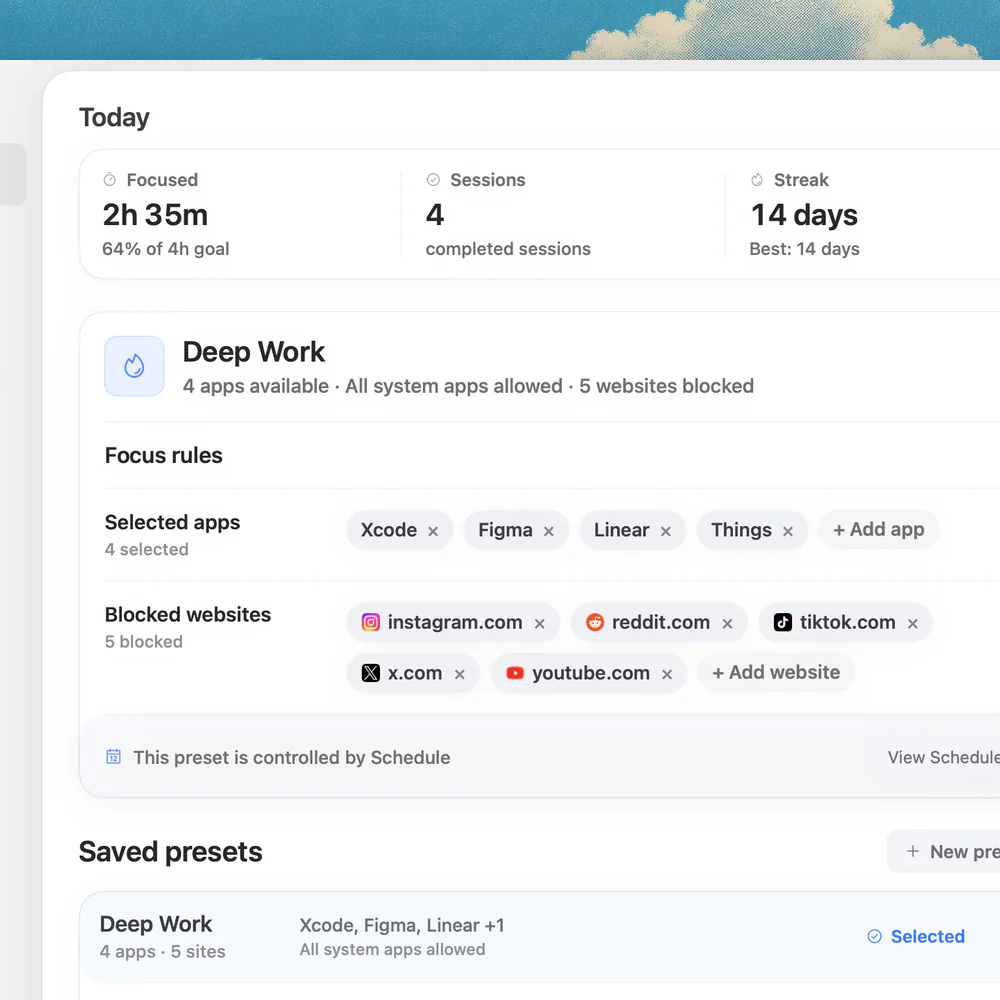
Sources
Keep reading
 How-toHow to block websites on a Mac (2026)
 How-toHow to block websites on a Mac in Chrome (2026)
 Website blockingBest website & app blockers for Mac in 2026
 Blocking strategyApp blocker vs website blocker for Mac: which do you need?
 Website blockingCold Turkey alternatives for Mac in 2026
 PomodoroPomodoro timer with website blocking: a Mac setup that actually helps
 ComparisonNudge vs Cold Turkey
 FeatureWebsite and app blocking in Nudge