How to block websites on a Mac in Chrome (2026)
Chrome has no built-in per-site block. Here is what Chrome settings can and cannot do, and how to block websites in Chrome on a Mac with an app, an extension, Screen Time or the hosts file.

Quick answer
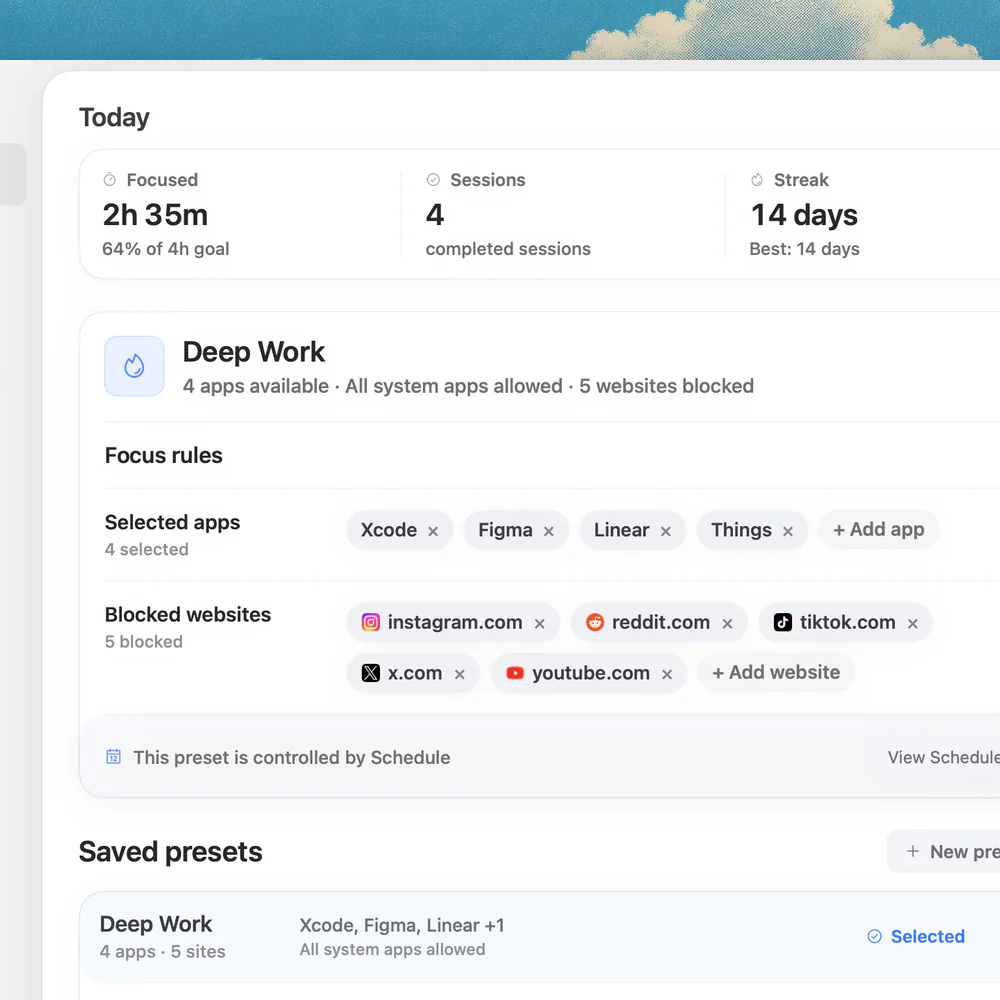
Chrome has no built-in per-site block, so you need something outside its settings. For repeatable work sessions on a Mac, use Nudge: add the distracting websites and apps to a preset and start it from the menu bar, while Chrome keeps working for everything else. Chrome's own site settings can quiet pop-ups, redirects and notifications, but they do not stop you from opening a site. Apple Screen Time covers Safari only, an extension protects only the browser it is installed in, and the hosts file is a manual method for advanced users.
How do these apps compare?
Block distracting websites in Chrome on a Mac, and pick the method that fits: a work-session blocker, a Chrome extension, Screen Time or the hosts file.
| App | Best for | Price | Website |
|---|---|---|---|
 NudgeTop pick NudgeTop pick | Blocking websites and apps in focus sessions | $9.99 once | Get Nudge |
 Apple Screen Time Apple Screen Time | A built-in baseline | Free, built into macOS | Visit |
 SelfControl SelfControl | Free hard website blocks | Free | Visit |
 Cold Turkey Cold Turkey | Maximum friction | Free, Pro one-time | Visit |
 Freedom Freedom | Cross-device blocking | $8.99/mo or $99.50 lifetime | Visit |
 BlockSite BlockSite | Browser-extension blocklists | See pricing | Visit |
Which tool should you pick?
Best for work sessions
Nudge
Blocks the websites and apps you choose for a session, and Chrome keeps working for everything else.
Built-in and free
Apple Screen Time
Free in macOS, but its web restriction is documented for Safari only.
Free and strict
SelfControl
Free timer that keeps the block on until it ends, even after a restart.
Hardest to undo
Cold Turkey
Strict locked modes for people who need high friction.
Across devices
Freedom
The same blocklists on Mac, phone and tablet.
The apps in detail
- $9.99 once
1. Website and app blocking
Nudge
Best for: Blocking websites and apps in focus sessions
- Choose it if
- You want chosen websites blocked in Chrome during a work session, with presets and a start from the menu bar.
- Skip it if
- You need phone-first controls or a one-off block with no app.
- Free, built into macOS
2. Usage limits
Apple Screen Time
Best for: A built-in baseline
- Choose it if
- You want a free built-in option and mainly use Safari.
- Skip it if
- Chrome is your browser. Apple describes the web restriction for Safari only.
- Free
3. Website blocking
SelfControl
Best for: Free hard website blocks
- Choose it if
- You want a free timed block that stays on until the timer ends.
- Skip it if
- You need app blocking, schedules or presets.
- Free, Pro one-time
4. Website and app blocking
Cold Turkey
Best for: Maximum friction
- Choose it if
- You need strict locked blocks you cannot undo on impulse.
- Skip it if
- You want a gentle daily session workflow.
- $8.99/mo or $99.50 lifetime
5. Website and app blocking
Freedom
Best for: Cross-device blocking
- Choose it if
- The loop continues on your phone and you want one blocklist everywhere.
- Skip it if
- You only work on a Mac.
6. Browser blocking
BlockSite
Best for: Browser-extension blocklists
- Choose it if
- The problem stays inside Chrome and you want a lightweight blocklist.
- Skip it if
- You also need Safari, other browsers or apps covered.
Can Chrome block websites by itself?
No. Chrome has no built-in per-site block. Its site settings can change permissions for a site, such as notifications, pop-ups and redirects, sound and ads, and Chrome blocks many pop-ups by default. None of that stops you from typing the address and visiting the site.
So to block websites in Chrome on a Mac you need one of five things: a focus app, Chrome's site settings for the noise only, a Chrome extension, Screen Time, or the hosts file. Use the lightest method that holds the boundary you actually need. A permission setting is enough for notifications. A focus preset is better for daily work blocks.
How do you compare the ways to block websites in Chrome?
The table lists each method, how much effort it takes, which browsers it covers and whether it is easy to undo.
| Method | Effort | Which browsers | Easy to undo? |
|---|---|---|---|
| Nudge | Low | Chrome, Safari and other browsers on the Mac | Locked for the length of a session you set |
| Chrome site settings | Low | Chrome only; changes permissions, not access | Yes |
| Chrome extension | Medium | Only the browser where it is installed | Often yes, by turning the extension off |
| Screen Time | Medium | Safari only, as Apple describes the setting | Yes, on your own Mac |
| Hosts file | High | Browsers on this Mac that use the system resolver or Chrome's own resolver | Manual: delete the lines and flush DNS |
How do you block websites in Chrome with Nudge?
Use this when Chrome is needed for work, but specific sites keep pulling the session off track. You may need Chrome for docs, dashboards, localhost, research, billing or admin work. That does not mean every site should stay available. Nudge is a Mac app (macOS 13 or later) that blocks the apps and websites you pick during a focus session, and it blocks websites in Safari and Chrome.
- The rule follows the work session, not just the browser, so Chrome can stay a tool without becoming the path back into every distracting site.
- Schedules run presets on chosen days and hours, so the block starts without you.
- Nudge costs $9.99 once for Lifetime Access, after a 7-day free trial with no card to start.
Create a Nudge preset for the task, such as Coding, Writing, Study or Admin.
Leave Chrome off the block list if the session needs browser access.
Add the distracting domains to the blocked websites list.
Add the non-work apps that pull you away.
Start the preset from the menu bar when the block begins, or use Quick Focus.
What can Chrome's site settings do?
Chrome lets you allow or deny permissions for a specific site without changing default settings globally. This removes distraction channels like notifications, pop-ups, redirects, sound and intrusive ads. It does not stop you from typing the URL and visiting the site.
Open Chrome and go to the site you want to change.
Click the icon next to the web address.
Open site settings or permissions.
Set noisy permissions like Notifications, Pop-ups and redirects, Sound and Ads to Block where appropriate.
How do you block pop-ups, redirects and notifications in Chrome?
You can manage pop-ups and redirects from Settings, Privacy and security, Site settings, Pop-ups and redirects. You can also block pop-ups for a specific site and use the pattern [*.]example.com when you need to cover subdomains.
Notifications deserve separate attention. If a distracting site can still reach you through browser notifications, open the site's permissions and set Notifications to Block. This is often the fastest win for news sites, social sites, forums and web apps that keep pulling attention back.
The limitation is simple: pop-up and notification blocking reduces interruptions. It does not create a protected work mode.
Should you use a Chrome website blocker extension?
A Chrome blocker extension can be the right answer if you want a browser-only blocklist. Depending on the extension, it can block specific URLs, categories or schedules.
The weakness is scope. An extension may not protect Safari, another browser, desktop apps or the broader Mac workflow, and it may be easier to disable than a dedicated focus app. If the distraction problem is bigger than Chrome, use Nudge or another system-level method instead.
Does Screen Time block websites in Chrome?
Screen Time can create app and website limits, and its Content & Privacy settings can restrict web access. Apple documents a Safari setting there, Limit Adult Websites, with a Restricted list where you can add a site. Apple describes this setting for Safari only, so do not assume it covers Chrome or other browsers. Open the site in each browser you use to confirm it is blocked.
These are the steps for the Safari restriction. They are a built-in baseline, not a Chrome blocker.
Turn Screen Time and Content & Privacy on first.
Choose Apple menu > System Settings > Screen Time. You may need to scroll the sidebar.
Click Content & Privacy, then App Store, Media, Web, & Games.
Under Safari, choose Limit Adult Websites, then click Customize.
Click + under the Restricted list, enter the website URL, and click Done.
How do you block a website in Chrome with the hosts file?
The hosts file adds a line so a site's address points nowhere. It applies to browsers on this Mac that use the system resolver or Chrome's own resolver, and it needs an admin password. It works per hostname only, with no wildcards, so it is manual and easy to manage badly. Use it only if you are comfortable editing system files.
- Open tabs, connections and DNS caches can keep a site loading until the cache is flushed and the browser is restarted.
- A proxy or VPN that resolves names remotely does not read this Mac's hosts file.
- With iCloud Private Relay on, Safari sends its web requests through Apple's relays, so a hosts entry may not apply there. Turn Private Relay off for Safari, then open the site to confirm it is blocked.
- It does not know what task you are doing and gives you no presets. To undo it, delete the lines and flush again.
Open the hosts file in Terminal.
sudo nano /etc/hostsAdd the root domain and every subdomain you use, such as www. 127.0.0.1 also works instead of 0.0.0.0.
0.0.0.0 example.com
0.0.0.0 www.example.com
Save the file, then flush DNS (macOS 15 and 26).
sudo dscacheutil -flushcache
sudo killall -HUP mDNSResponder
Quit and reopen Chrome, then open the site to confirm it is blocked.
How do you block the same website on your iPhone too?
Everything above applies to the Mac. A Mac blocklist does not carry over to your iPhone, so a site you blocked in Chrome on the Mac can still open on the phone. On iPhone, Apple's Screen Time has a matching restriction.
Go to Settings, then Screen Time, then Content & Privacy Restrictions (switch it on), then App Store, Media, Web, & Games, then Web Content, then Limit Adult Websites. Under Never Allow, tap Add Website and enter the site. Apple describes the setup in its [iPhone User Guide](https://support.apple.com/guide/iphone/iph3ff83f3b1/ios).
If you want one blocklist on both devices, Freedom keeps the same blocklists on Mac, phone and tablet.
How do you block websites in Chrome during work sessions?
Use Chrome settings when you only need to quiet a site, a Chrome extension when the problem is a browser-only blocklist, and Screen Time or hosts rules when you want a broader Mac baseline.
Use Nudge when Chrome is part of focused work, but specific sites are not. That is the common Mac problem: the browser is necessary, but not every website should be available during the session. Save a preset per kind of work, start it from the menu bar, and pair it with the free web timer if you work in timed rounds. For the whole Mac, see how to block websites on a Mac; for Safari, see how to block websites in Safari.
FAQ
What is the easiest way to block websites in Chrome on a Mac?
The easiest repeatable method is Nudge: create a focus preset, add the distracting websites, keep the apps you need, and start the session from the menu bar while you work in Chrome.
Can Chrome block websites by itself?
No. Chrome can change site permissions, block pop-ups and redirects, block notifications and reduce noisy behavior, but it has no built-in per-site block and is not a full focus-session website blocker.
Are Chrome blocker extensions enough?
They can be enough for browser-only blocking. They are weaker if the distraction moves outside Chrome or if you need apps blocked during the whole work session.
Does Screen Time block websites in Chrome?
Apple describes the Limit Adult Websites setting, with its Restricted list, for Safari only, so do not rely on it for Chrome. Open the site in each browser you use to confirm it is blocked.
Can I block Chrome notifications from distracting sites?
Yes. Open the site's permissions in Chrome and set Notifications to Block. That removes one distraction channel, but it does not stop you from visiting the site.
Does Nudge block websites while I use Chrome?
Yes. Nudge blocks the websites and apps you pick during a focus session, in Safari and Chrome, while Chrome keeps working for everything else. It costs $9.99 once for Lifetime Access, after a 7-day free trial with no card to start.
Nudge for Mac
Turn the guide into a focus session
Pick the apps and websites that pull you away and start the session from the menu bar. They stay blocked until it ends. $9.99 once after 7 days free, no card to start.
Download for macOS