
How to block X / Twitter on a Mac
Block x.com and twitter.com on a Mac with Screen Time, the hosts file, or Nudge focus sessions, and see which method works in Safari, Chrome and the X app.

Quick answer
To block X on a Mac, block both x.com and twitter.com. The fastest built-in route is Screen Time, which covers Safari. The hosts file applies to browsers on this Mac that use the system resolver or Chrome's own resolver. A focus app like Nudge blocks the sites in Safari and Chrome during the sessions you choose. If you only use Safari, restrict both addresses in Screen Time. If you use Chrome or several browsers, edit the hosts file or use Nudge. Nudge is the better fit when you want X blocked during work and available afterwards.
How do these apps compare?
Block x.com and twitter.com on a Mac in the browsers you use, and choose between an always-on block and a block that runs only during work.
| App | Best for | Price | Website |
|---|---|---|---|
 NudgeTop pick NudgeTop pick | Blocking X only while you work | $9.99 once | Get Nudge |
 Apple Screen Time Apple Screen Time | A free Safari block | Free, built into macOS | Visit |
 SelfControl SelfControl | Free hard website blocks | Free | Visit |
 Cold Turkey Cold Turkey | Strict locked blocks | Free, Pro one-time | Visit |
 Freedom Freedom | Blocking on Mac and phone | $8.99/mo or $99.50 lifetime | Visit |
 BlockSite BlockSite | A light browser extension | See pricing | Visit |
Which tool should you pick?
Best for work sessions
Nudge
Blocks x.com, twitter.com and the X app during a session, in Safari and Chrome, and leaves them open afterwards.
Built-in and free
Apple Screen Time
No install and no Terminal, but Apple documents it for Safari only.
Free and strict
SelfControl
A free Mac blocker whose block stays on until the timer ends.
Hardest to undo
Cold Turkey
Strong blocking modes for users who need high friction.
Across devices
Freedom
The same blocklists on Mac and phone.
The apps in detail
- $9.99 once
1. App and website sessions
Nudge
Best for: Blocking X only while you work
- Choose it if
- You want x.com, twitter.com and the X app blocked in Safari and Chrome for the length of a session, started from the menu bar or on a schedule.
- Skip it if
- You want an all-day block with no session to start.
- Free, built into macOS
2. Usage limits
Apple Screen Time
Best for: A free Safari block
- Choose it if
- You only use Safari and want a built-in block with no extra install.
- Skip it if
- You use Chrome or need a block that runs only during work. Anyone who can open your Screen Time settings can remove the entries unless you set a Screen Time passcode.
- Free
3. Website blocking
SelfControl
Best for: Free hard website blocks
- Choose it if
- You want a free timed block that stays on until the timer ends.
- Skip it if
- You need app blocking, sync, or flexible exceptions.
- Free, Pro one-time
4. Website and app blocking
Cold Turkey
Best for: Strict locked blocks
- Choose it if
- You need strict blocks and hard-to-bypass modes.
- Skip it if
- You want a gentle session workflow.
- $8.99/mo or $99.50 lifetime
5. Cross-device blocking
Freedom
Best for: Blocking on Mac and phone
- Choose it if
- X pulls you away on both your Mac and your phone.
- Skip it if
- You want a Mac-local session tool only.
6. Browser blocking
BlockSite
Best for: A light browser extension
- Choose it if
- You want lightweight browser-based controls.
- Skip it if
- You need system-level Mac app blocking.
Which method should you use to block X on a Mac?
Pick by browser and by how permanent you want the block to be. Every method below is reversible by you, so choose the one you will keep using. X has two addresses, x.com and twitter.com, and they are separate domains, so block both.
| Method | Effort | Browsers | Easy to undo? |
|---|---|---|---|
| Screen Time web restrictions | Low | Safari | Easy: anyone who can open your Screen Time settings can remove the entries unless you set a Screen Time passcode |
| Hosts file | High (Terminal) | Chrome and other browsers on this Mac that use the system resolver. Safari too, unless iCloud Private Relay is on. | Easy: one edit to the file reverses it |
| Browser extensions | Low | One browser at a time | Easy: disable the extension or switch browser |
| Nudge focus session | Low | Safari and Chrome, plus apps you pick | Blocks last for the session you start; you choose presets and schedules |
Can Screen Time block X on a Mac?
Yes, in Safari. Screen Time is built in, needs no Terminal, and restricts websites through Content & Privacy. Apple documents this for Safari, so plan on it covering Safari only and check Chrome yourself before relying on it. When you finish the steps, open x.com in Safari to confirm it is blocked, and in each other browser you use to see whether it is covered. To remove a site later, select it in the Restricted list and click the minus button. Anyone who can open your Screen Time settings can remove the entries unless you set a Screen Time passcode.
Open the Apple menu, then System Settings.
Click Screen Time in the sidebar (you may need to scroll) and turn it on if needed.
Open Content & Privacy and turn it on.
Open App Store, Media, Web, & Games.
Under Safari, choose Limit Adult Websites and click Customize.
Click + under the Restricted list, enter x.com, then repeat for twitter.com, and click Done.
How do you block X with the hosts file?
This applies to browsers on this Mac that use the system resolver or Chrome's own resolver, and needs Terminal and an admin password. The hosts file maps a domain to an address on your own Mac, so the site cannot load. It works per hostname, with no wildcards, so list each address you use. Chrome reads the hosts file itself, so Chrome's secure DNS setting does not bypass it.
- Open tabs and cached connections can keep a site loading until the cache is flushed and the browser restarted.
- A proxy or VPN that resolves names remotely does not read this Mac's hosts file.
- With iCloud Private Relay on, Safari sends its web requests through Apple's relays, so a hosts entry may not apply there; turn Private Relay off for Safari, then open the site to confirm it is blocked.
- To undo it later, open the file again, delete the four lines and flush DNS again.
- It is a manual, all-day block, so it also blocks X when you might want it.
Open the hosts file in Terminal.
sudo nano /etc/hostsAdd these lines at the bottom, then press Control-O, Return and Control-X to save and exit.
127.0.0.1 x.com
127.0.0.1 www.x.com
127.0.0.1 twitter.com
127.0.0.1 www.twitter.com
Flush the DNS cache so the change applies now.
sudo dscacheutil -flushcache
sudo killall -HUP mDNSResponder
Quit and reopen your browser, then open X to confirm it is blocked.
What browser-level options block X?
Safari and Chrome both support extensions that block websites, and each only protects the browser it is installed in. Open another browser and X loads. Chrome has no built-in per-site block in its settings, so an extension is the usual route there. Use them as a light nudge, not a firm rule.
For browser-specific steps, see how to block websites in Chrome on Mac and how to block websites in Safari on Mac.
How do you block X only during work sessions?
Use a focus session so X is blocked when you work and open when you do not. Nudge blocks the apps and websites you pick for the length of a focus session. Websites are blocked in Safari and Chrome. If an X app is installed on your Mac, you can add that app to the same preset.
Open Nudge and create a preset, for example Deep Work.
Add x.com and twitter.com to the websites to block.
Add the X app if you have it installed.
Start the preset from the menu bar, or use Quick Focus for a one-off session.
Optionally, set a schedule so the preset runs on chosen days and hours.
How do you block X on an iPhone too?
Use Screen Time on the iPhone. Blocking on your Mac does not carry over to your phone, and Nudge is a Mac app, so phone blocking comes from Screen Time or another phone app.
Open Settings, then Screen Time.
To block the website, open Content & Privacy Restrictions (switch it on), then App Store, Media, Web, & Games, then Web Content, then Limit Adult Websites. Under Never Allow, tap Add Website and enter x.com, then twitter.com.
To limit the X app, choose App Limits and add it.
Set a Screen Time passcode so you cannot change the limit on impulse.
How do you keep X closed during work with Nudge?
Nudge is a free 7-day trial on every Mac with no email, password or card to start, then $9.99 once for Lifetime Access, with no subscription. Add x.com and twitter.com to a preset, start it from the menu bar, and X stays closed while you work and opens again when the session ends.
For a general overview, read how to block websites on Mac. Compare other tools in best website blocker apps for Mac. For the difference between blocking apps and blocking sites, read app blocker vs website blocker. A timer can help too: try the free Pomodoro timer.
FAQ
Does blocking twitter.com also block x.com?
No. They are separate domains, so block both. With the hosts file, add x.com, www.x.com, twitter.com and www.twitter.com. With Screen Time or Nudge, add both addresses to the list.
Does Screen Time block X in Chrome?
Apple's instructions for web content restrictions describe Safari. Do not count on them to cover Chrome. Chrome has no built-in per-site block in its settings, so for Chrome use the hosts file, an extension, or a focus app that blocks websites in Chrome. Open the site in Chrome to confirm it is blocked.
Can I block X on my Mac but still use it on my phone?
Yes. Every method on this page works per device. Blocking on the Mac does not change the iPhone, and the reverse is also true.
Is there an X app for Mac that I need to block separately?
Website blocks do not cover an installed app. If you have an X app on your Mac, add it as an app to block in Nudge, or remove it. Screen Time can also set limits on apps.
How do I undo a hosts file block?
Open /etc/hosts again with sudo nano /etc/hosts, delete the lines you added, save, and run the DNS flush commands again.
What is the easiest way to block Twitter only during work?
Use a focus session. In Nudge you add x.com and twitter.com to a preset, start the session from the menu bar or on a schedule, and the sites are blocked in Safari and Chrome only while it runs.
Nudge for Mac
Turn the guide into a focus session
Pick the apps and websites that pull you away and start the session from the menu bar. They stay blocked until it ends. $9.99 once after 7 days free, no card to start.
Download for macOS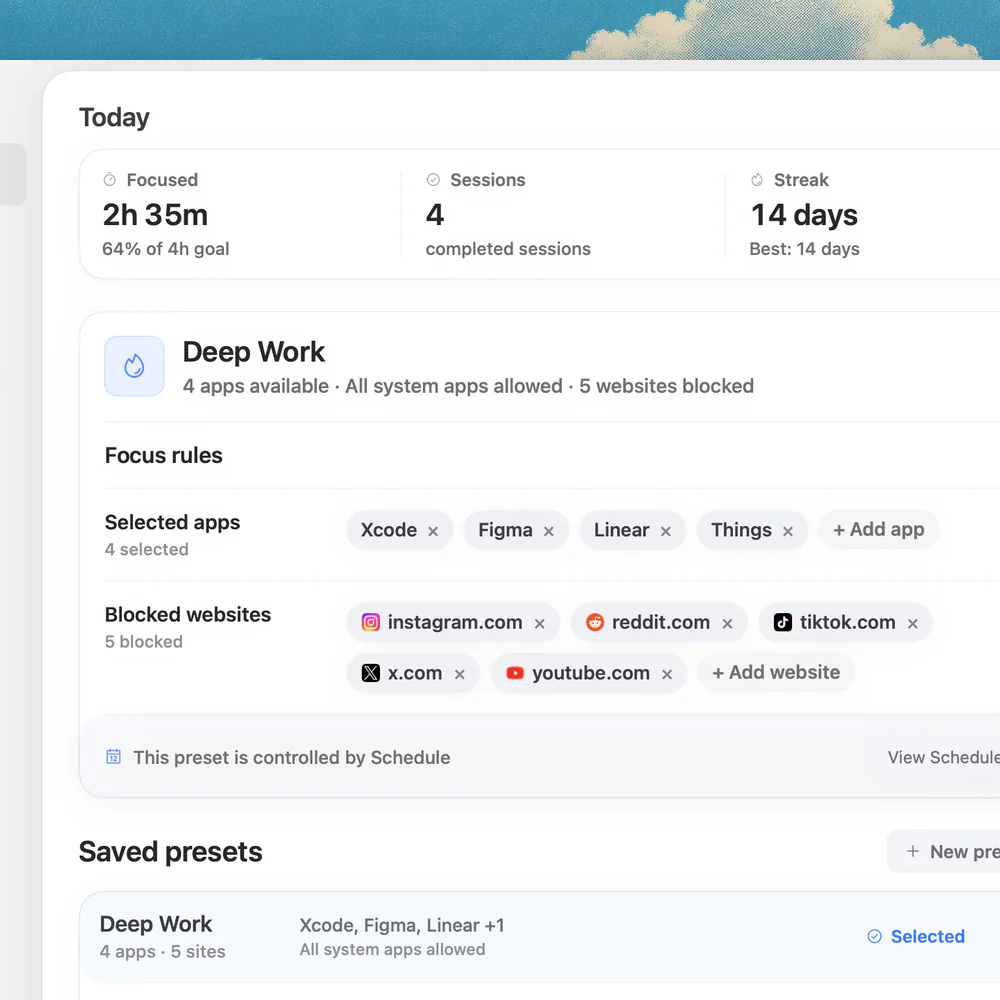
Sources
Keep reading
 How-toHow to block websites on a Mac (2026)
 How-toHow to block websites on a Mac in Chrome (2026)
 How-toHow to block websites in Safari on a Mac (2026)
 Website blockingBest website & app blockers for Mac in 2026
 Blocking strategyApp blocker vs website blocker for Mac: which do you need?
 Website blockingCold Turkey alternatives for Mac in 2026
 PomodoroPomodoro timer with website blocking: a Mac setup that actually helps